
Record with Apple Watch in GPS Only mode
Track speed, distance and time with just your Apple Watch. No WOO sensor needed.
Record with just your Apple Watch in GPS Only mode. No WOO sensor needed. The watch tracks your speed, distance and time, which suits freeriding and cruising.
Record your session
- Open WOO Sports on your watch and swipe to the Record screen.
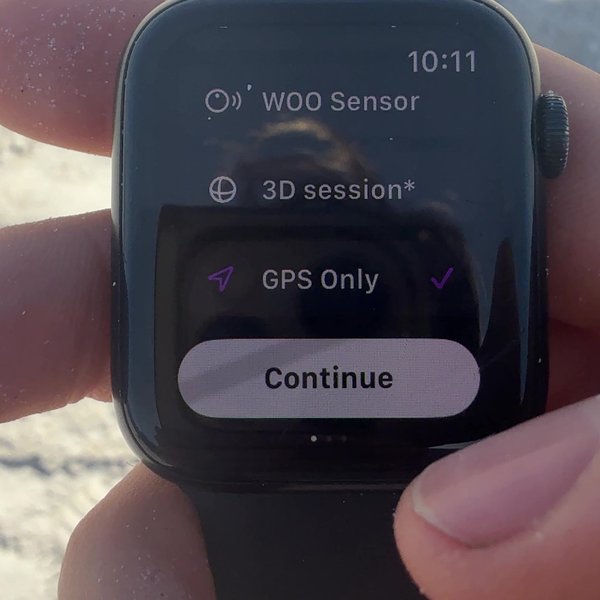
- Scroll down, tap GPS Only, then tap Continue.
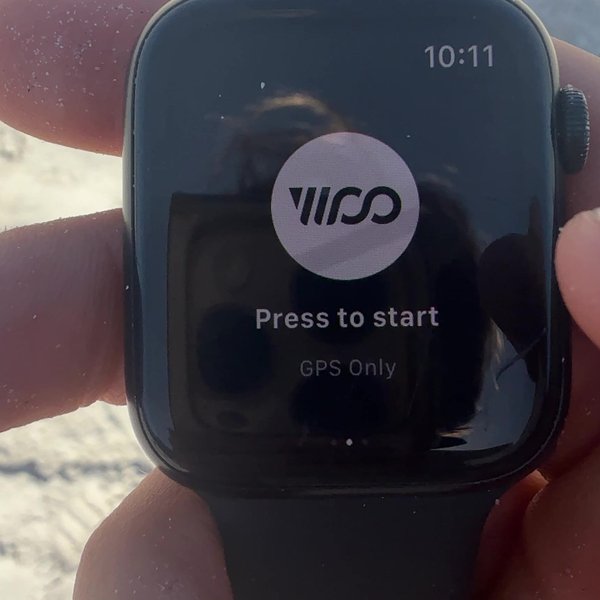
- Back on Press to start, you'll see GPS Only under the button. Tap Press to start.
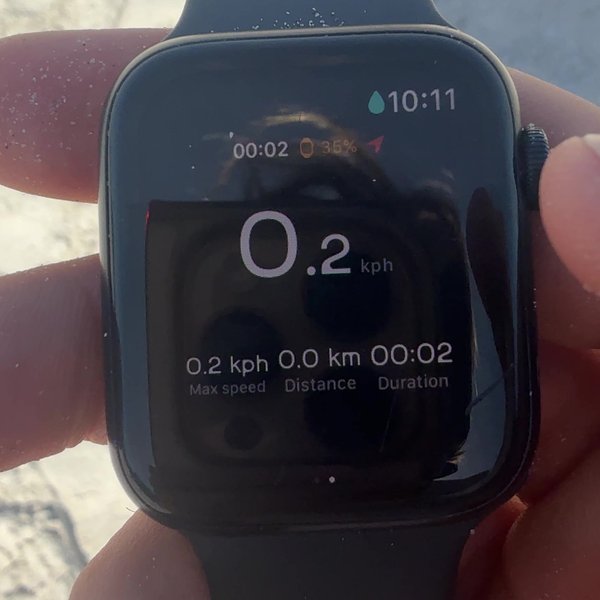
- You're recording. The watch shows your current speed, plus max speed, distance and duration.
Stop and save your session
While you ride, Water Lock keeps the screen locked so water can't tap it.
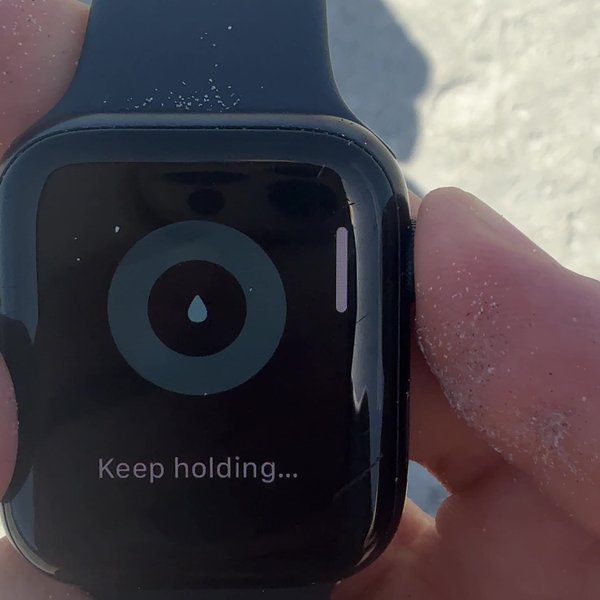
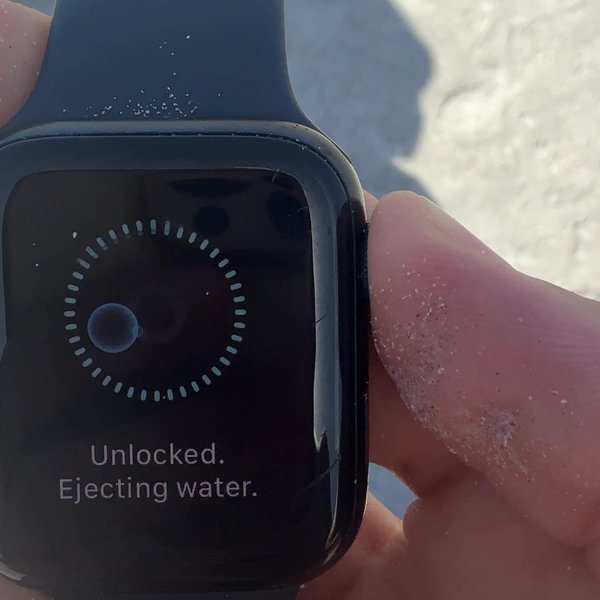
- When you're back on the beach, press and hold the Digital Crown. The watch shows Keep holding…
- Let go when you see Unlocked. Ejecting water.
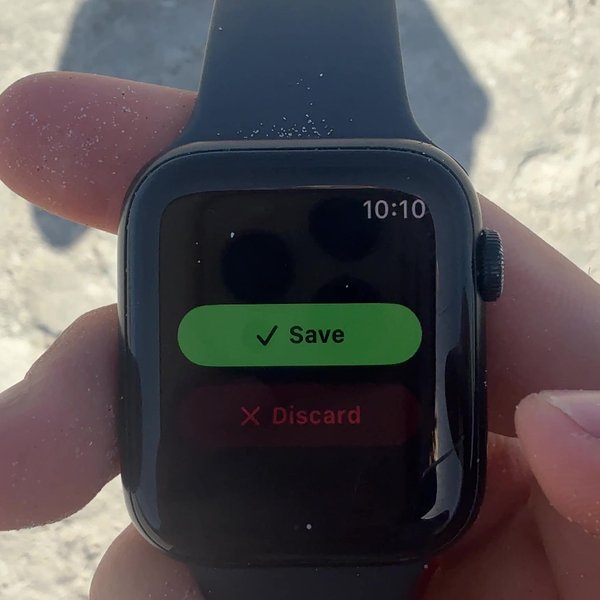
- Swipe right on the recording screen, then tap Save. Tap Discard only if you don't want to keep the session.
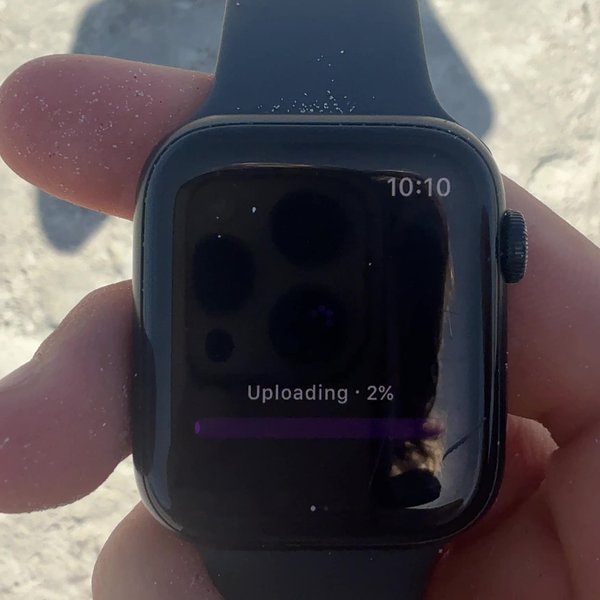
- The watch uploads your session.
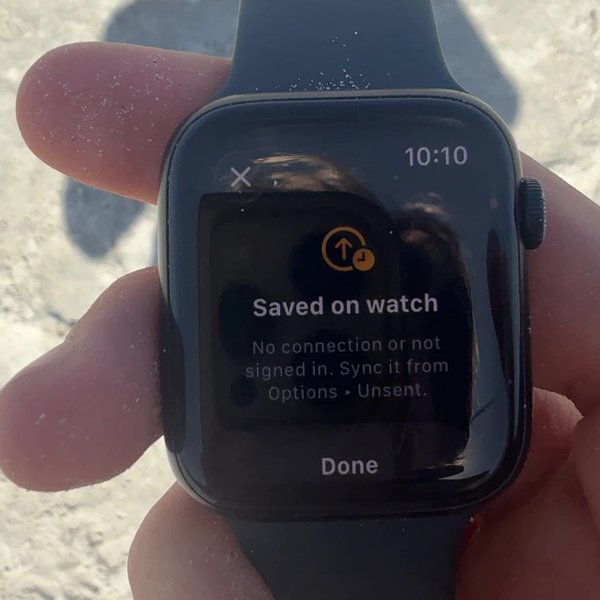
If you see Saved on watch, your watch has no connection or you're not signed in. Your session is safe on the watch. Tap Done, then sync it from your watch.
Once it's uploaded, post it from Ready to post in the phone app. See Post your session.
Sync sessions saved on your watch
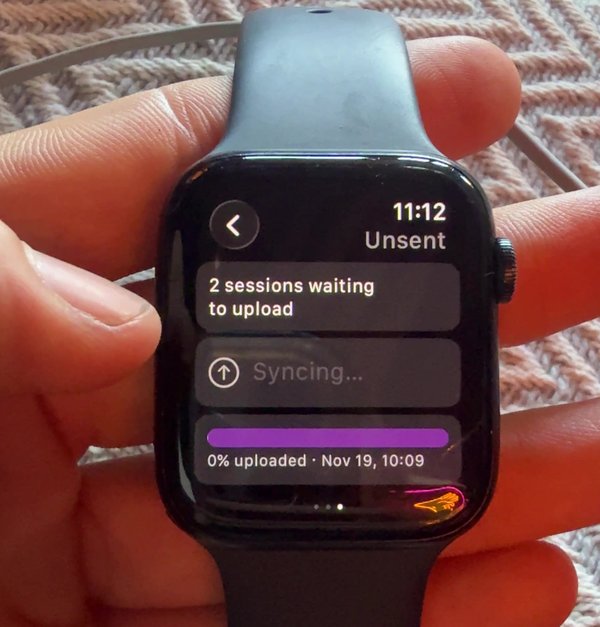
Sessions that couldn't upload wait on your watch until you sync them. Keep your watch near your phone.
- Swipe to Options. Unsent sessions shows how many are waiting. Tap it.
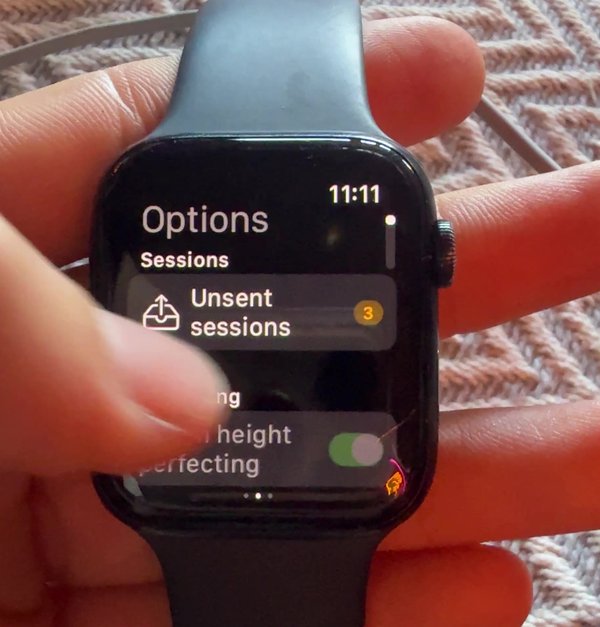
- If you're not signed in, tap Sign in with phone. The watch signs in through your phone.
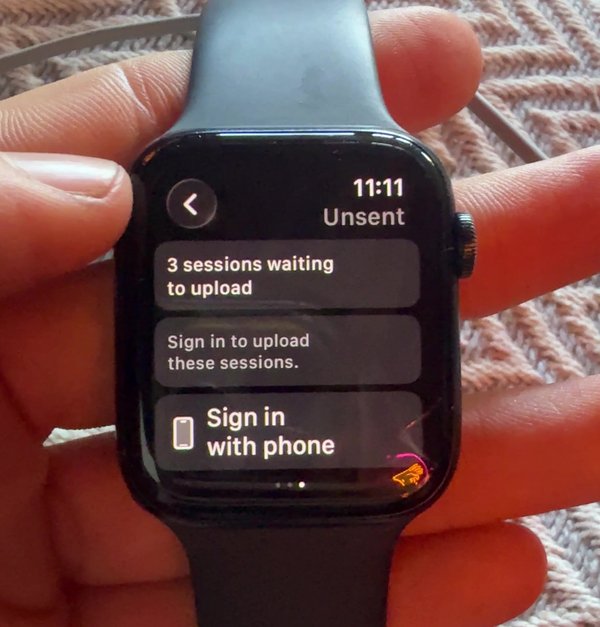
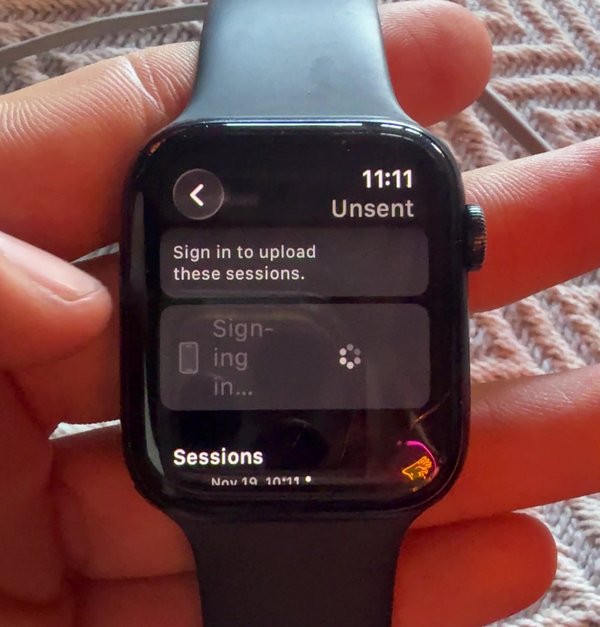
- Tap Sync now. Your waiting sessions are listed underneath, and the upload finishes automatically.
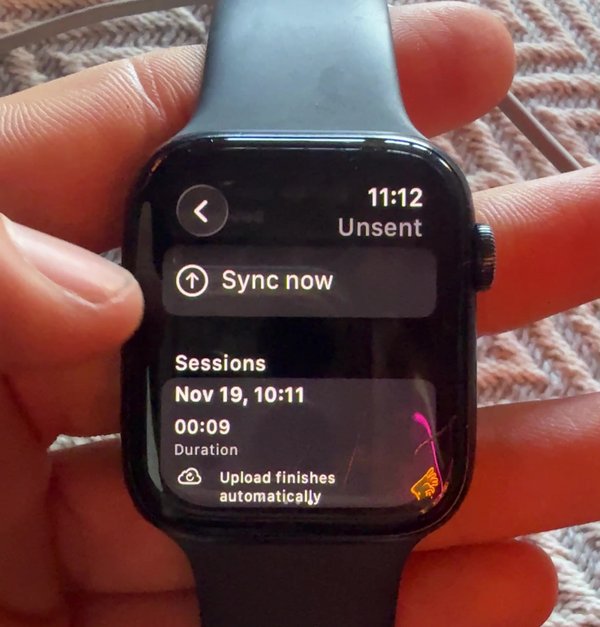
- Keep your watch near your phone while it syncs. The number of sessions waiting goes down as each one uploads.
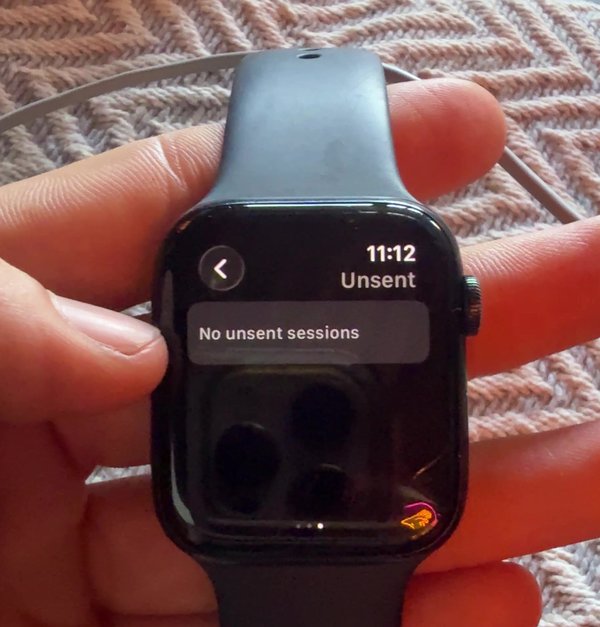
- When every session has uploaded, you'll see No unsent sessions. Your sessions are now in the phone app, ready to post. See Post your session.
Post your session
Once your session has uploaded from your watch, it appears in the phone app.
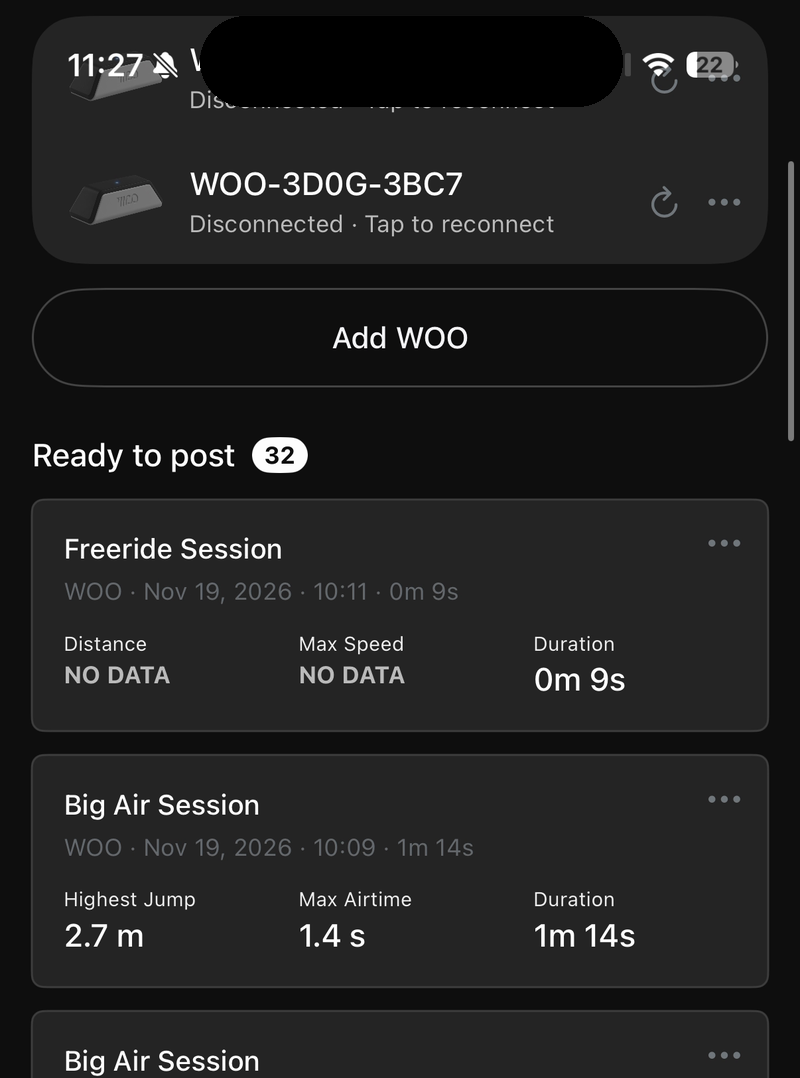
- Open the app and tap My WOO. Your watch session is under Ready to post. Tap it.
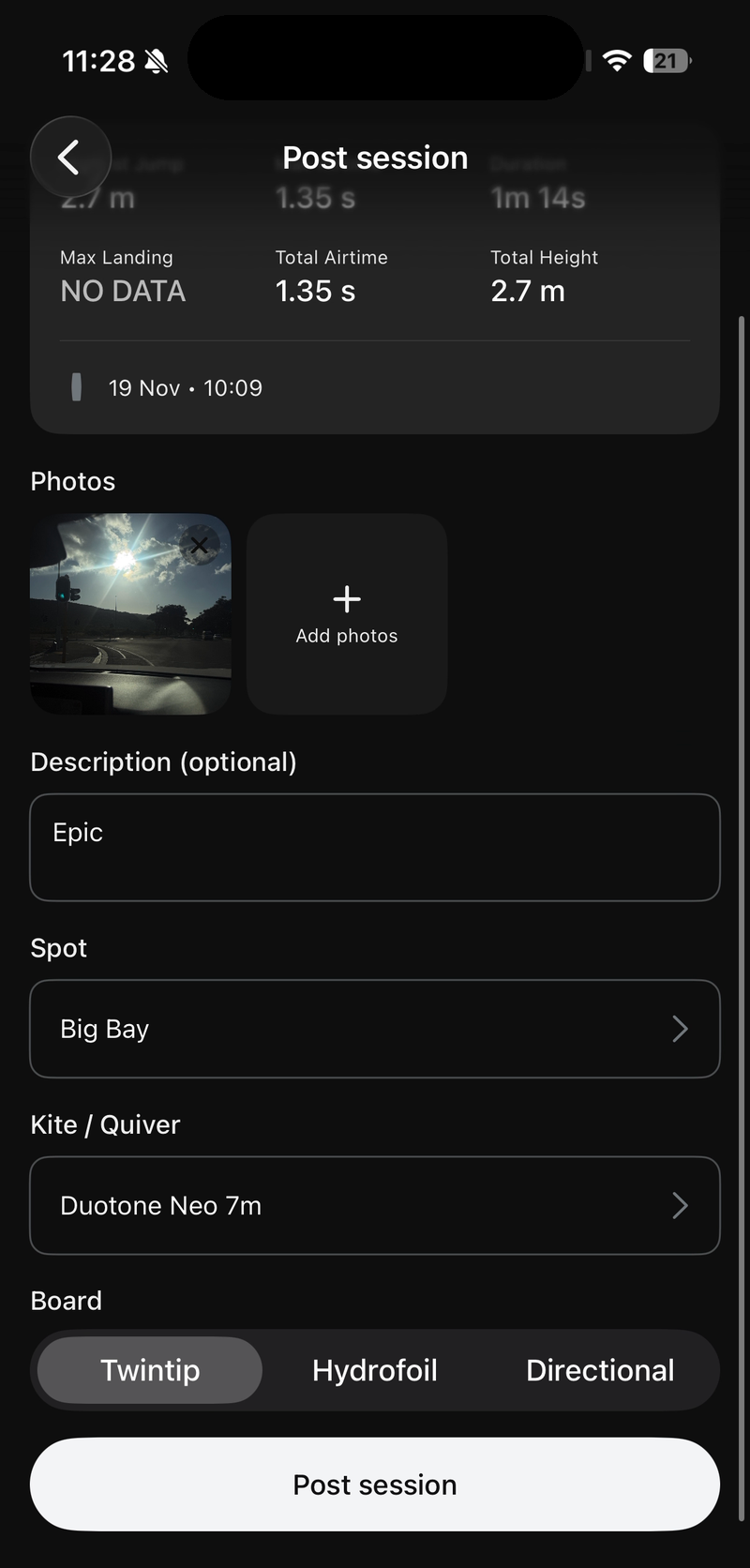
- The Post session screen shows your session's stats.
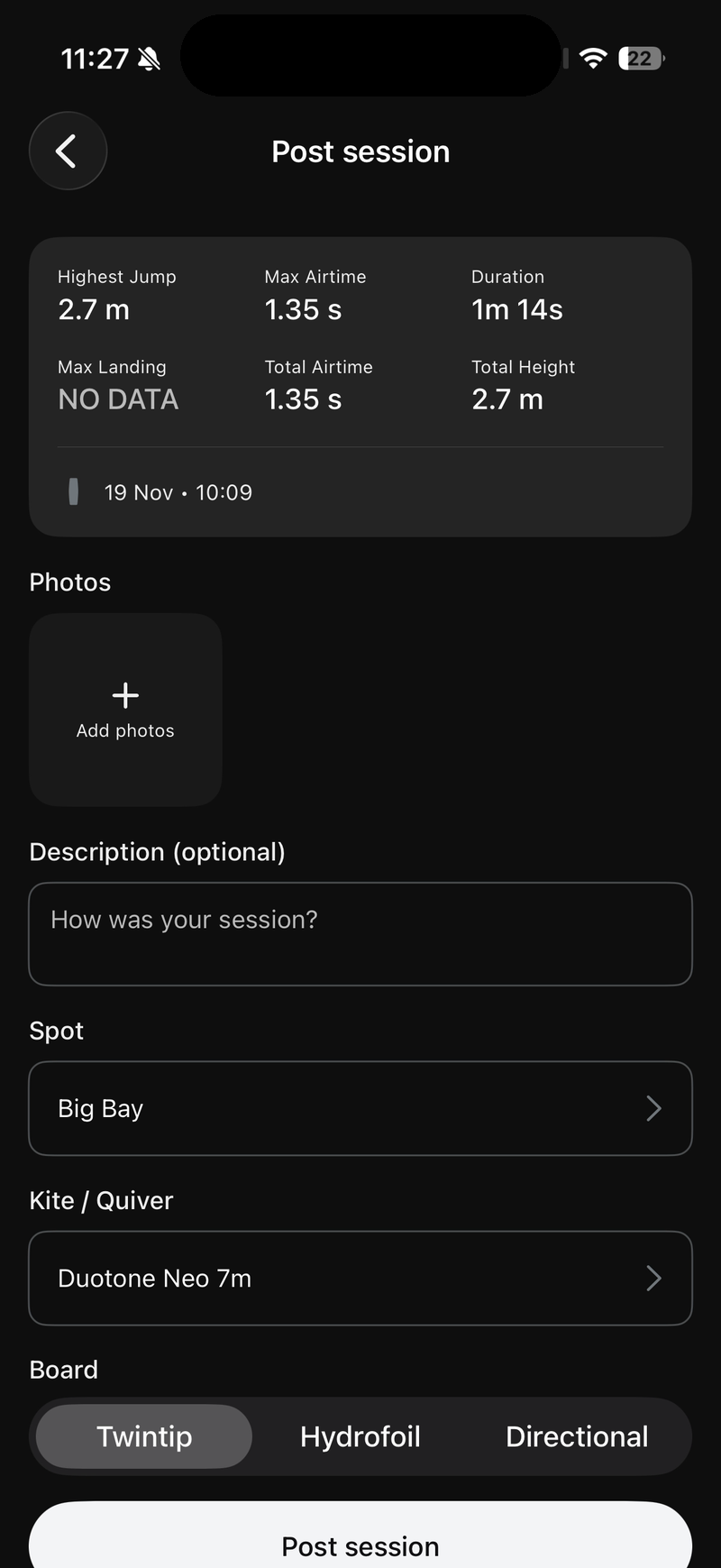
- Add a photo, a description, your spot, your kite or quiver and your board, then tap Post session. For details on each field, see Post your session.
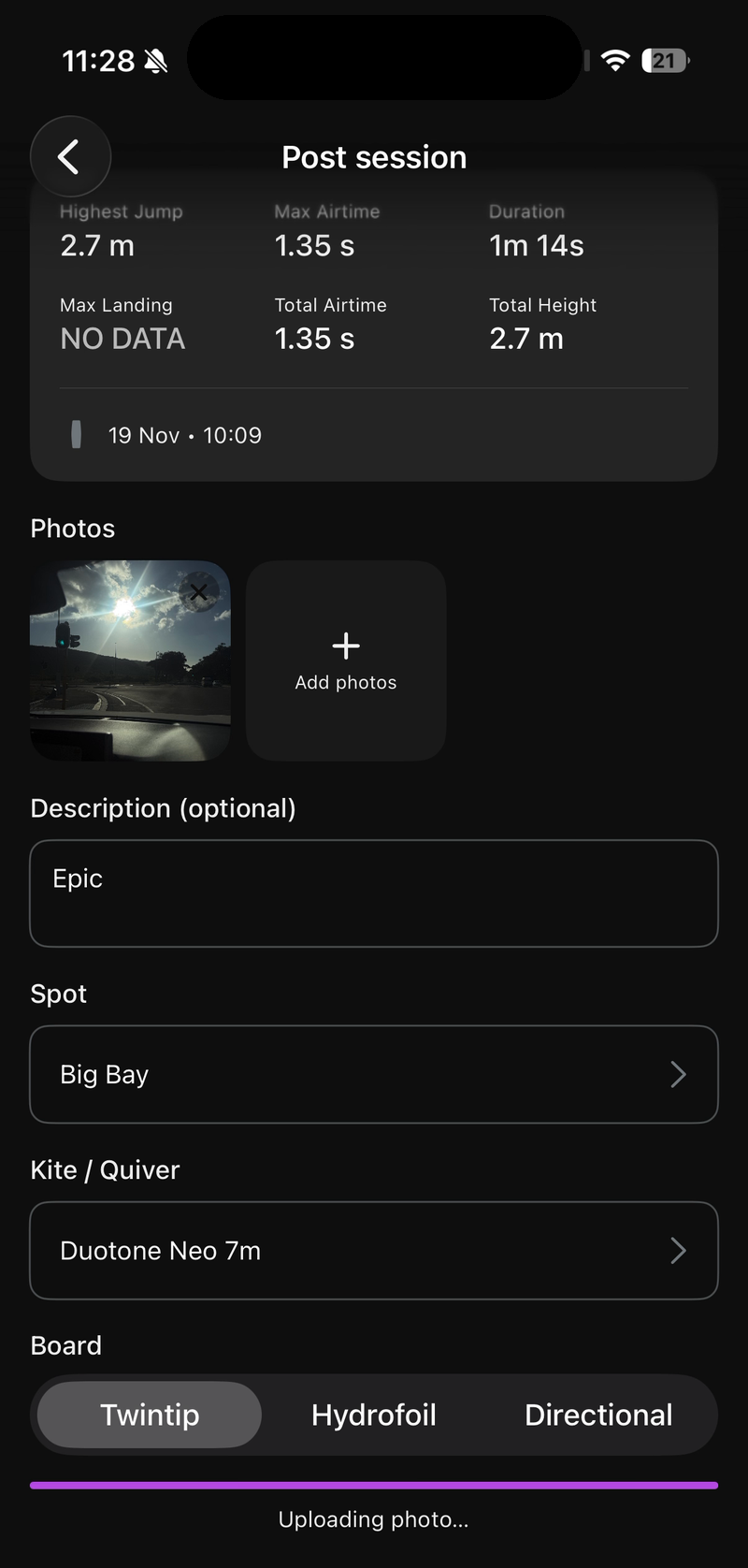
- Wait while the session and photo upload.
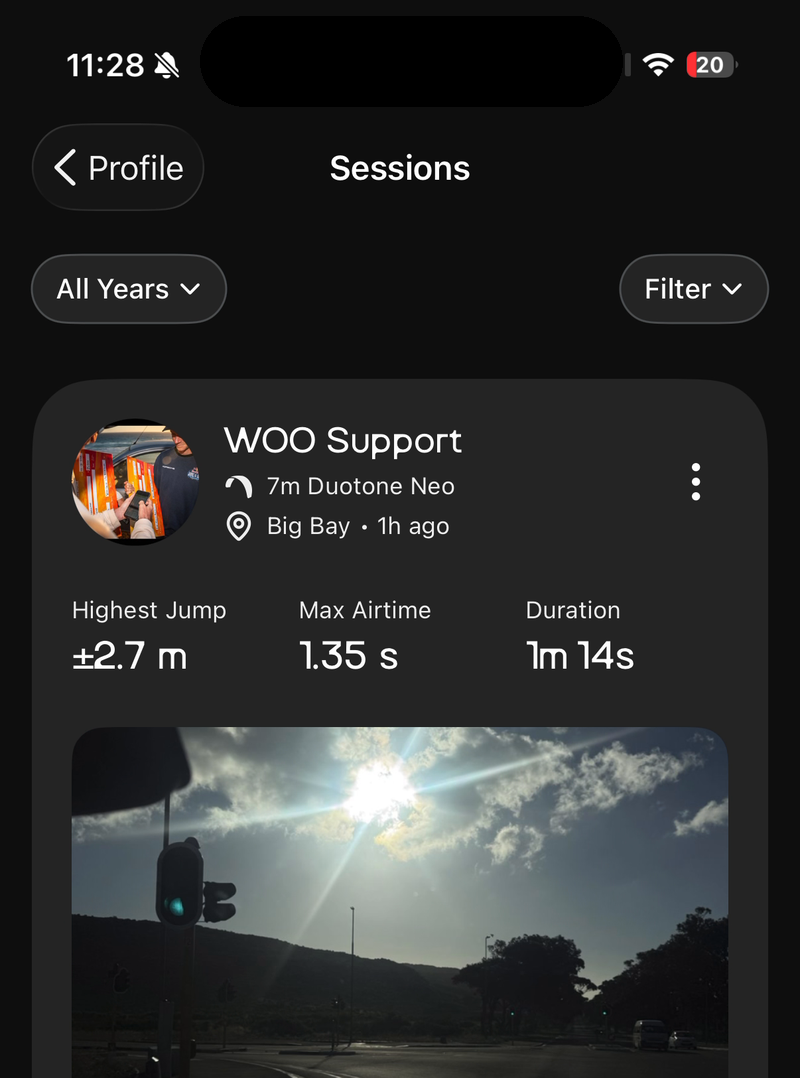
- Your session now appears in Profile under Sessions.
Set up the watch app
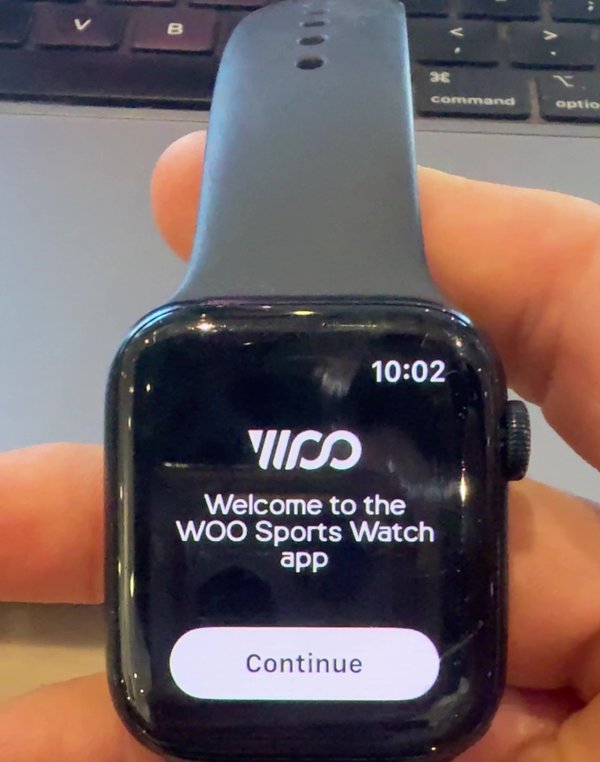
The first time you open WOO Sports on your watch, it asks for a few permissions. You only do this once.
- Tap Continue.
- When the watch asks for Health Access, tap Review.
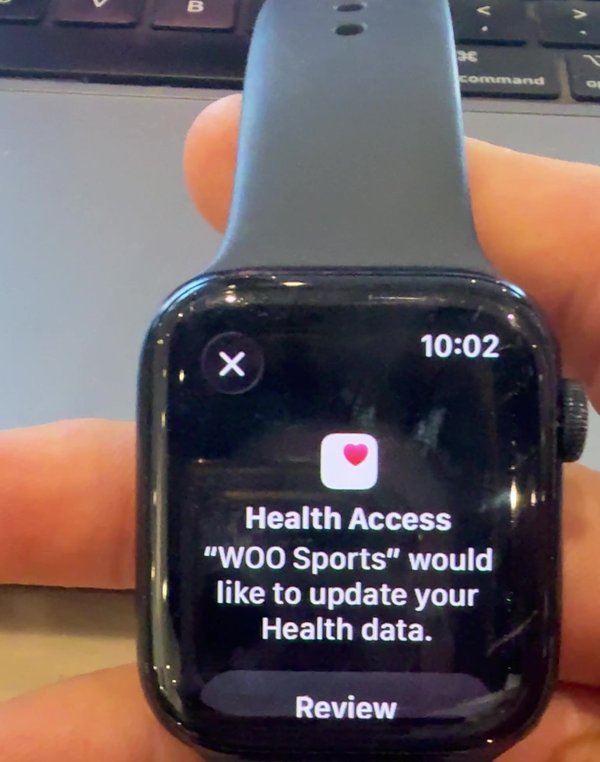
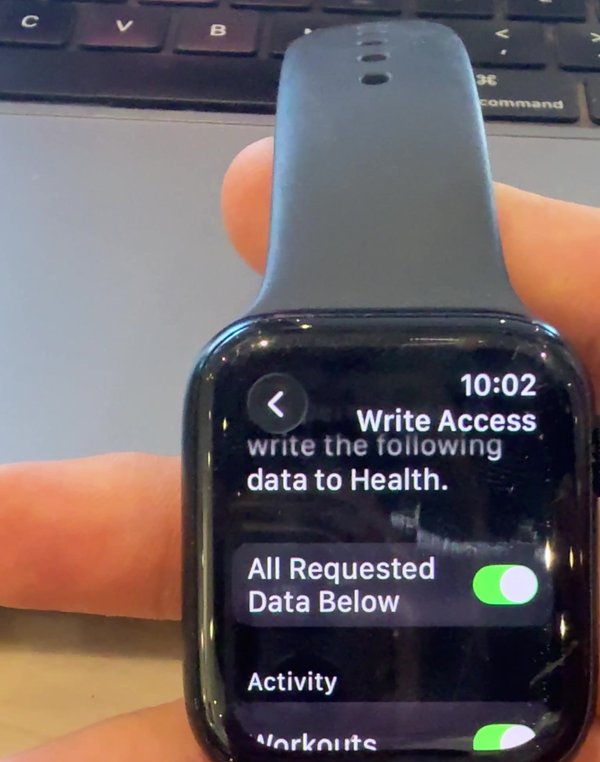
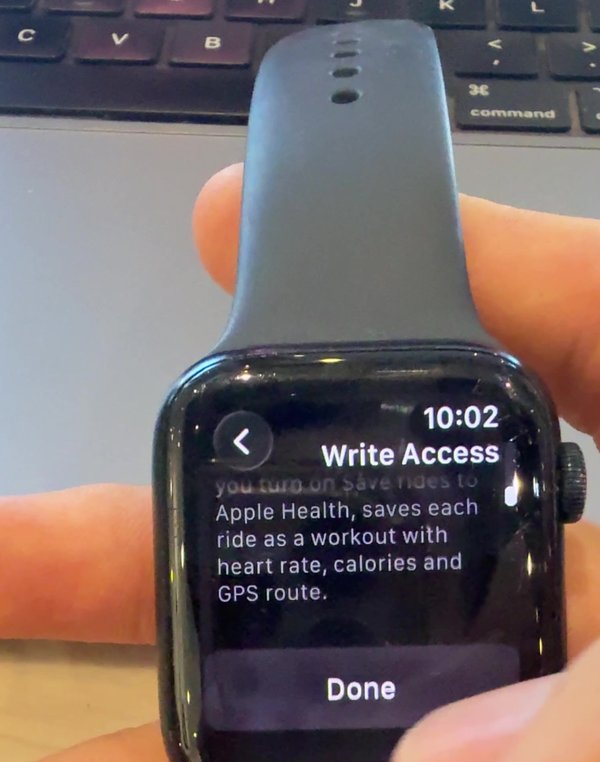
- Turn on All Requested Data Below. This lets WOO keep recording your ride with the screen off and, if you turn on Save rides to Apple Health, save each ride as a workout with heart rate, calories and GPS route.
- Tap Done.
For what each setting in Options does, see Watch options.
Updated about 11 hours ago