
Add your quiver
Add your kites, wings and windsurf sails so every session is linked to the gear you rode.
Your quiver is every kite, wing and windsurf sail you ride. Add your gear so each session is linked to what you rode, and so WOO can show you how each item performs.
Open My Quiver
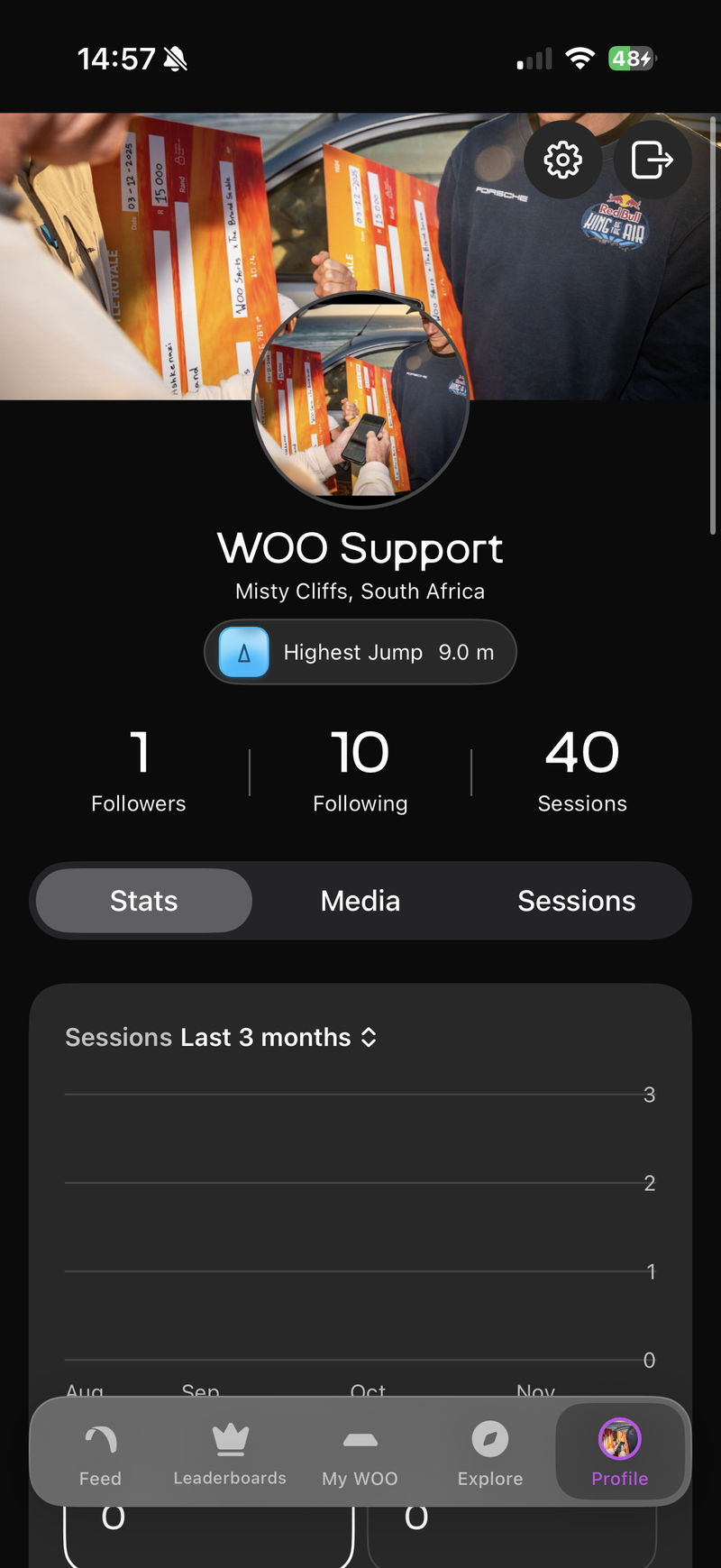
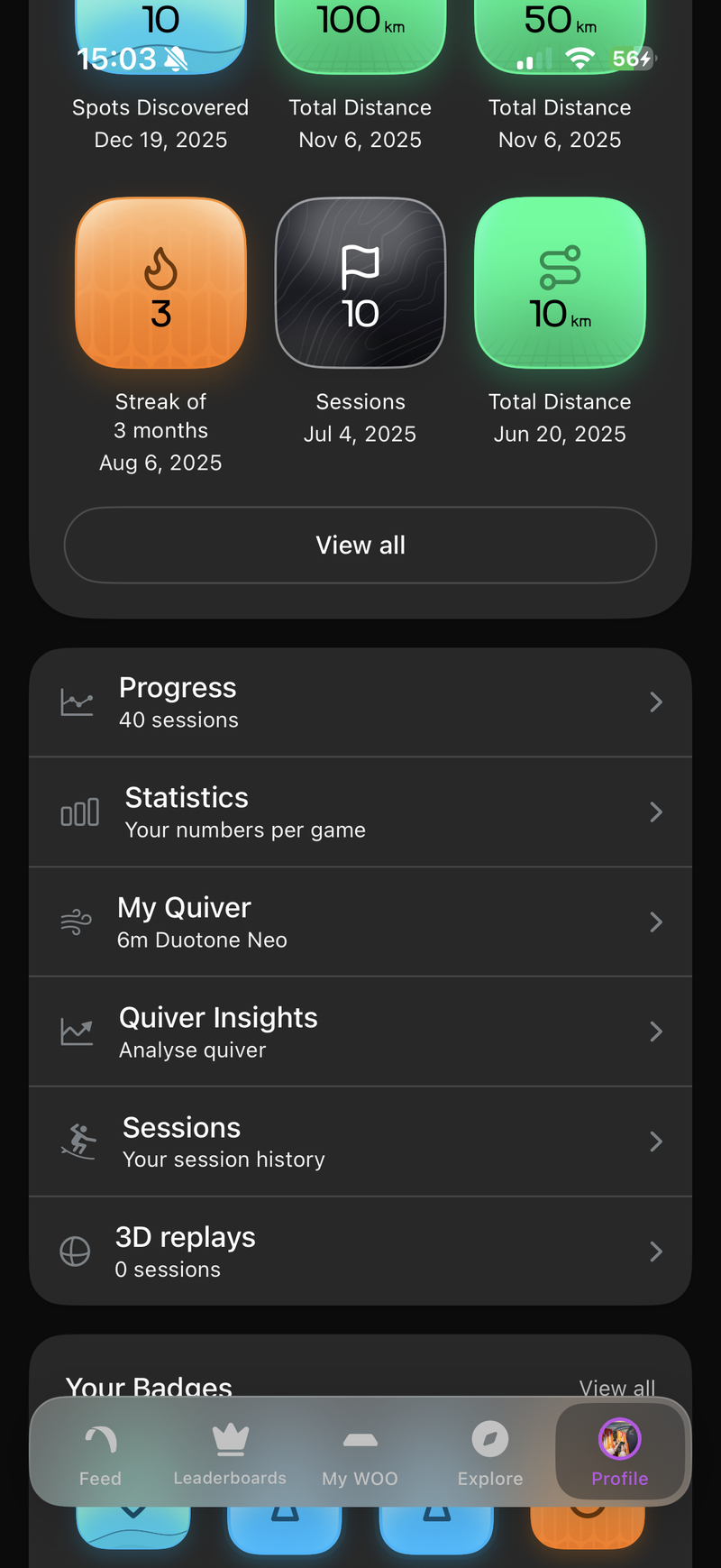
Tap Profile. On the Stats tab, scroll down and tap My Quiver.
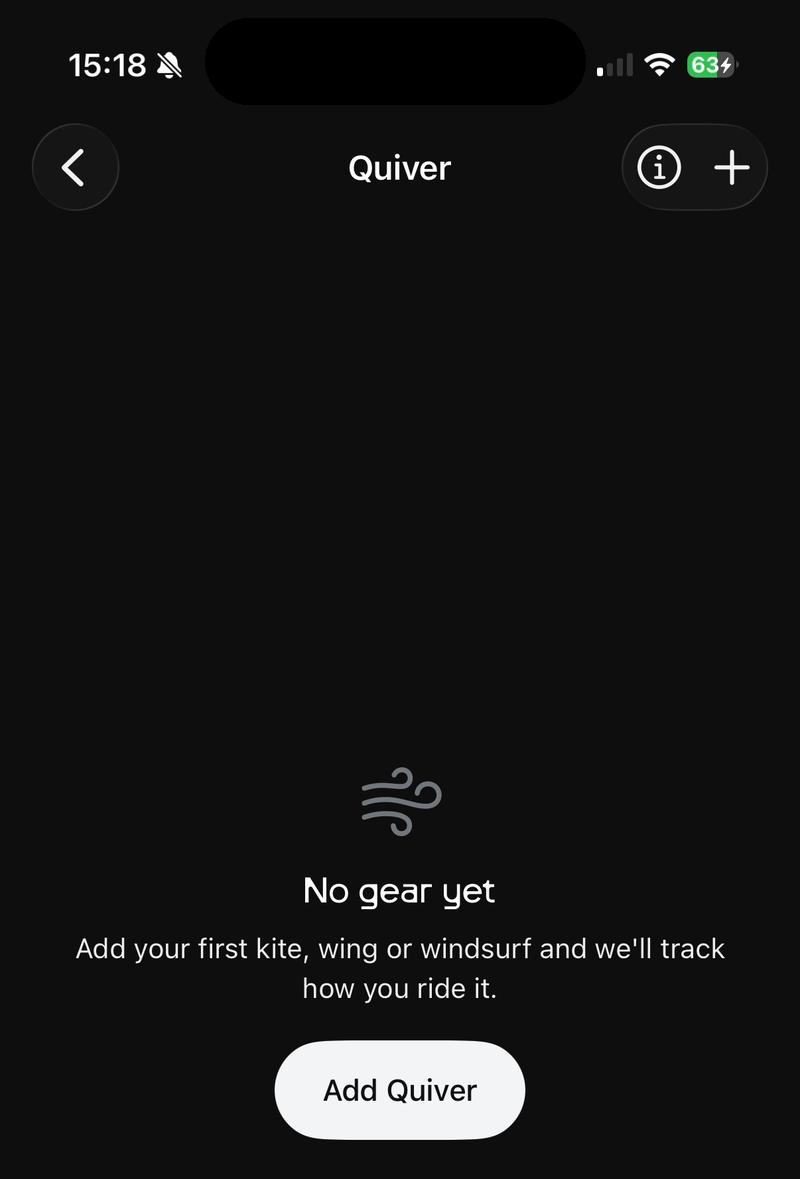
If you haven't added any gear yet, tap Add Quiver. You can also tap + at the top right at any time.
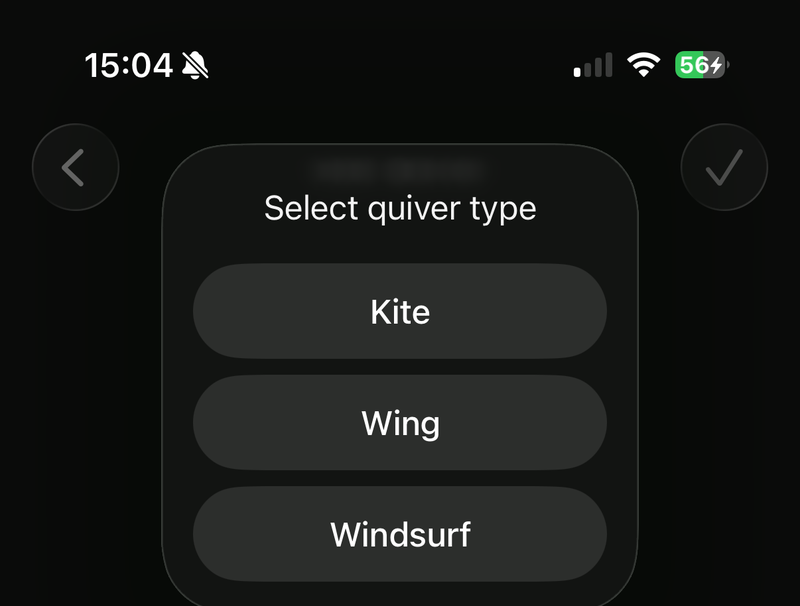
Choose the type of gear
Choose Kite, Wing or Windsurf.
Choose the brand, then add the model
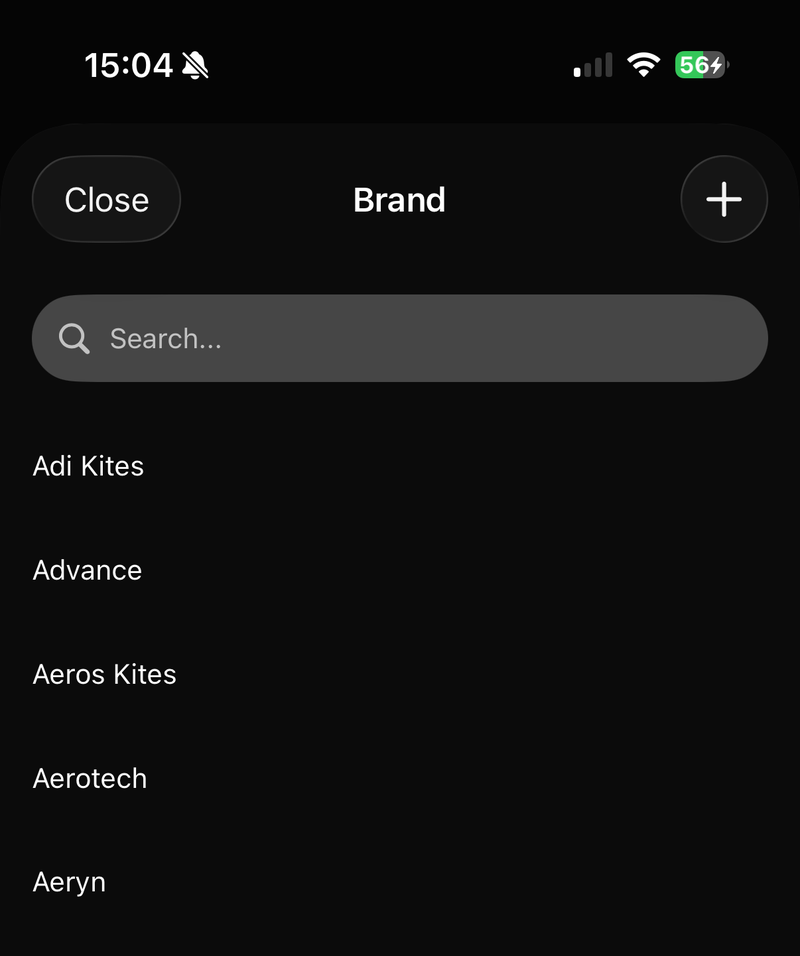
Tap Brand, then search for or tap on your brand. If your brand isn't listed, tap + to add it.
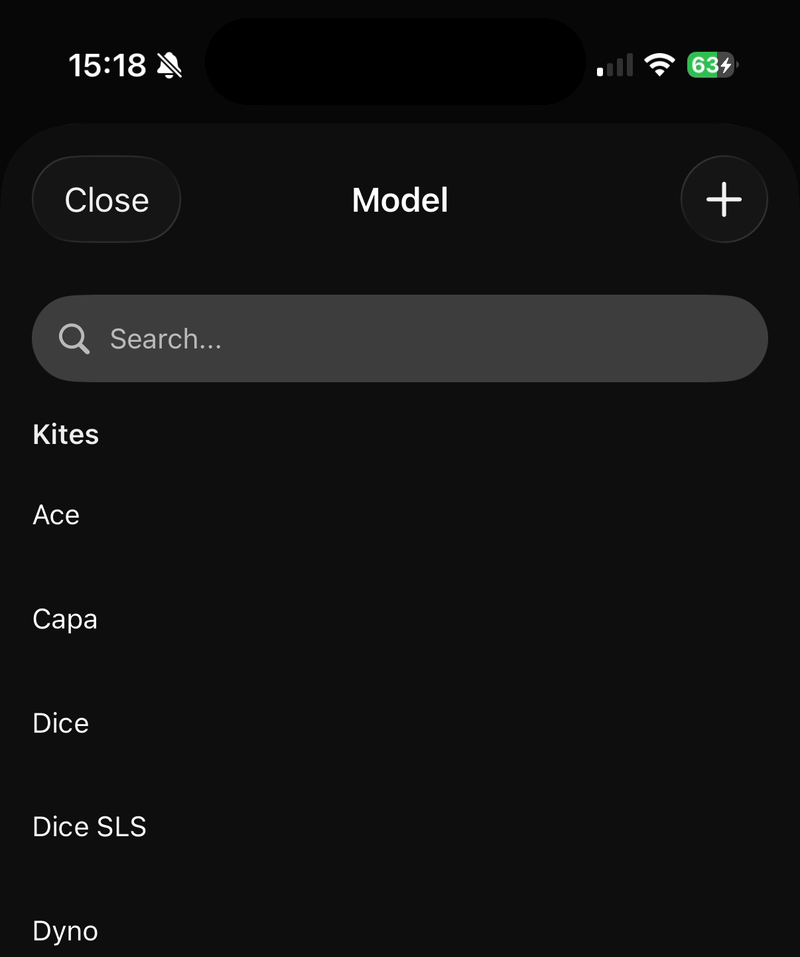
Then tap Model, and search for or tap on your model. If your model isn't listed, tap + to add it.
Add the size and year
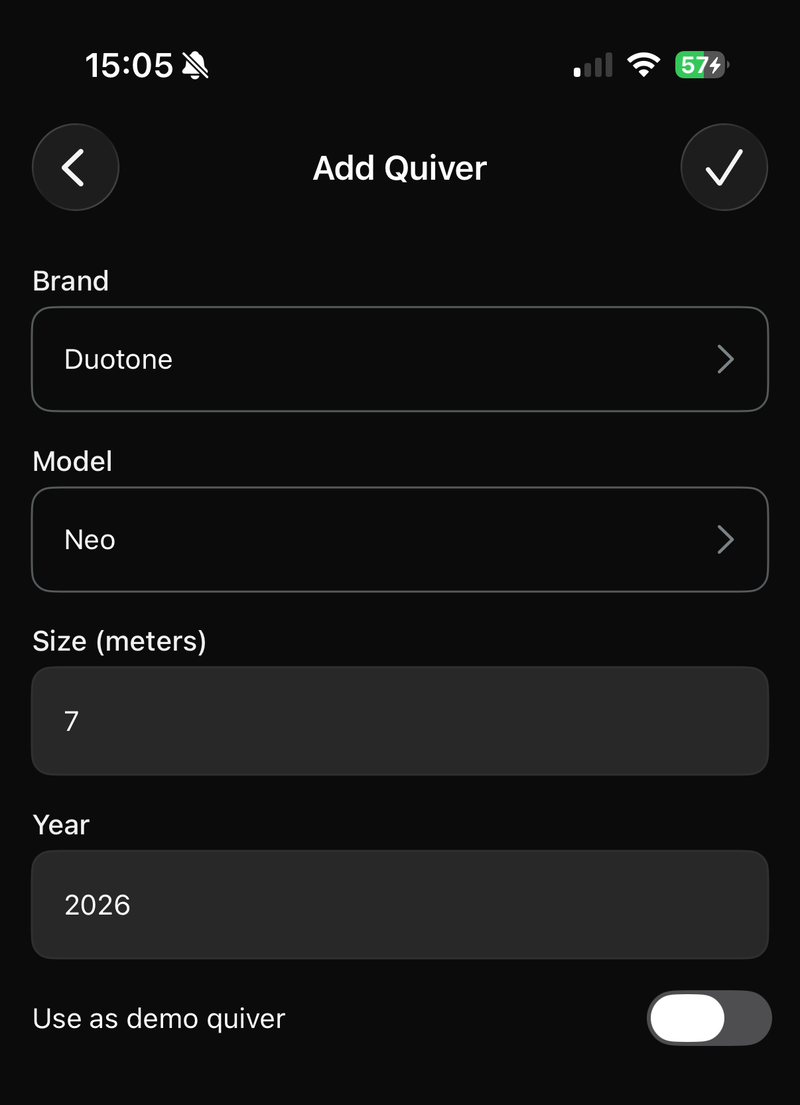
Enter the Size (meters) and the Year. If you're trying the gear out rather than owning it, turn on Use as demo quiver. Tap ✓ to save.
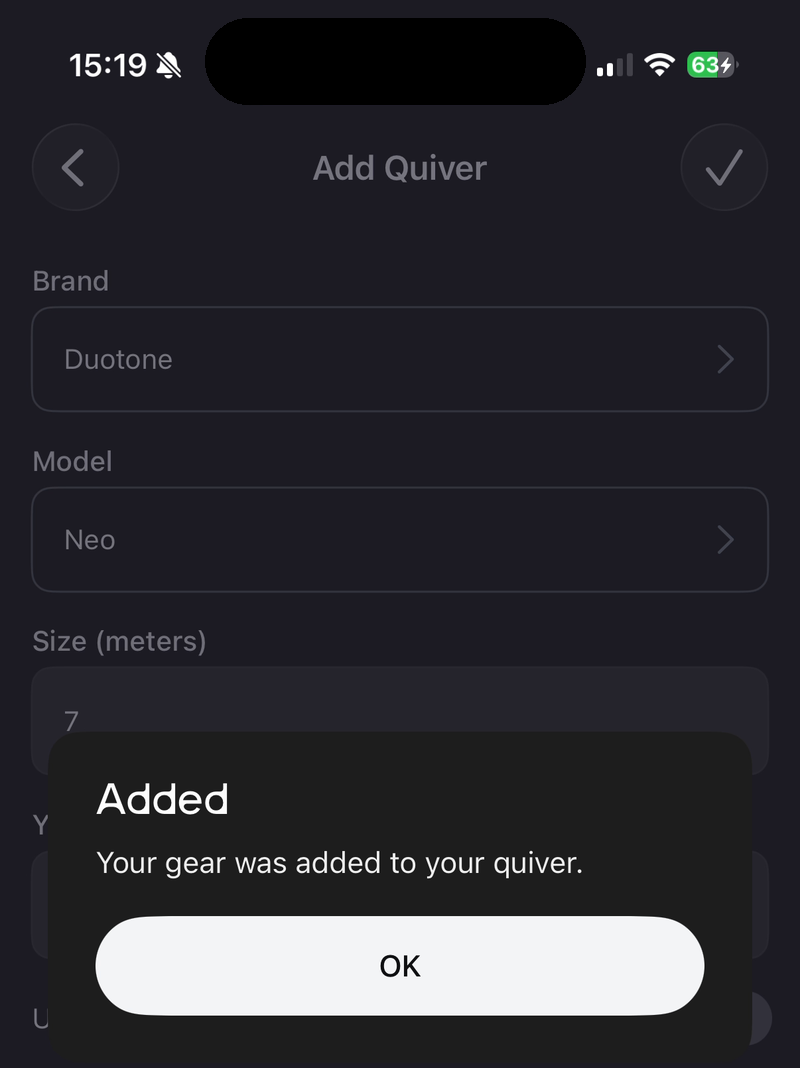
When you see Added, tap OK.
Your gear now appears in My Quiver.
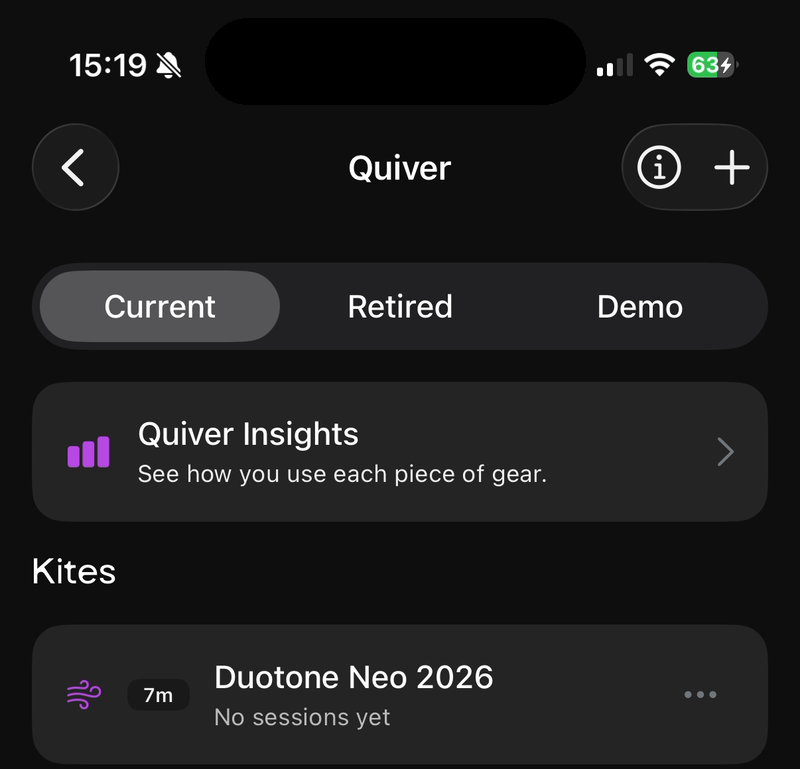
Current, Retired and Demo gear
My Quiver has three tabs:
- Current: gear you ride now.
- Retired: gear you've stopped using. It stays linked to the sessions you already rode it on.
- Demo: gear you're trying out.
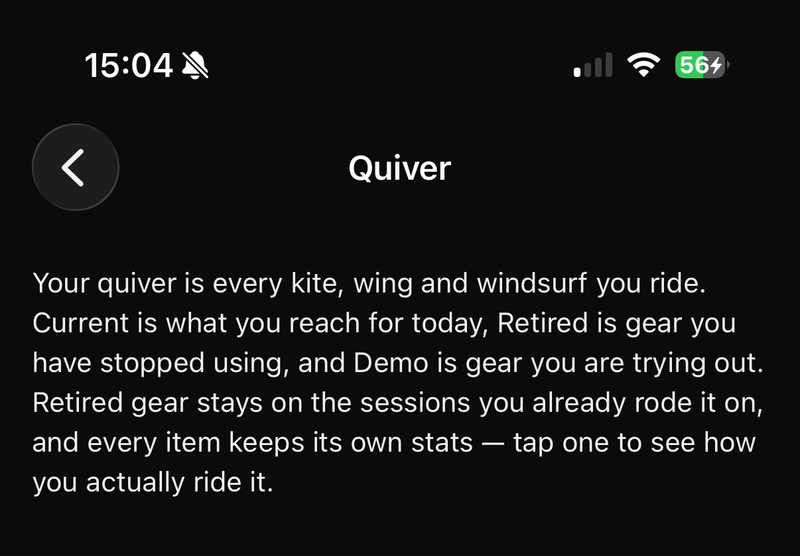
Every item keeps its own stats. Tap an item to see how you ride it. Tap ⓘ at the top of My Quiver for a quick reminder of what each tab means.
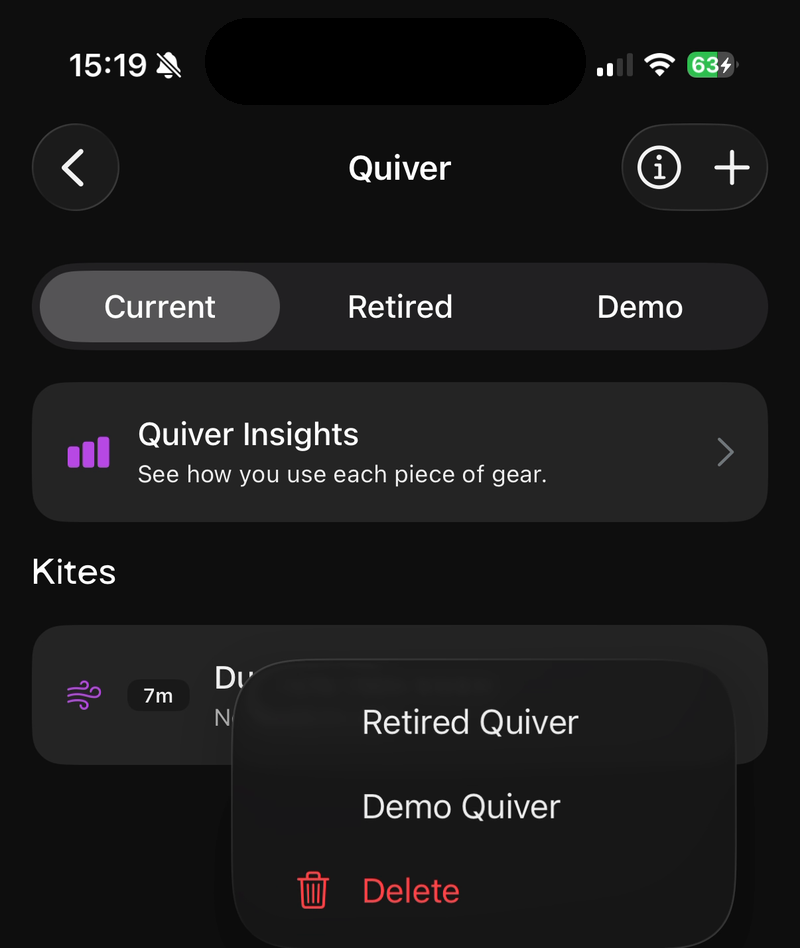
Move or delete gear
Tap ••• next to an item, then:
- choose Current Quiver, Retired Quiver or Demo Quiver to move it to that tab, or
- tap Delete to remove it.
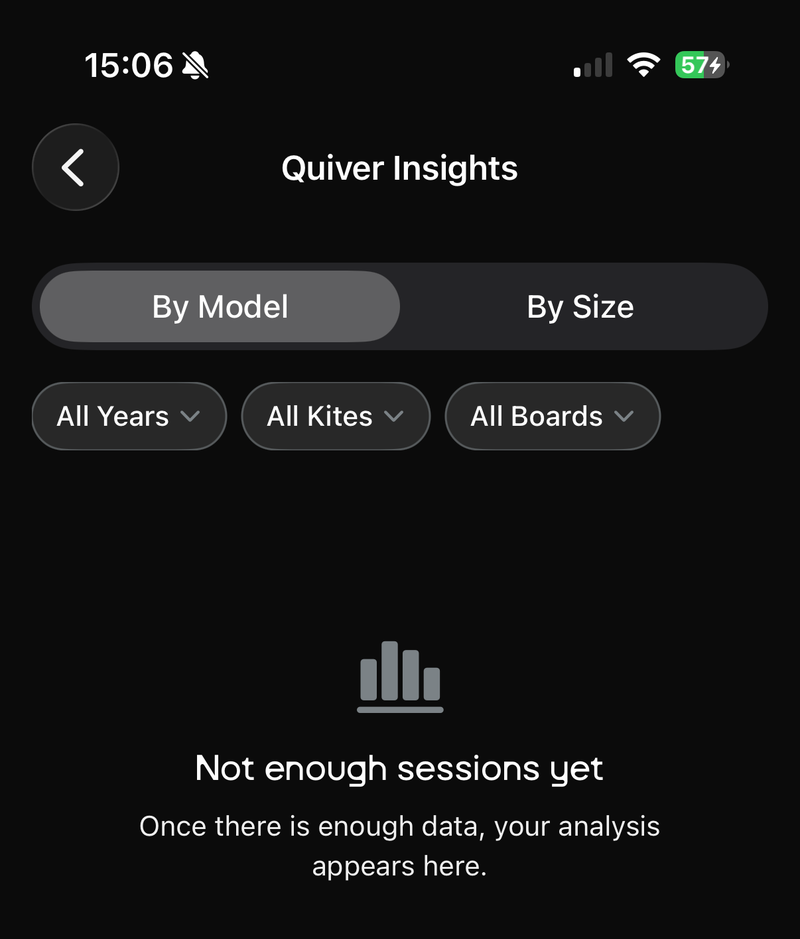
Quiver Insights
Quiver Insights compares how you ride each item. Tap it at the top of My Quiver, or on the Stats tab of your profile. Switch between By Model and By Size, and filter by year, kite and board.
Your insights appear once you've recorded enough sessions with your gear.
Updated about 2 hours ago