
Creating an Event
Step by step guide to creating your first Event. Zero to community Hero.
There are 3 steps to creating an event:
- Set up
- Disciplines
- Review and Publish
Set up:
- From your dashboard, choose any one of your "+ Create Event" buttons.
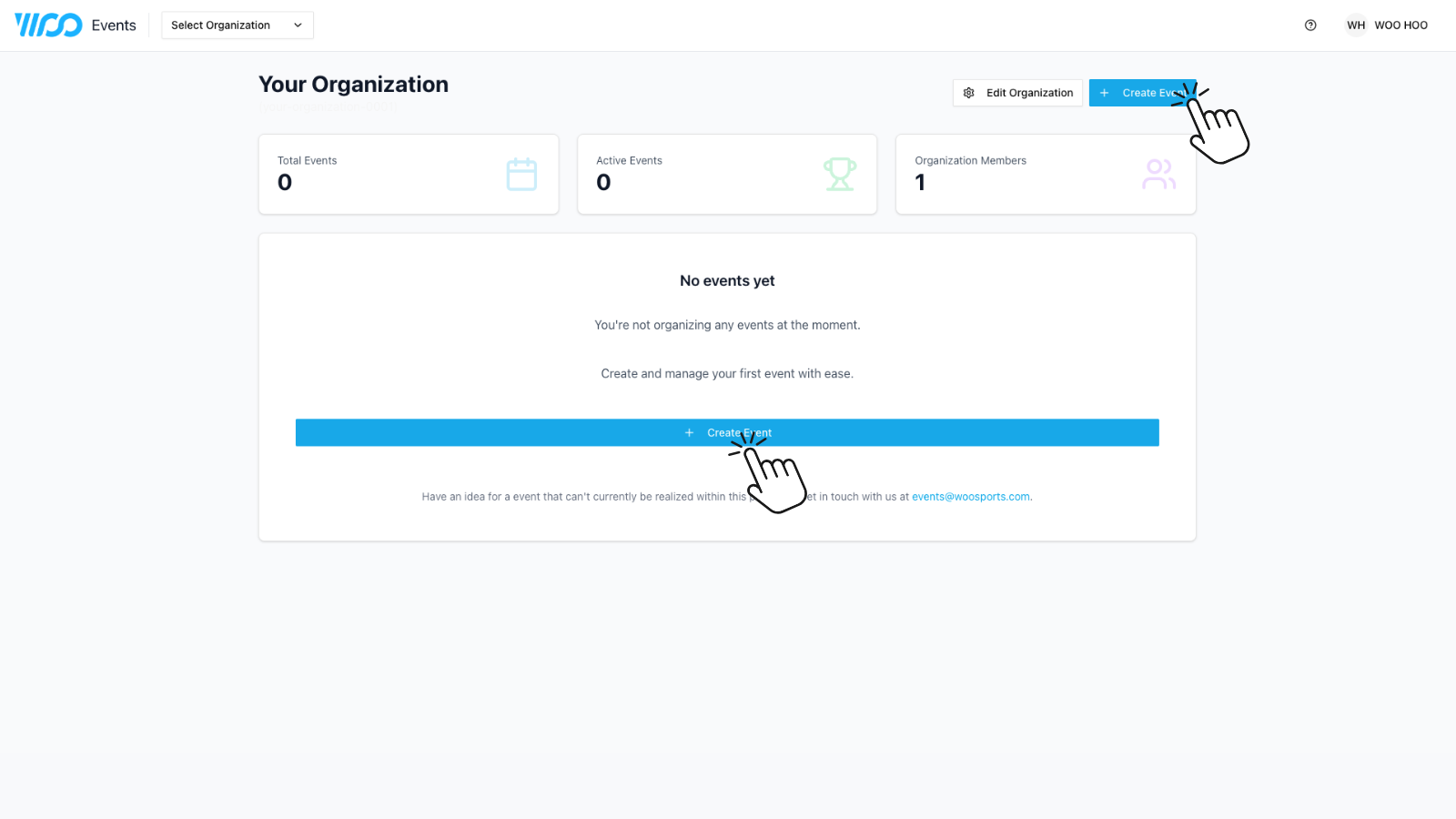
This brings you to the first of 3 sections "Create Event" where you set up the name, number of stops and over all dates for all the disciplines to run.
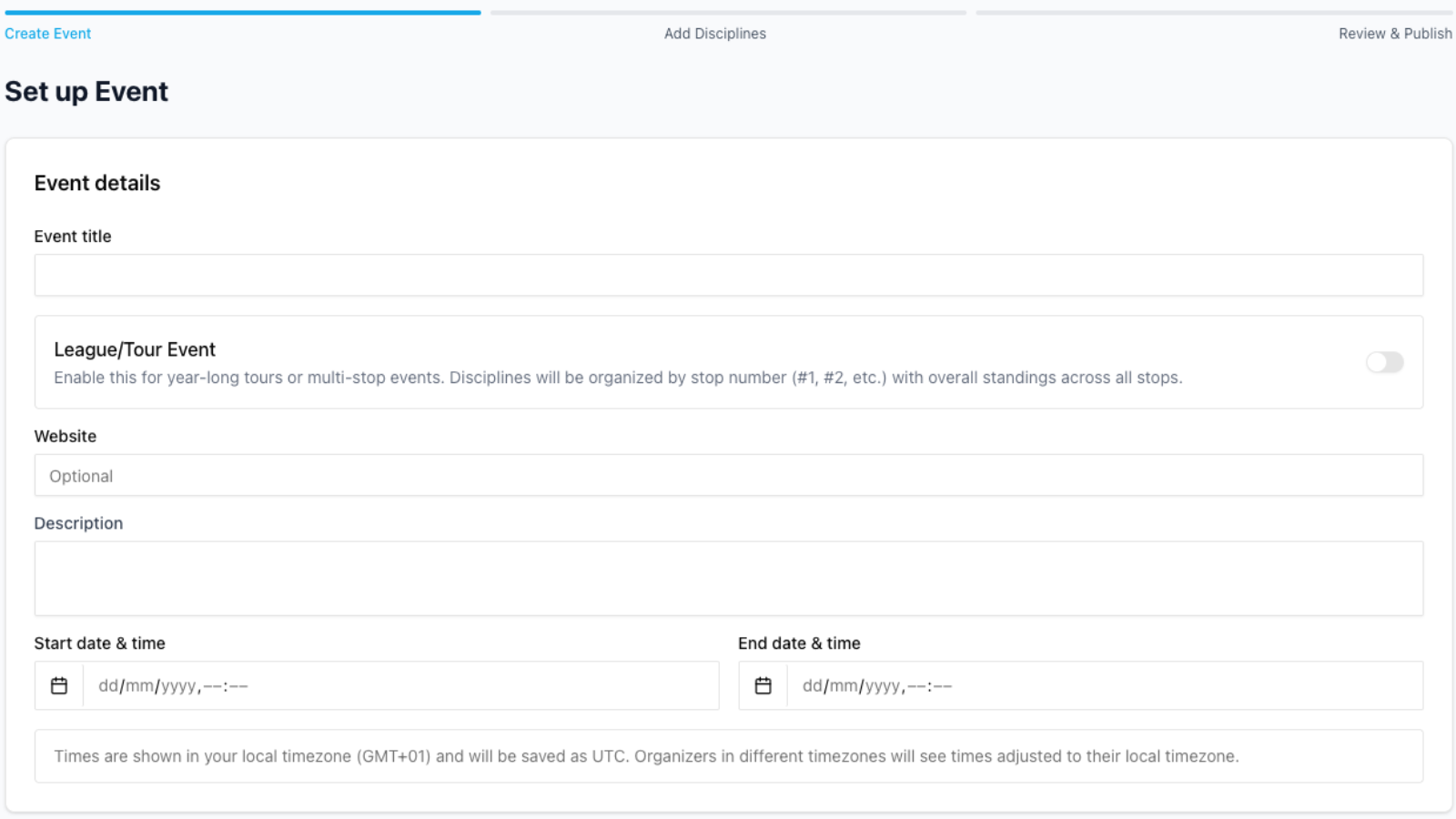
- Enter your event title
- Toggle League/Tour event (off for single event, on for multi-stop)
- Add your Website (optional)
- Write a short description of the event
- Choose your start date/time and end date/time (Keep in mind you can have multiple disciplines each with their own dates and start/end times with in the event's overall timeframe)
- Customise the theme according to your event colors - this will change the live leaderboards associated with the event
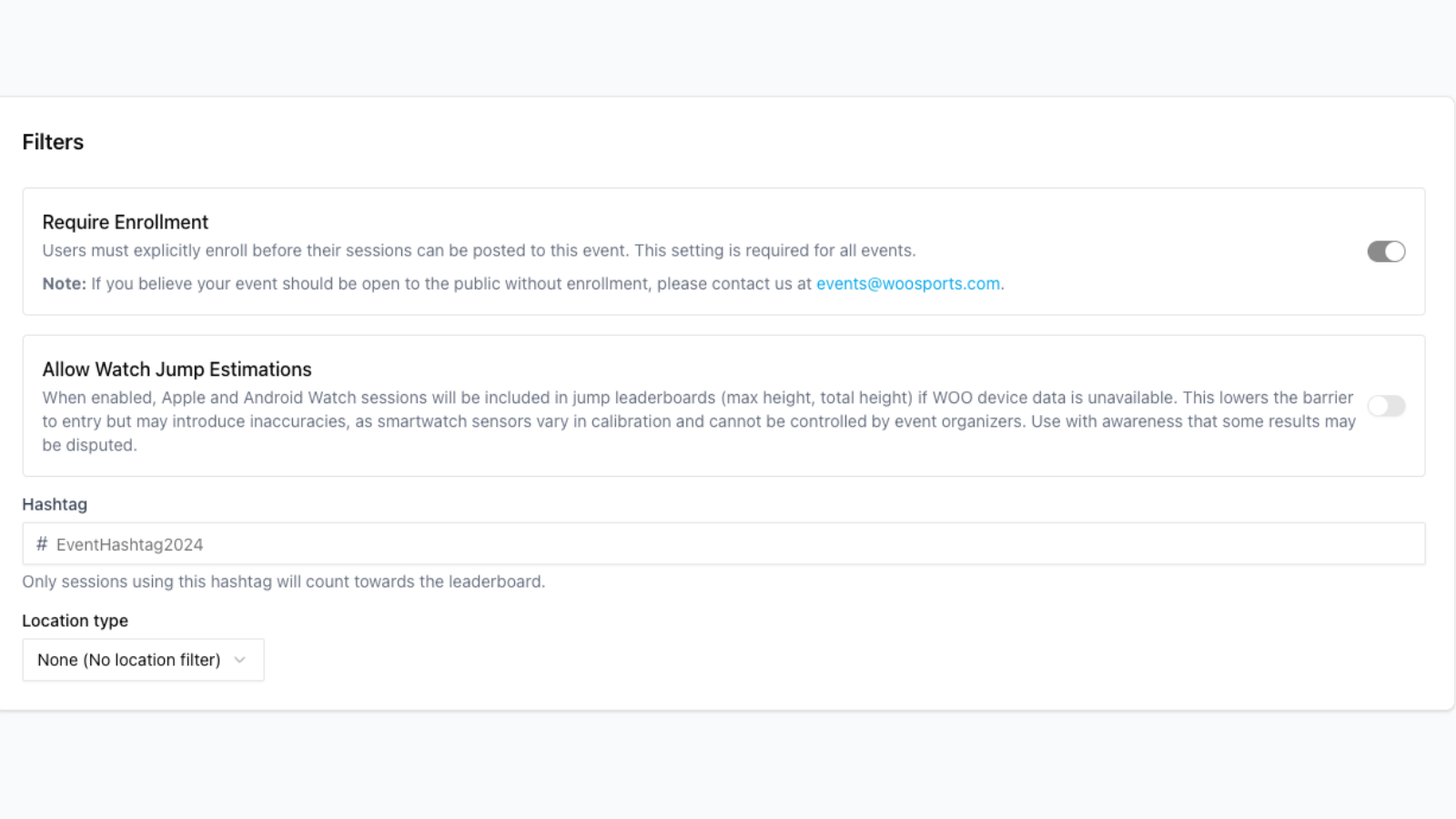
- Add filters: Require enrolment; Allow watch estimations;Hashtags; Location type
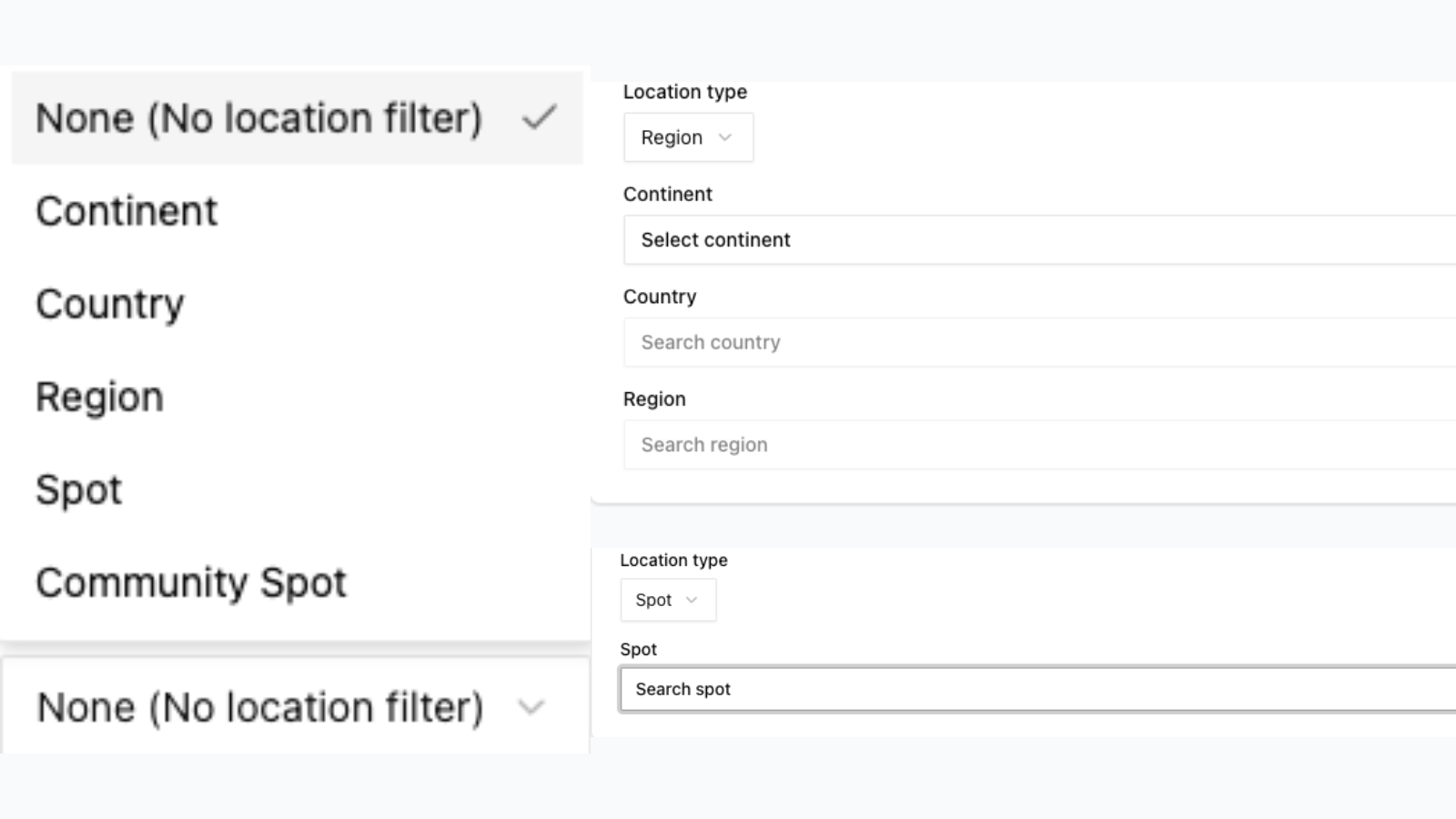
Location filters available:
- Global (no filter)
- Continent
- Country
- Region (state/province)
- Spot (From WOO app kite spots list)
2. Disciplines
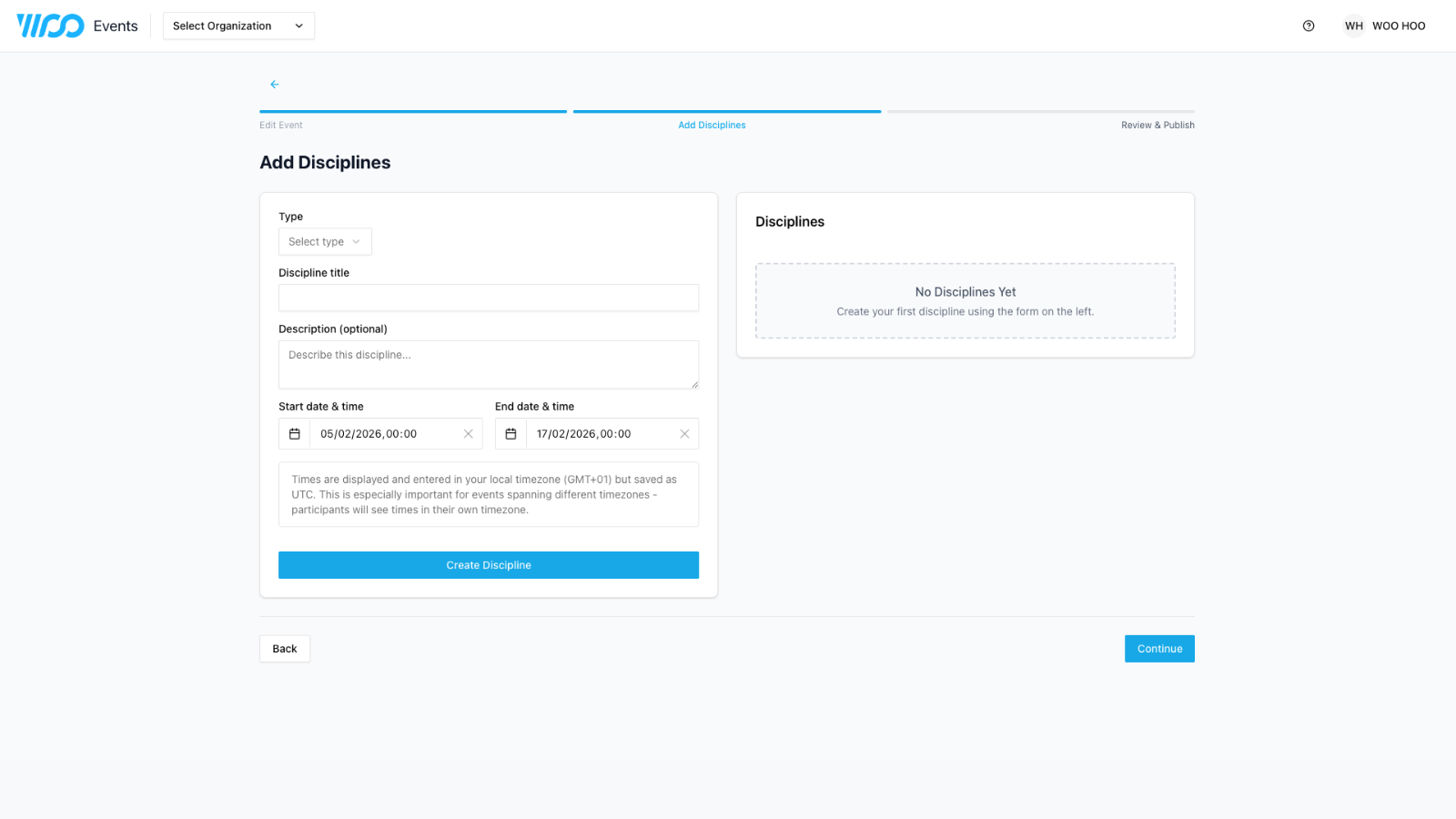
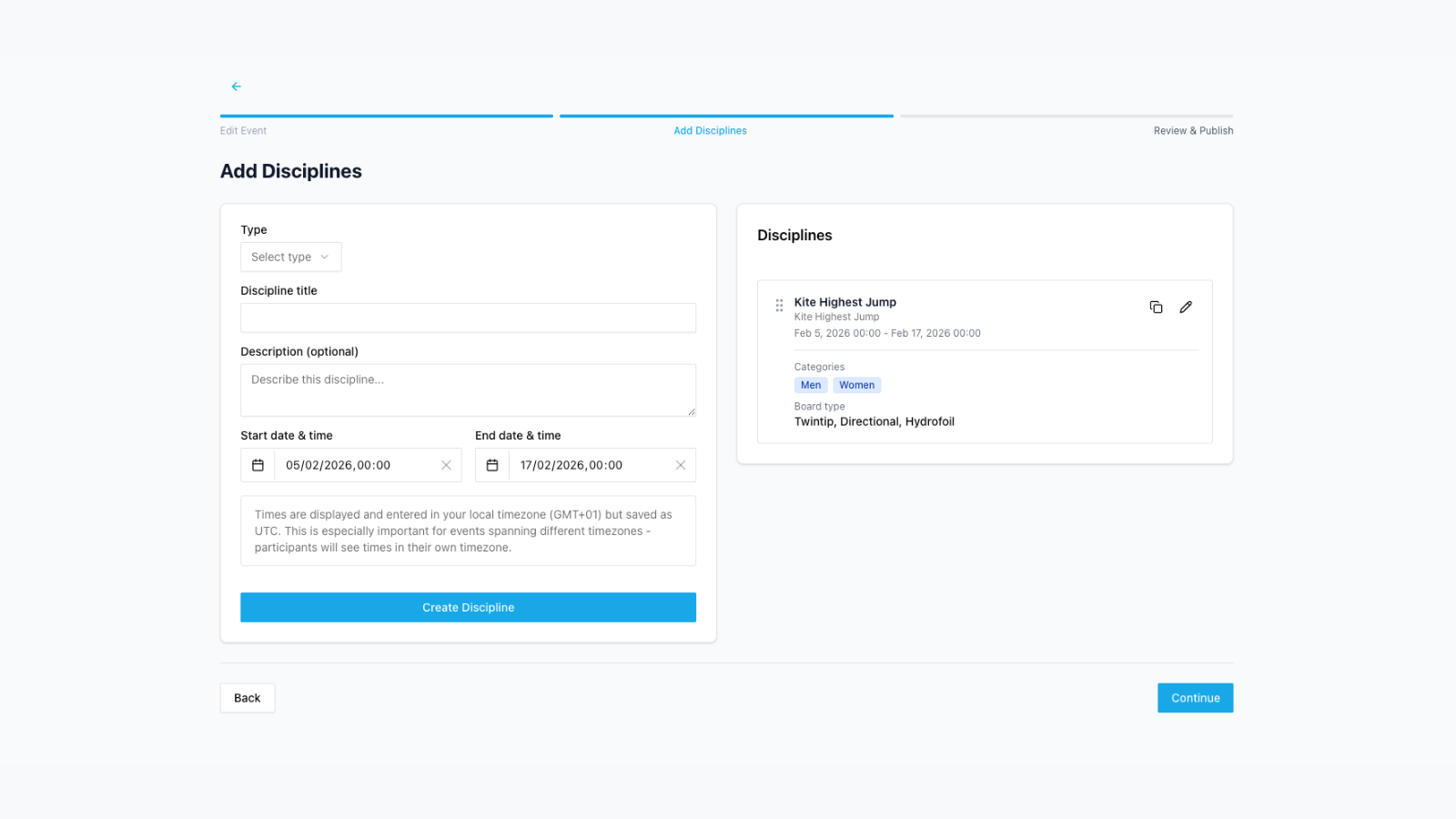
Here you can add as many disciplines as you would like to your event, choose the type, like "Highest jump for Big Air" or "Total Distance for freeride GPS". Set the date and time for the specific disciplines in case you want to run races on one day and big air on the next during your event.
-
Select Type:
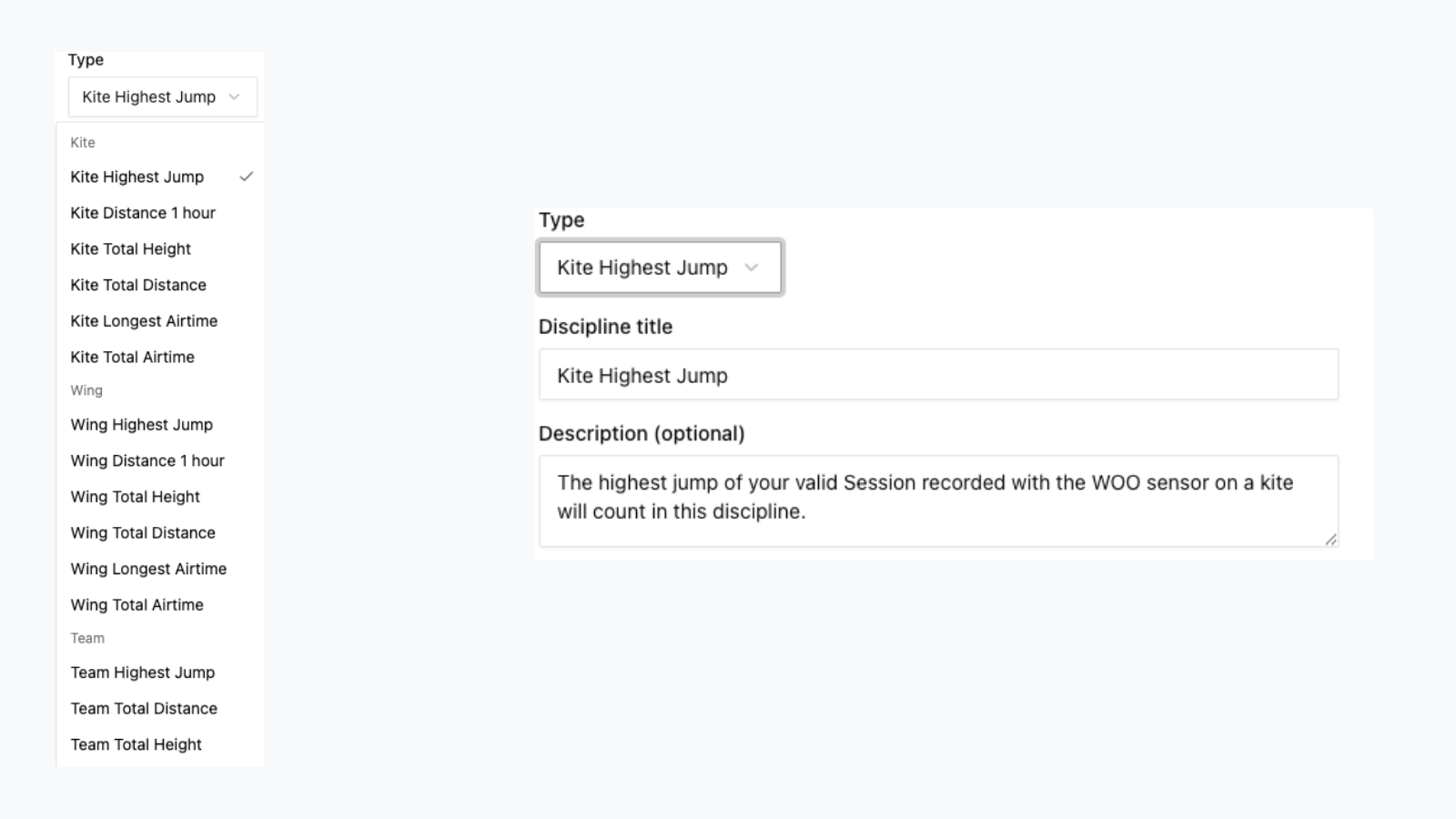
Separate Kites, Wings, Individual and Team leaderboards. You can add them all too.
The type becomes the default title for the disciplines leaderboard. (This is what shows up on the live leaderboards.) You can change this to your preferences
Team disciplines allow you to choose how many of the top scores count towards the teams total.
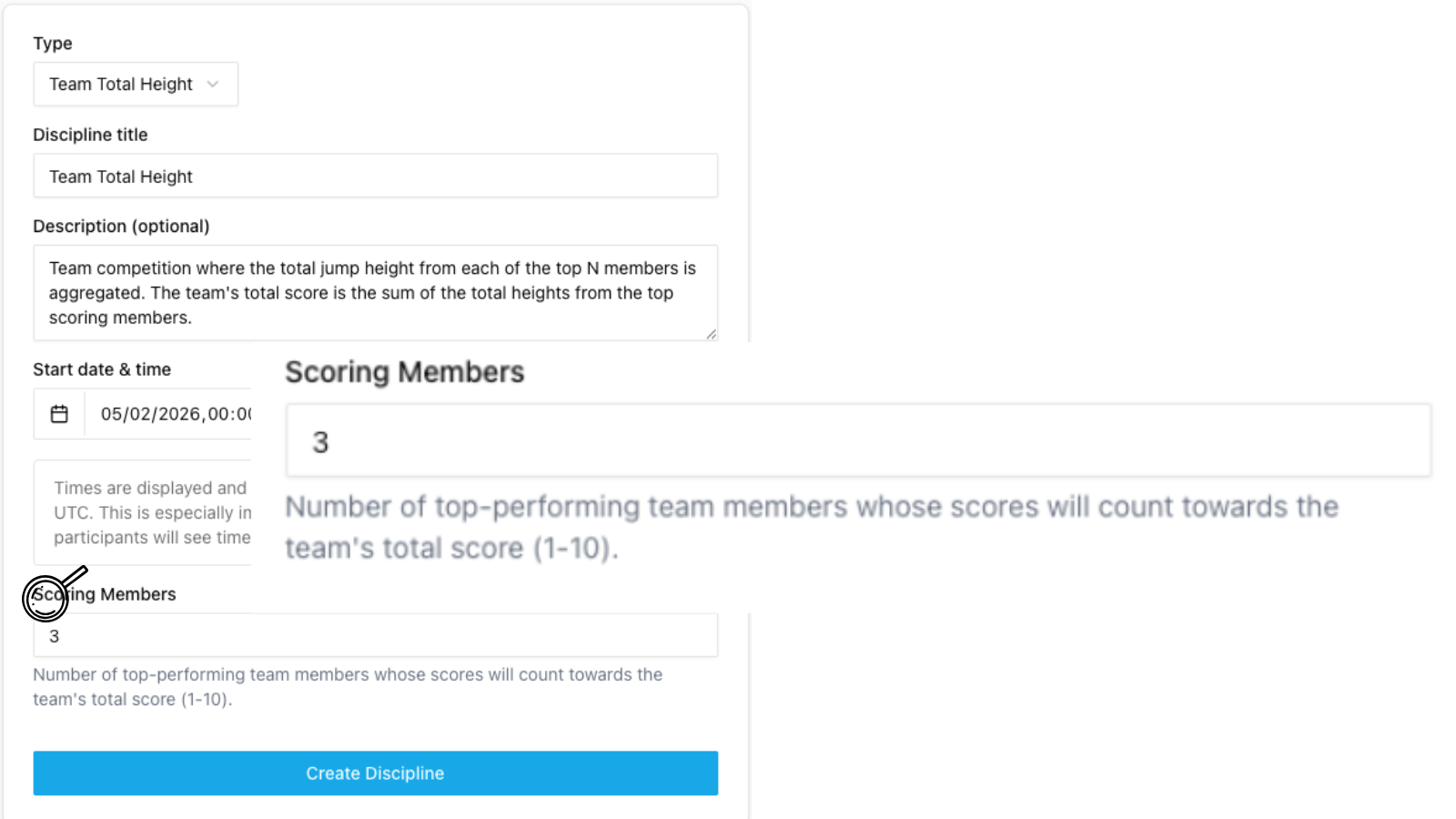
- Choose start and end dates/times:
Default dates are set to your overall event dates, but can be adjusted to your preferences. - Select your leaderboard categories:
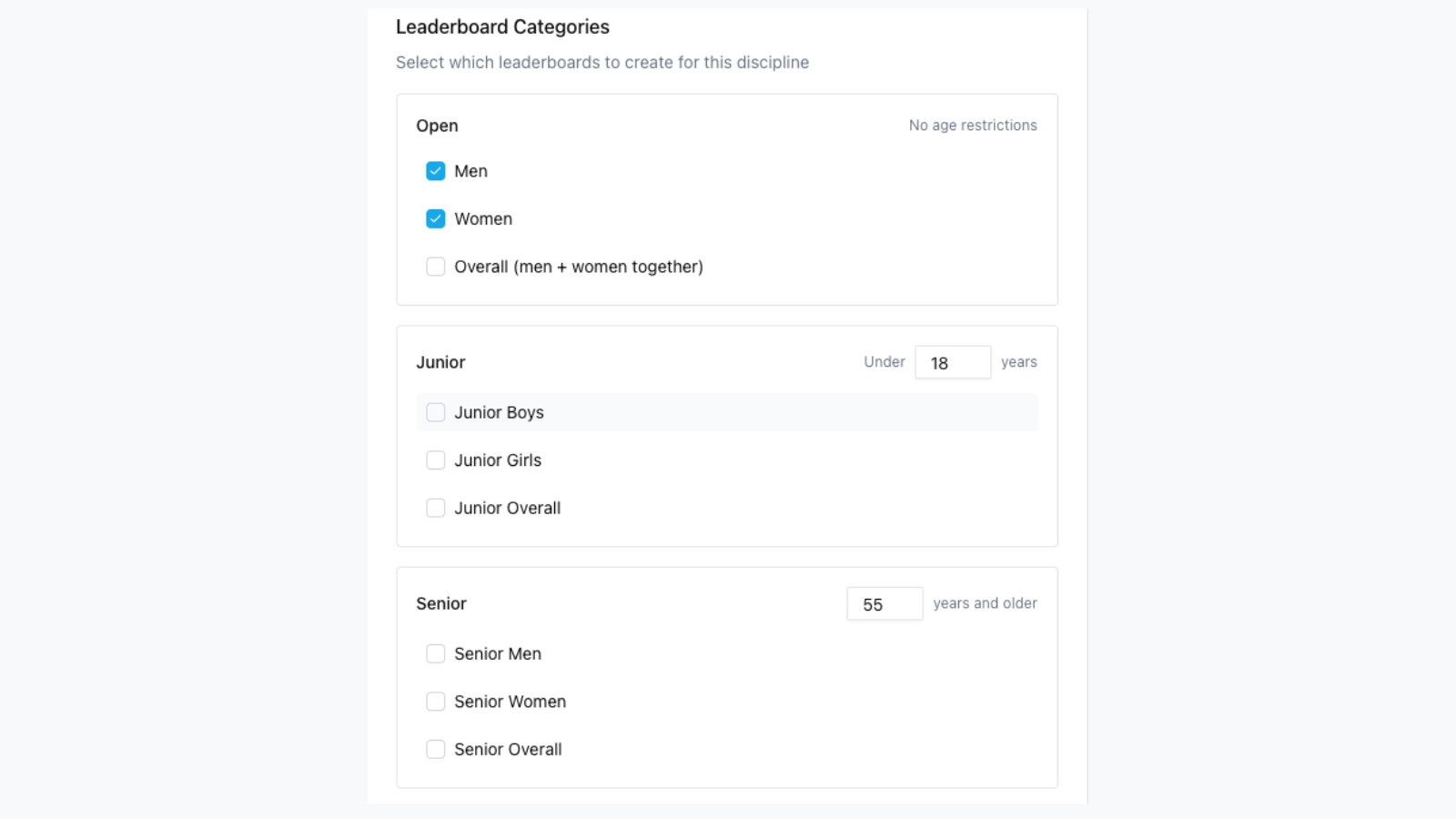
Split by gender and age or all inclusive with "over all" and no junior/senior categories selected - Each category will have its own tab on the leaderboards.
-
Choose your board type and create discipline.
Choose to include everyone or weave out twintips, Hydrofoils,DirectionalsNow you click "Create Discipline" to add to your event.
-
Repeat this process for every discipline you wish to run in your event and click continue (Again you can add them all if you wanted😮💨).
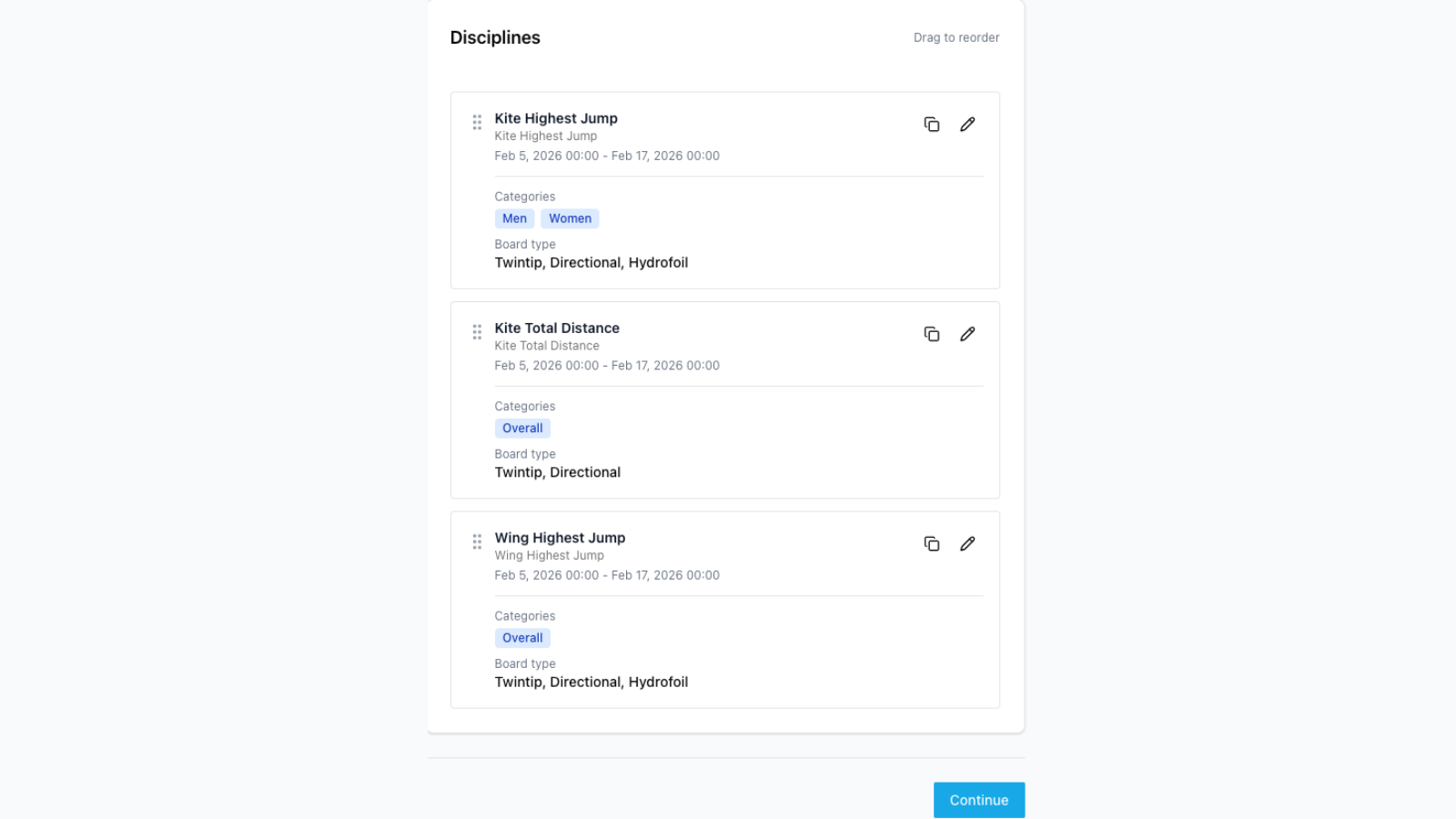
You can edit or duplicate a discipline and adjust them to your needs.
Click on the overlapping rectangles to duplicate as a template, edit and click "create discipline" to add to your event.
Review and Publish
-
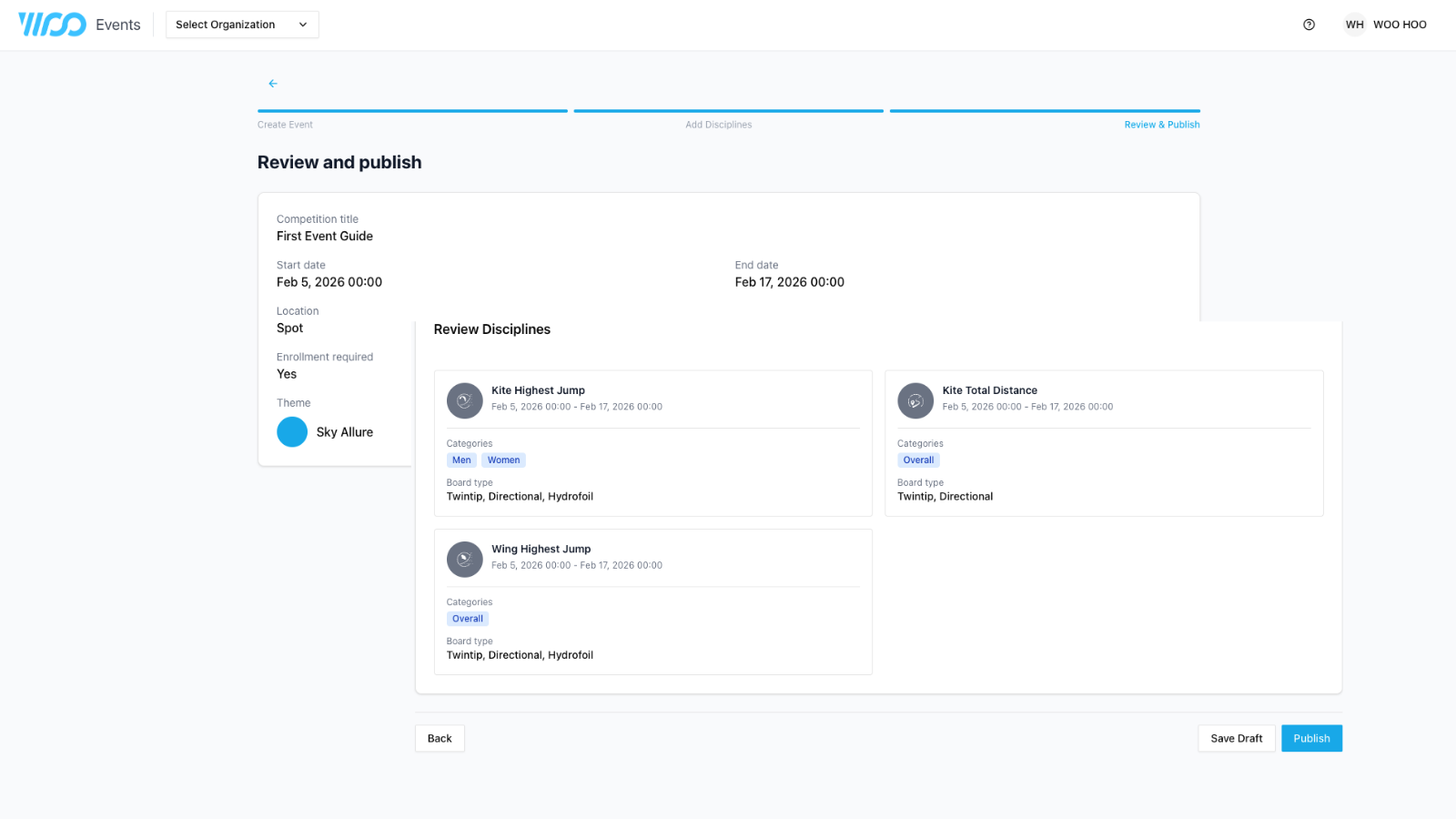
Double check the dates and details you have chosen both for the overall event and the individual disciplines you have added.
-
If you need to change select "back" and navigate to the section you want to adjust, click save changes or continue until you are back to this page.
-
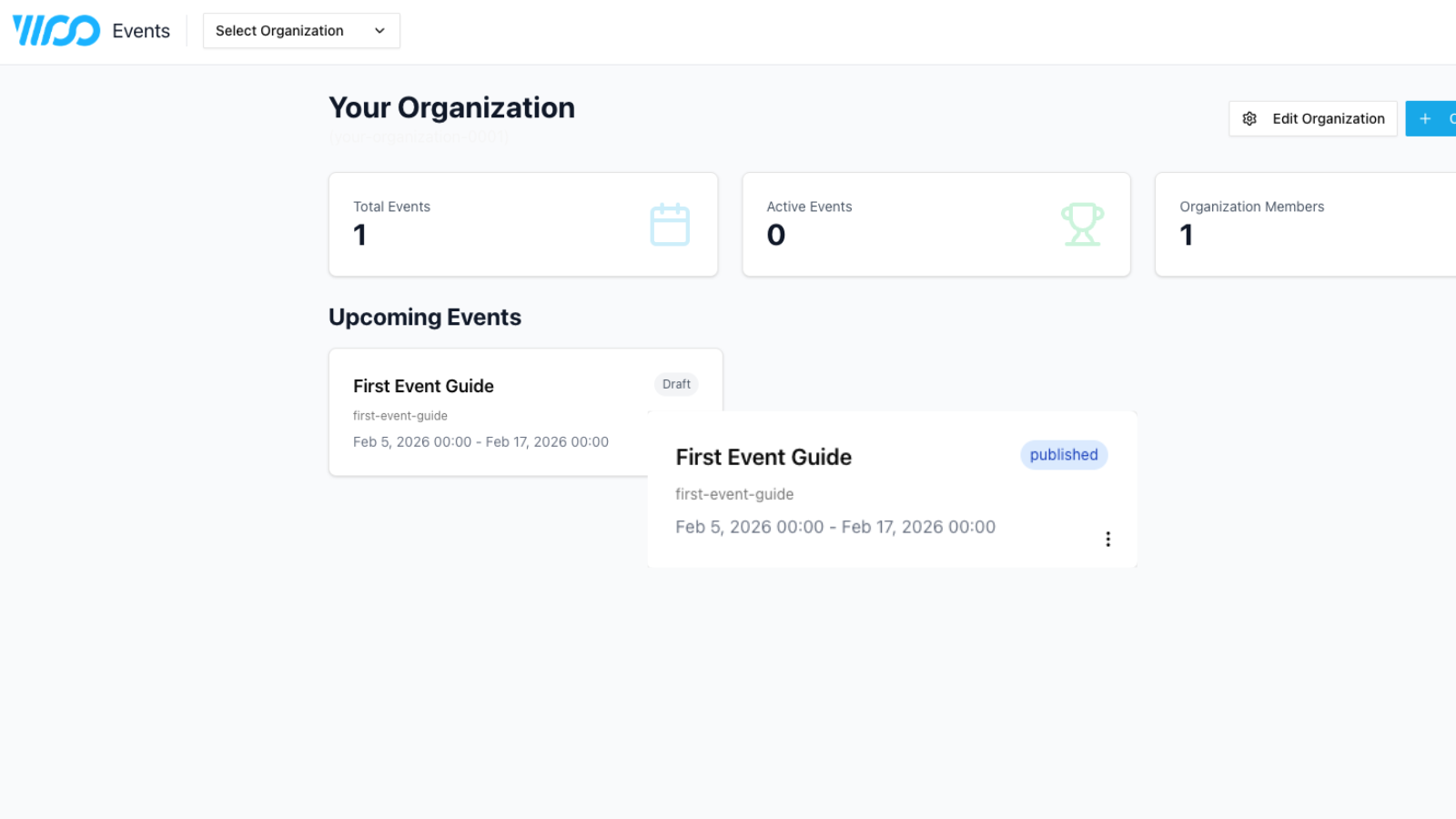
Save as draft if you need to confirm a few things or publish to make the event available for participants.
Updated 9 months ago