
Record with the WOO sensor and Apple Watch
Connect your WOO to your Apple Watch and see your jumps live on your wrist.
Wear your Apple Watch while you ride with your WOO on your board. Your watch connects to the WOO, shows your jumps live on your wrist and records your GPS track.
Before you ride
- Charge your WOO and your watch. See Charging.
- Install WOO Sports on your Apple Watch. It installs with the iPhone app. If it isn't on your watch, open the Watch app on your iPhone and install it from there.
- Mount your WOO on your board. See Mounting the WOO.
- Set up your WOO in the phone app first so its date, time and firmware are up to date. See Add a WOO.
Set up the watch app
You only do this the first time you open WOO Sports on your watch.
- Open WOO Sports on your watch and tap Continue.
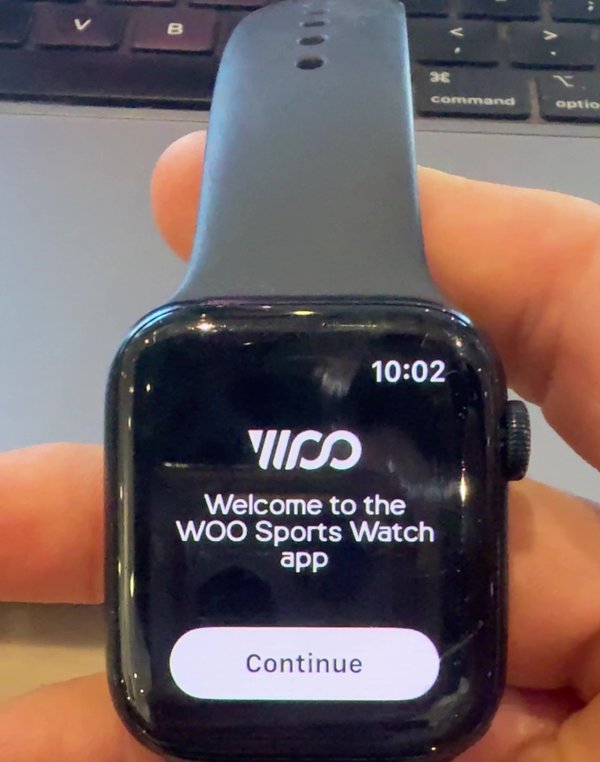
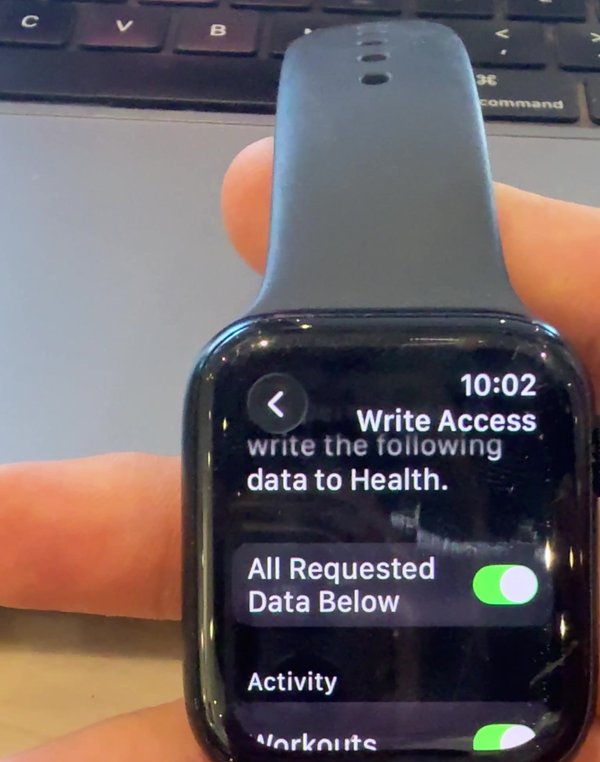
- When the watch asks for Health Access, tap Review.

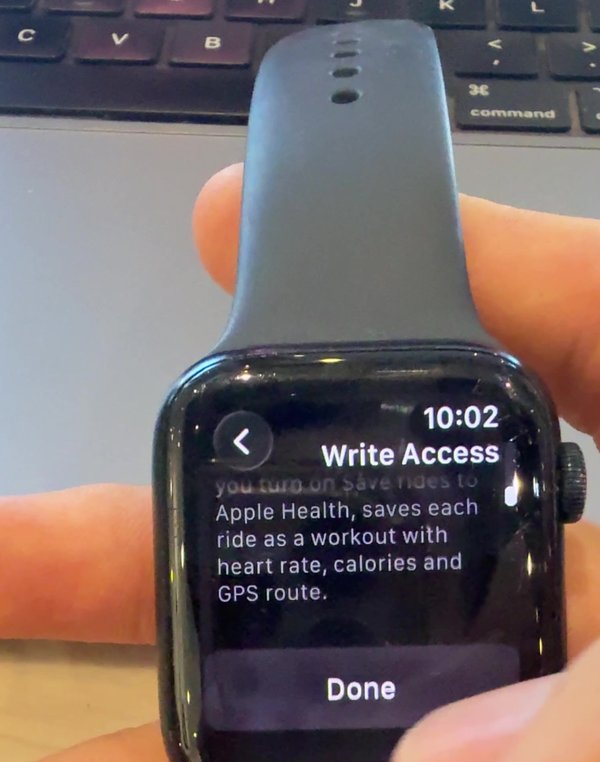
- Turn on All Requested Data Below. This lets WOO keep recording your ride with the screen off and, if you turn on Save rides to Apple Health, save each ride as a workout with heart rate, calories and GPS route.
- Tap Done.
Connect your WOO
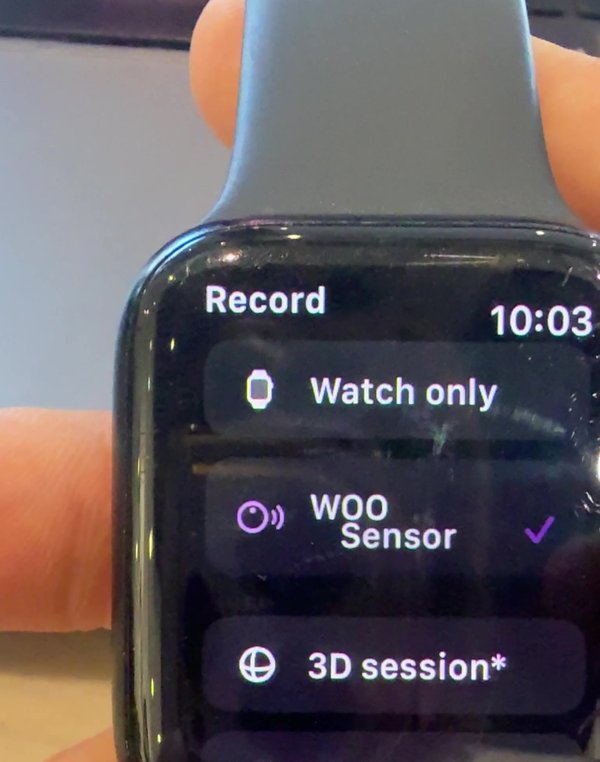
- Under Record, tap WOO Sensor, then Continue.
- Under WOO Sensor, tap Connect board.
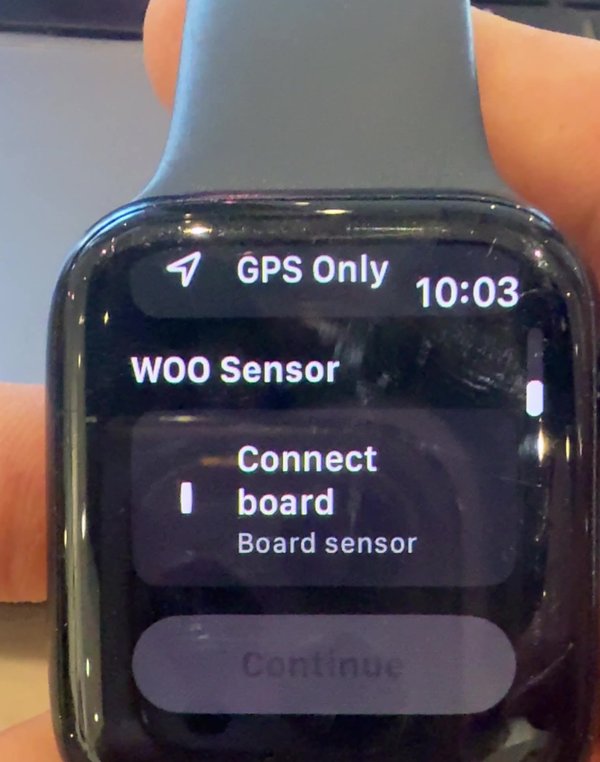
- Switch your WOO on: hold its button for about 2.5 seconds until the light blinks green. Make sure your WOO isn't connected to your phone. Close the phone app or move your phone away.
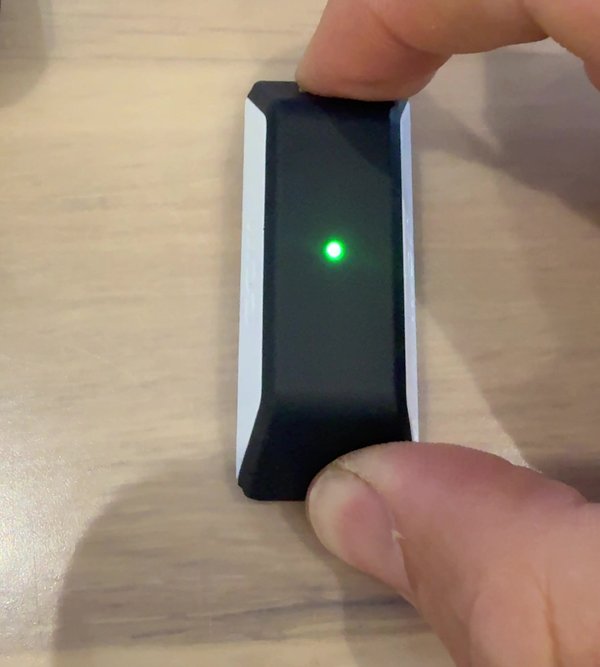
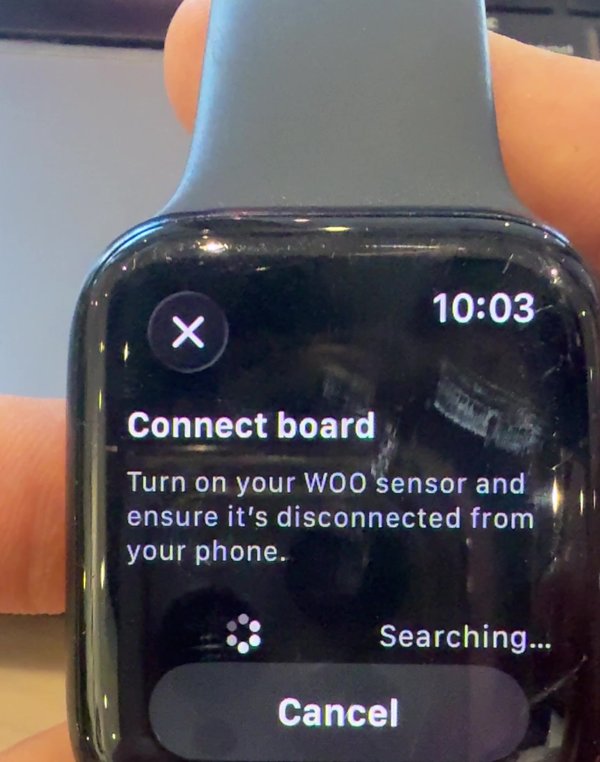
- The watch searches for your WOO.
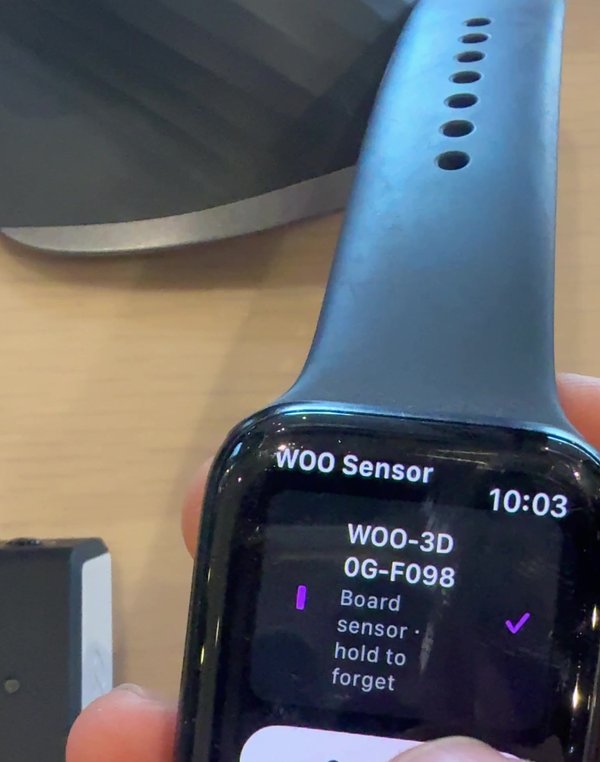
- Tap your WOO when it appears. Its ID is engraved on the bottom of your WOO.
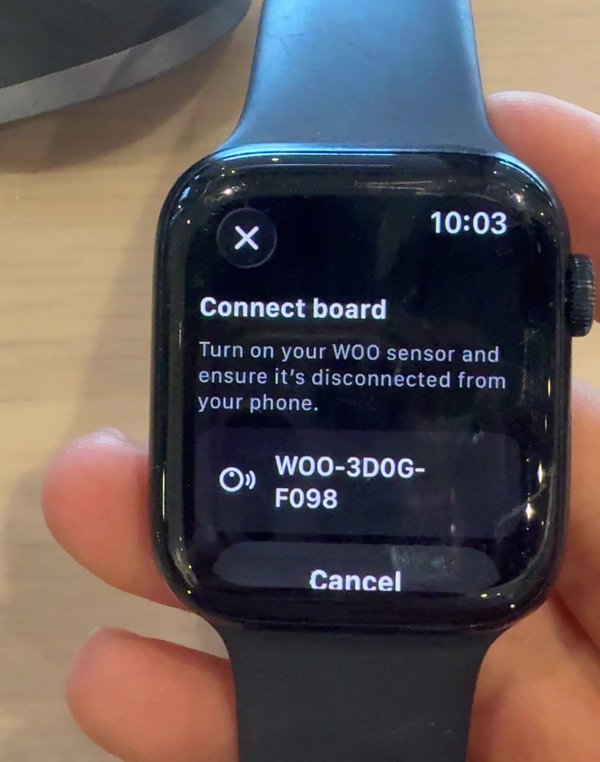
- Your WOO shows as your Board sensor. Tap Continue. To remove it later, press and hold it.
Record your session
- Tap Press to start.
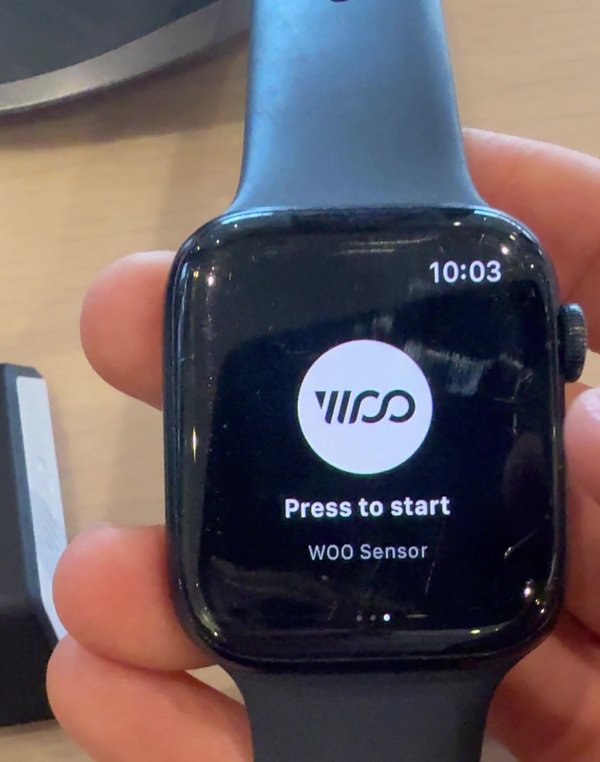
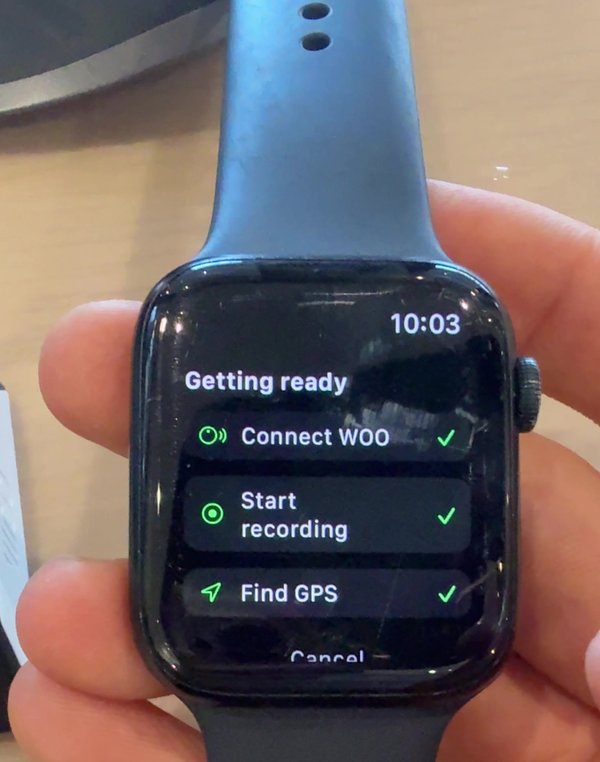
- The watch gets ready: it connects to your WOO, starts recording and finds GPS. Wait for all three ticks.
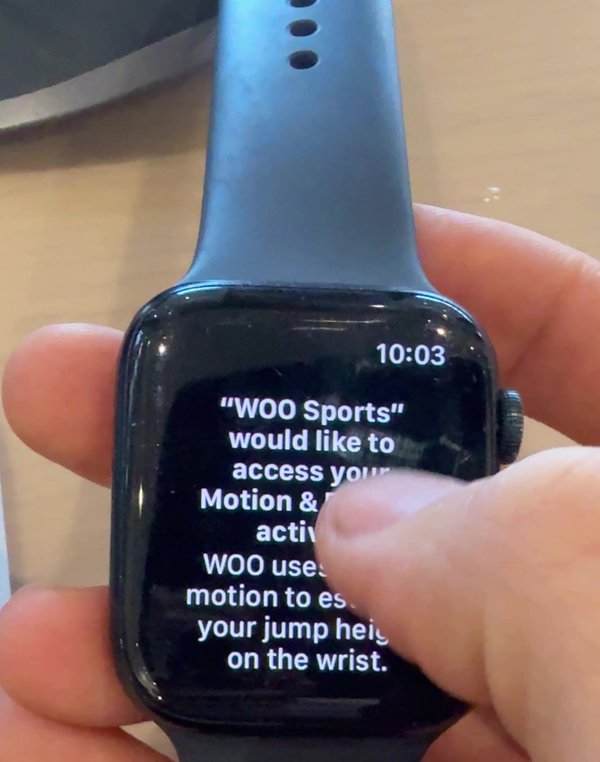
- The first time, the watch asks to access your Motion & Fitness activity. Accept it by tapping Allow. WOO uses your watch's motion to estimate jump height on your wrist.
- You're recording. The watch shows your session time, battery and GPS at the top.
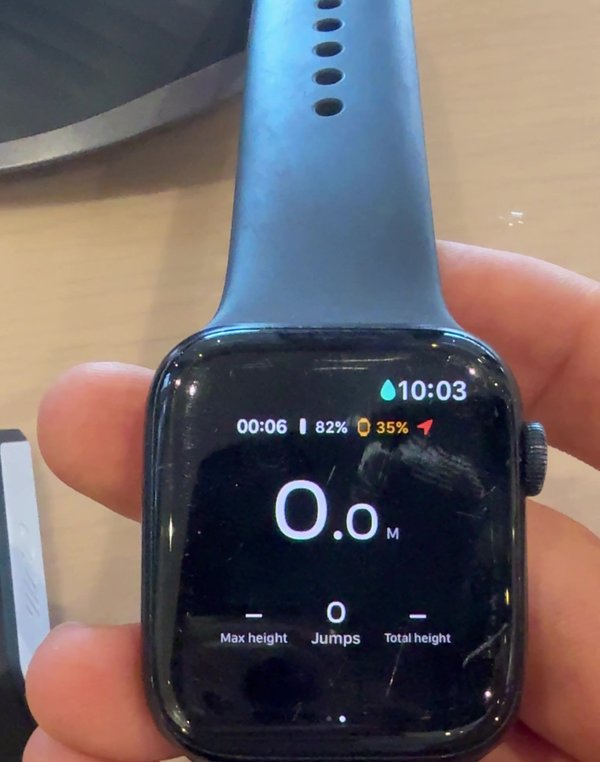
While you ride
Every time you land a jump, the watch shows the jump screen for a few seconds:
- Height of that jump, in the middle
- Airtime, Edge and Carve at the top
- G-force of the landing, your Max height so far and number of Jumps at the bottom
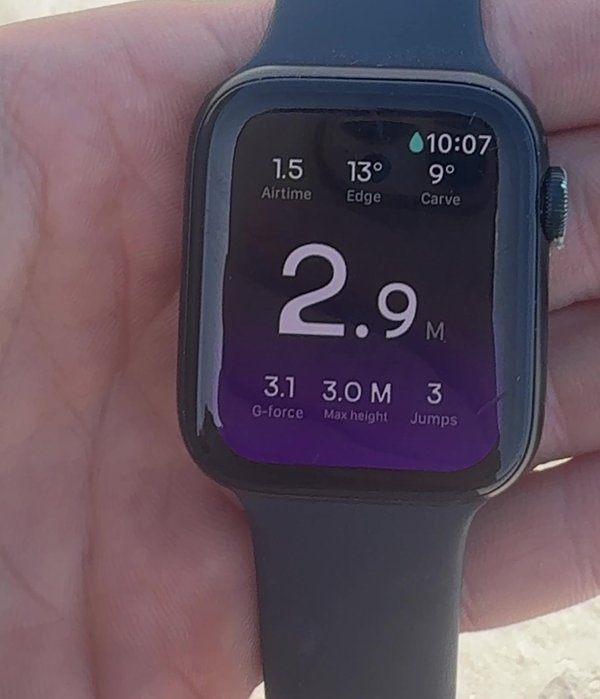
It then goes back to the record screen, which shows your last jump, Max height, Jumps and Total height for the session.
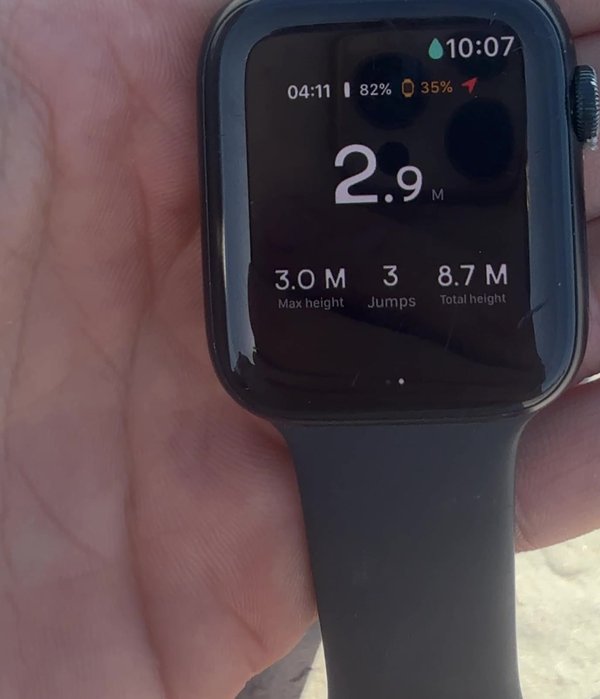
You can choose what both screens show in Options (see Watch options). To feel each jump instead of looking, turn on Vibrate on jump.
Stop and save your session
While you ride, Water Lock keeps the screen locked so water can't tap it.
- When you're back on the beach, press and hold the Digital Crown. The watch shows Keep holding…
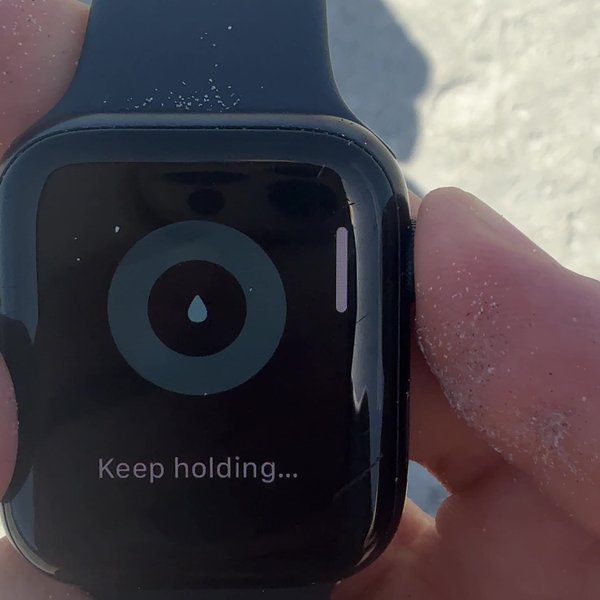
- Let go when you see Unlocked. Ejecting water.
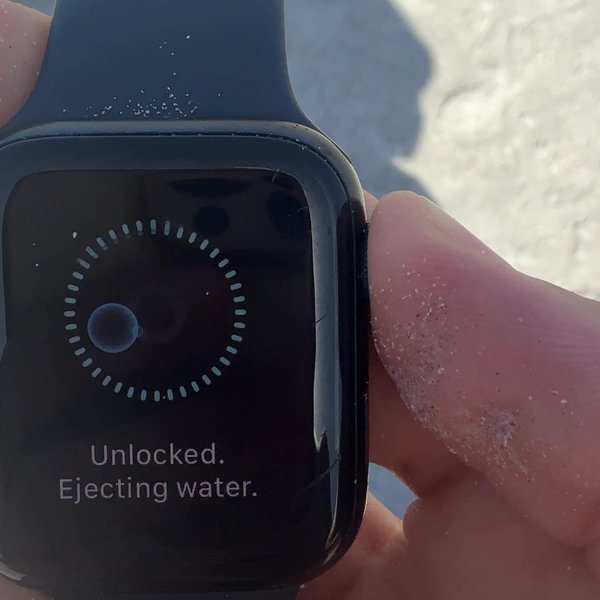
- Swipe right on the recording screen, then tap Save. Tap Discard only if you don't want to keep the session.
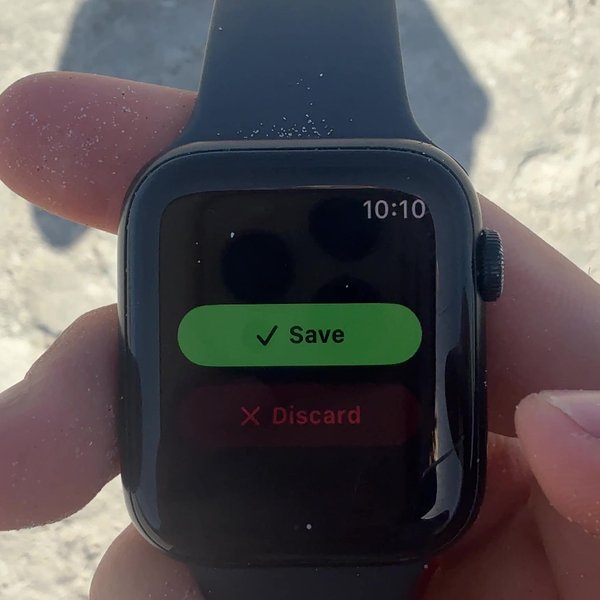
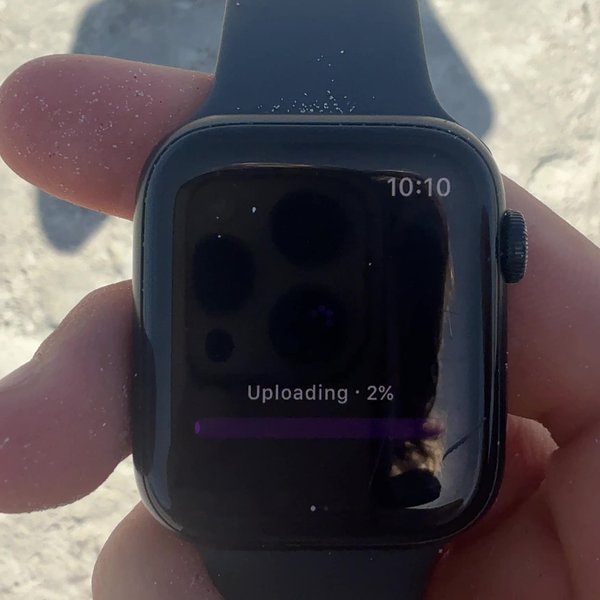
- The watch uploads your session.
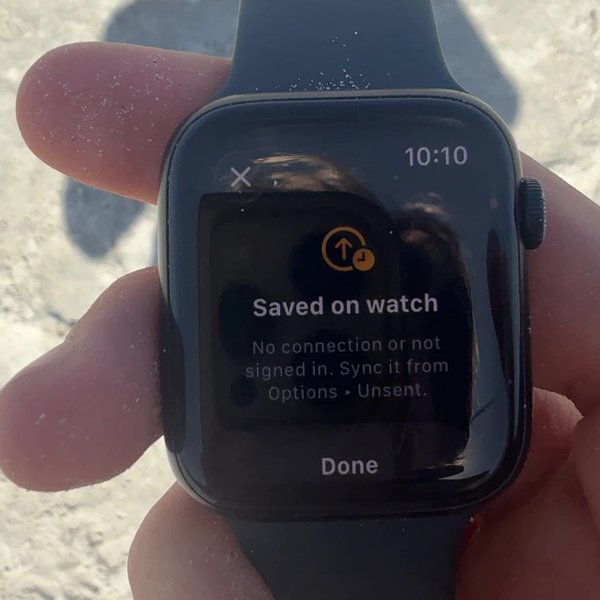
If you see Saved on watch, your watch has no connection or you're not signed in. Your session is safe on the watch. Tap Done, then sync it from your watch.
Once it's uploaded, post it from Ready to post in the phone app. See Post your session.
Sync sessions saved on your watch
Sessions that couldn't upload wait on your watch until you sync them. Keep your watch near your phone.
- Swipe to Options. Unsent sessions shows how many are waiting. Tap it.
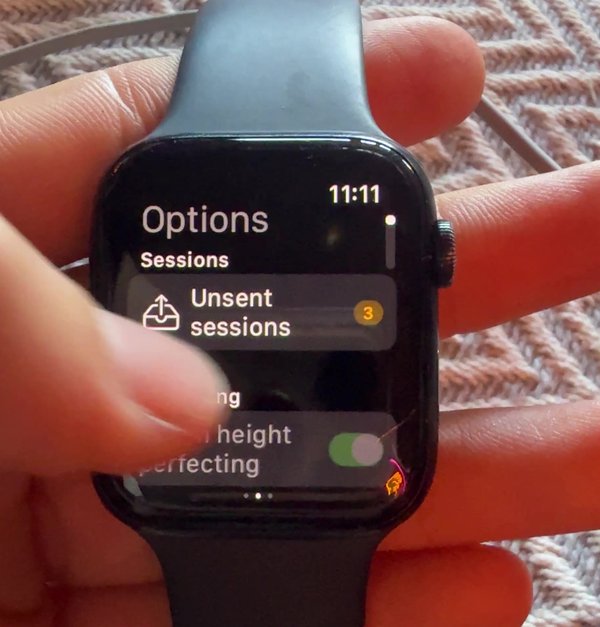
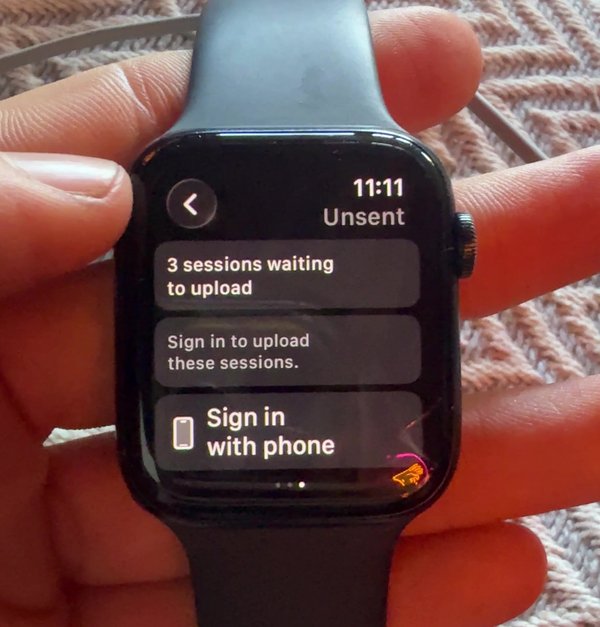
- If you're not signed in, tap Sign in with phone. The watch signs in through your phone.
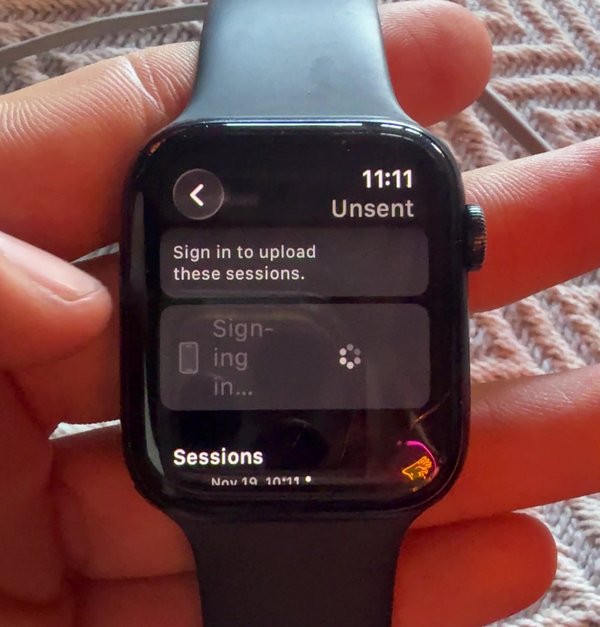
- Tap Sync now. Your waiting sessions are listed underneath, and the upload finishes automatically.
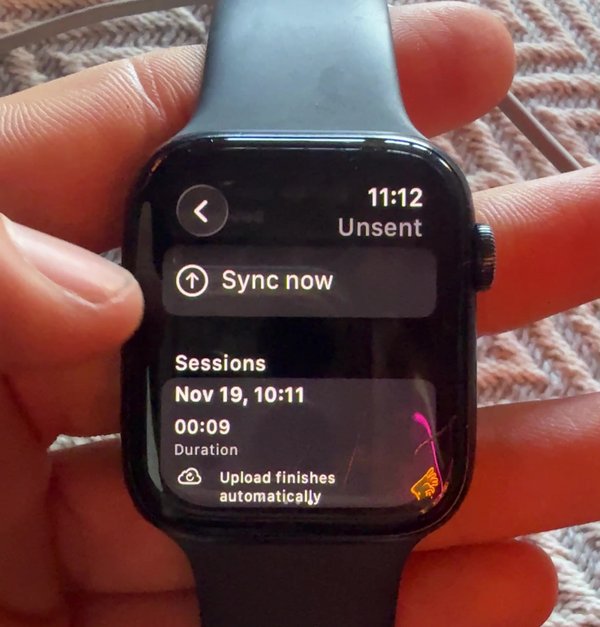
- Keep your watch near your phone while it syncs. The number of sessions waiting goes down as each one uploads.
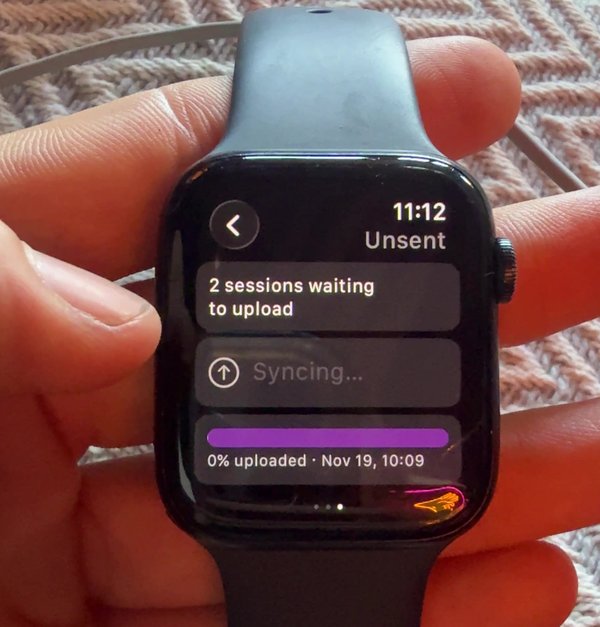
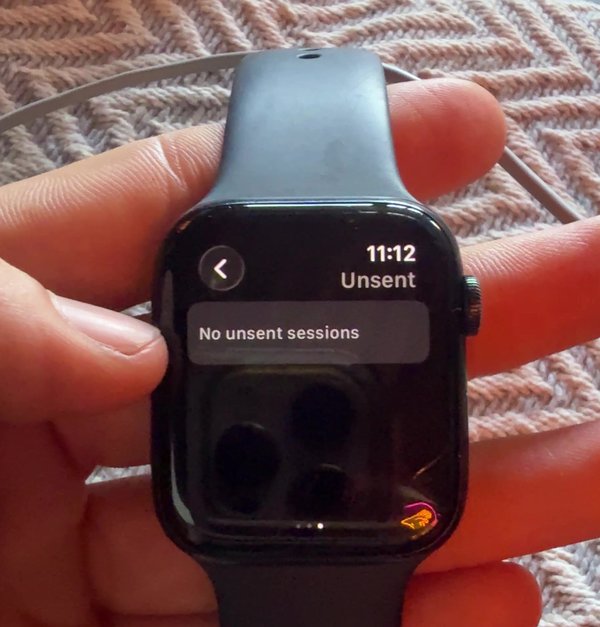
- When every session has uploaded, you'll see No unsent sessions. Your sessions are now in the phone app, ready to post. See Post your session.
Post your session
Once your session has uploaded from your watch, it appears in the phone app.
- Open the app and tap My WOO. Your watch session is under Ready to post. Tap it.
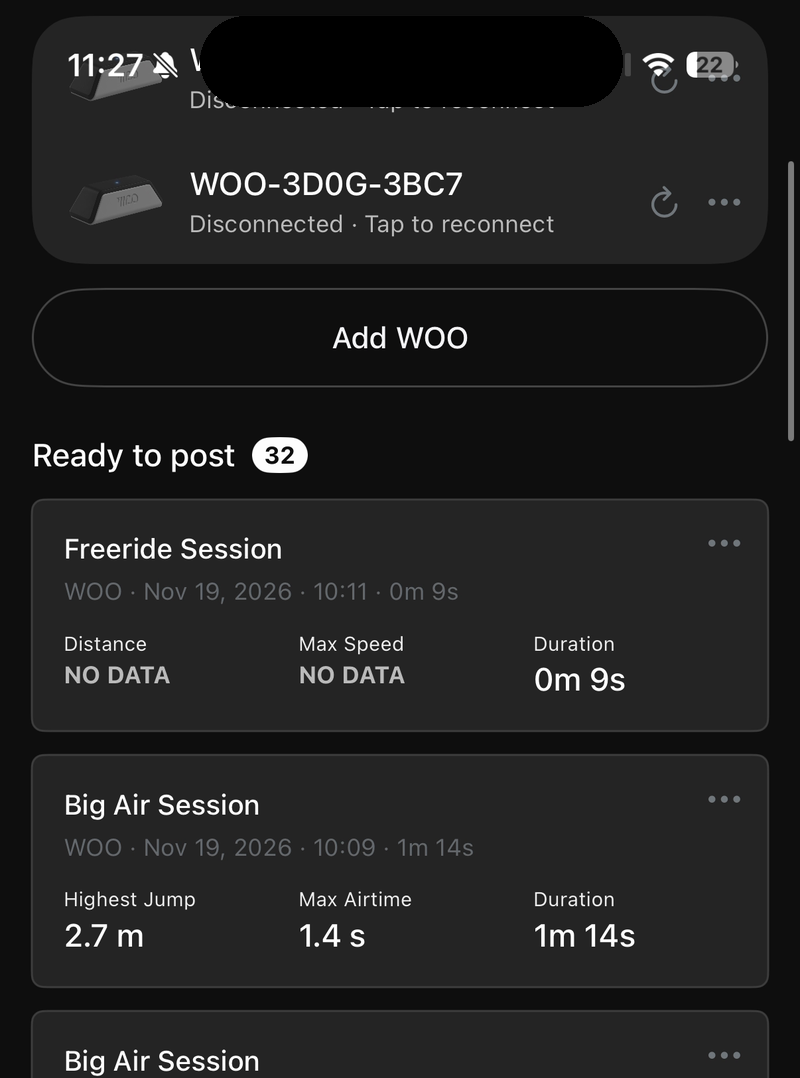
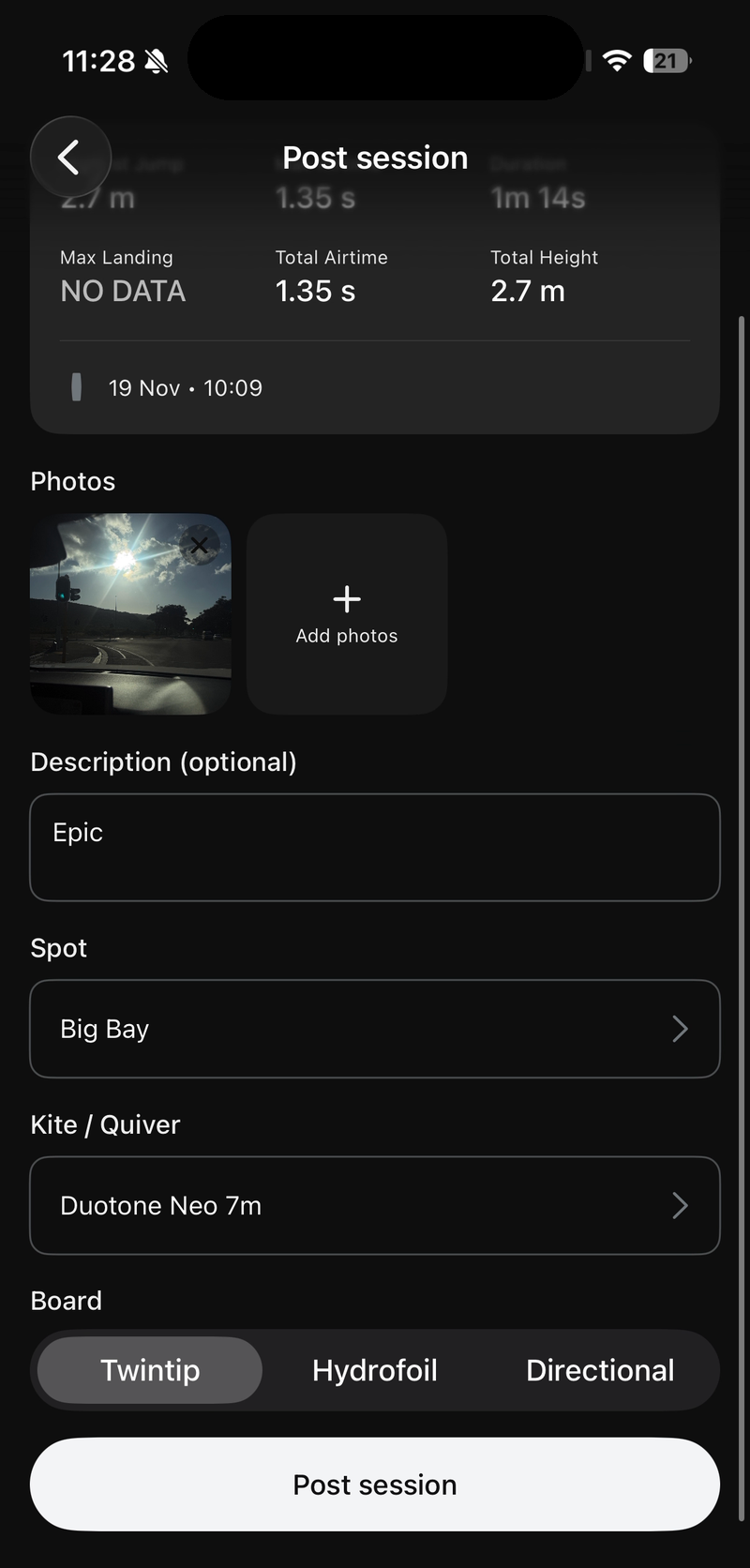
- The Post session screen shows your session's stats.
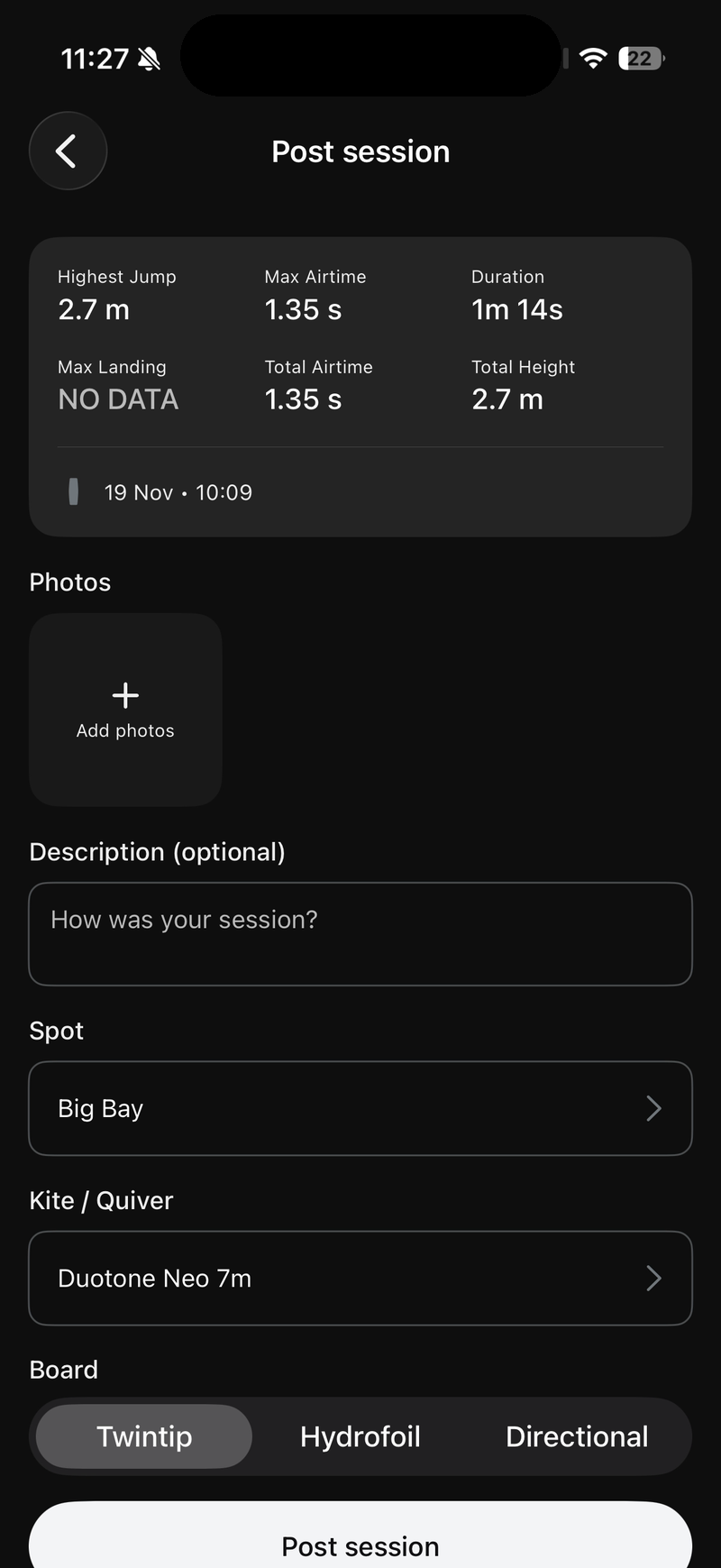
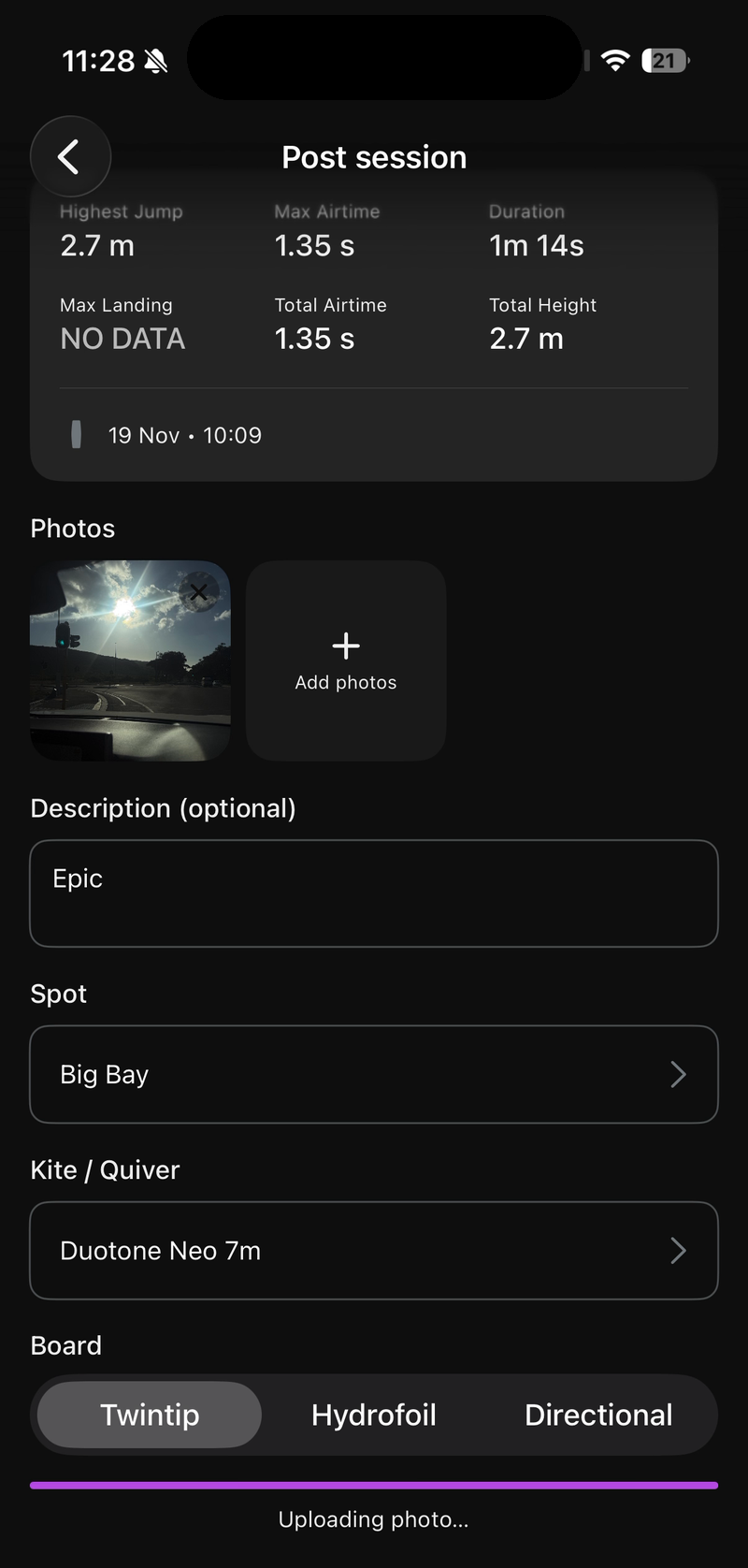
- Add a photo, a description, your spot, your kite or quiver and your board, then tap Post session. For details on each field, see Post your session.
- Wait while the session and photo upload.
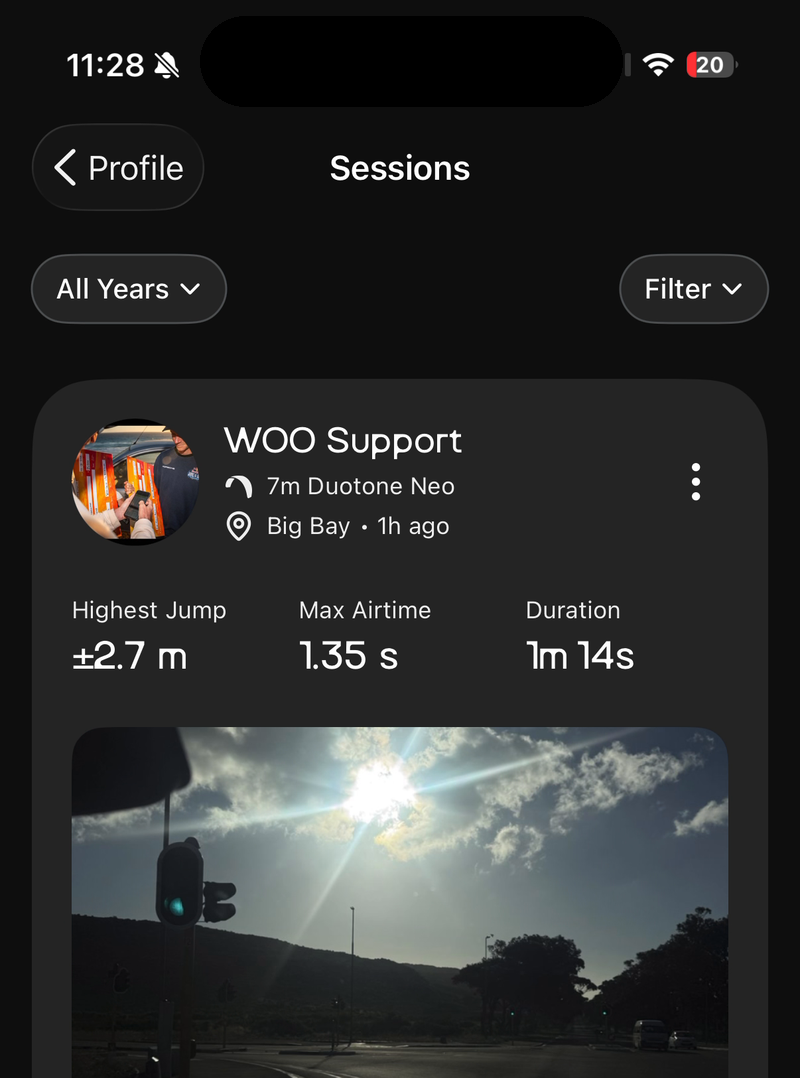
- Your session now appears in Profile under Sessions.
Watch options
Swipe on the Press to start screen to open Options.
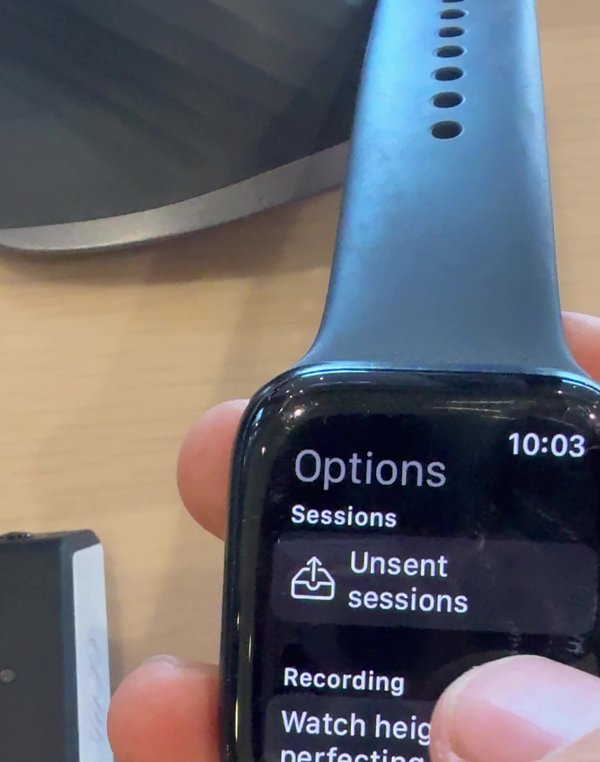
- Unsent sessions: sessions on your watch that haven't uploaded yet.
- Watch height perfecting: the watch measures every jump with its own motion sensors and combines height and airtime with the WOO. Uses more battery.
- Save rides to Apple Health: saves each ride as a workout with heart rate, calories and GPS route. Turning this on asks for Health access.
- Min jump height: the smallest jump the watch counts (1.5 m by default). Only used when the watch detects jumps itself, in Watch only mode.
- Units: Metric or Imperial.
- Customize record screen and Customize jump screen: choose what the watch shows while you ride.
- Kite meter: only for 3D rides, which need a kite sensor.
- Vibrate on jump: your watch buzzes after each jump.
- Safety and Live stream: sign in to share your ride live.
- Permissions: check the watch's permissions.
- Account: sign in with your phone to upload your sessions. You can keep recording without signing in.
Updated about 11 hours ago