
Record with WOO + Android Watch
To set up watch for the first time head to https://docs.woosports.com/docs/recommended-settings
First-Time Setup: Android Watch + WOO
Big Air Session Configuration:
If this is your first time setting up your Android watch + WOO for a Big Air session, you will be prompted to choose how you want to record your jumps.
Step 1: Choose Recording Mode
Under the Setup Menu, you will see three options:
WOO sensor – watch only
Do not measure (Freeride session – no jump tracking)
WOO + Android Watch Big Air session
To record jumps with your WOO sensor, select:
“WOO sensor”
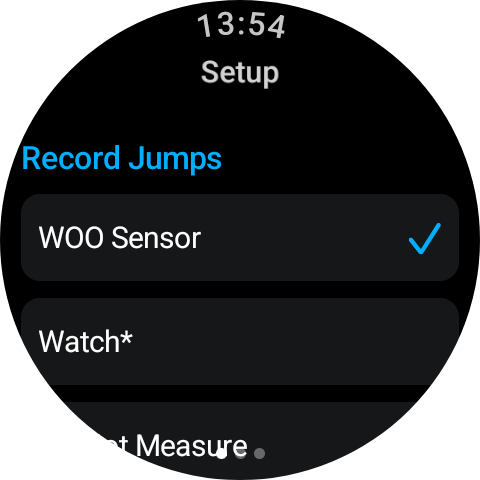
Step 2: Grant Permissions
After selecting the WOO sensor option:
The watch will attempt to connect to your WOO.
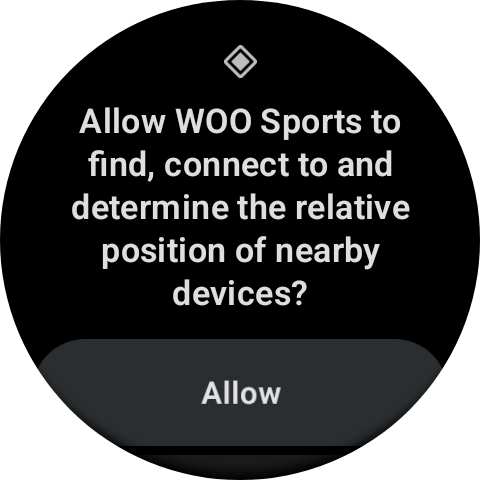
A permission request will appear:
“Allow Woo Sports to find, connect to, and determine the relative position of nearby devices.”
Tap Allow.
This permission is required for Bluetooth pairing.
Step 3: Connect to Your WOO
Ensure your WOO is powered on and in standby mode.
The watch will scan for available devices.
When your WOO ID appears on the screen, tap it to connect.
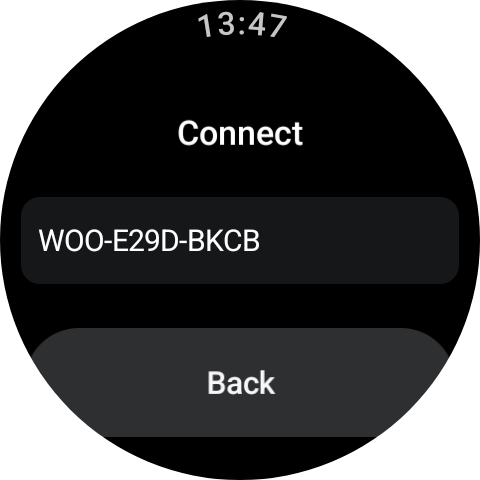
Once connected:
The screen will return to the setup page.
The WOO sensor option will show a blue checkmark indicating a successful connection.
Scrolling down will display the connected WOO ID under the jump measurement section.
Changing the Paired WOO
If you want to connect to a different WOO:
Tap the currently displayed WOO ID.
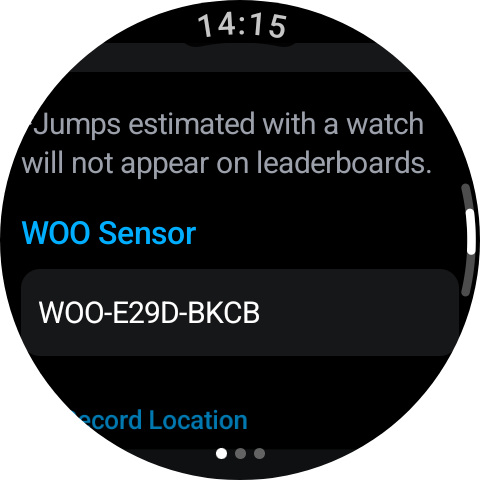
Available WOO devices in the area will appear.
Select the new WOO you want to connect to.
Record Session:
Watch:
Starting Your First Big Air Session with android watch + WOO
You will now enter Press-to-Start Mode.
Tap Start.
The watch will display:
“Connecting and validating the connection.”
You may receive another permission request:
“Allow Woo Sports to access this device’s location?”
Select:
Allow while using the app
If required, tap Start again.
-
Pro tip: The watch auto selects previous measurement choice for on beach convenience so always be sure to set this before heading down to the beach!
-
Once recording begins, you will see:
- A blue GPS icon indicating GPS is active
- A red dot under the GPS icon confirming active recording
- A red dot under the WOO indicator confirming jump tracking is active
These visual indicators confirm that both GPS and WOO recording are functioning.
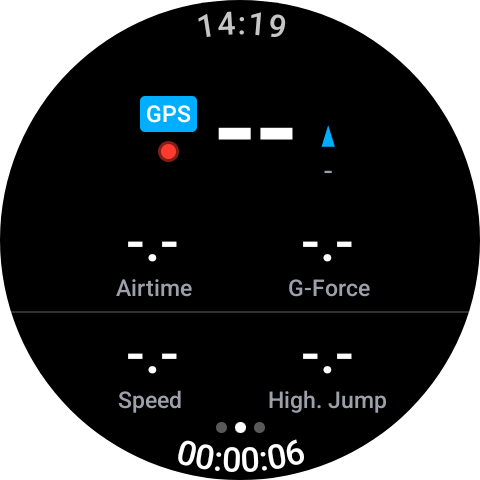
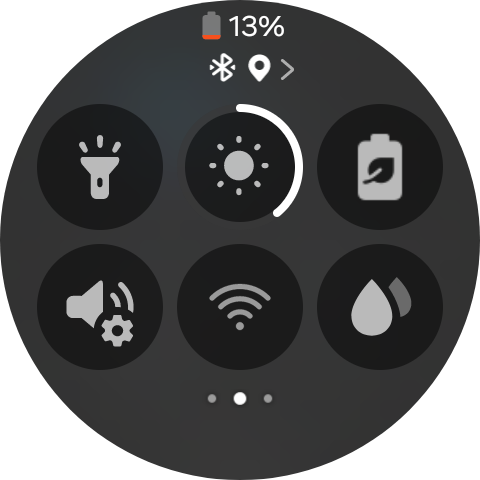
**Make sure to enable water mode by swiping down on your watch screen and selecting the double water droplet symbol before entering the water.
WOO:
- WOO should be on and in stand-by while connected to the watch
- Once Watch is recording, tap the power button once to change WOO to recording mode
-
Pro tip: There is a dot on the watch face that indicates the mode of the WOO, green dot for stand-by (no jumps recording) and red dot for recording. If your watch looses connection this dot goes grey, but not to worry, bring the watch close to the WOO and it will connect again.
-
Ending the session
Saving, Discarding & Syncing
Step 1: Exit Water Lock
To end your session:
Press and hold the top-right button on your watch.
Continue holding until Water Lock is released.
Once Water Lock is disabled, touch controls will function again.
Step 2: Open Save / Discard Screen
Swipe from left to right.
This will take you to the Save or Discard Session screen.
You will see two options:
✅ Green Tick – Save session
❌ Red X – Discard session
After tapping Save, the watch must be connected to the internet to upload the session to your WOO app and profile.
The watch can connect via Wi-Fi/Paired phone, if Internet Is available the session will automatically uploadwill appear in your WOO mobile app under "sessions to post".
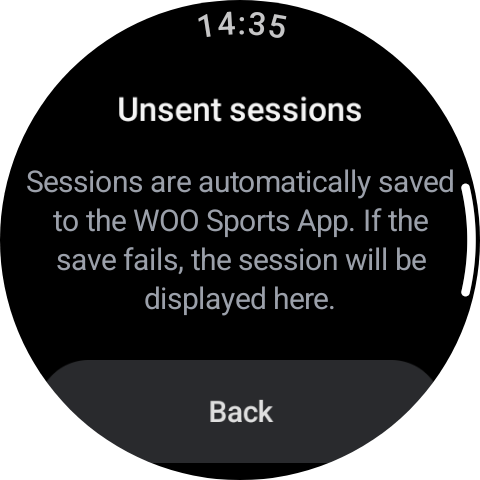
If No Internet Is Available the session will be stored locally under "Unsent Sessions."
How do I find my unsent sessions:
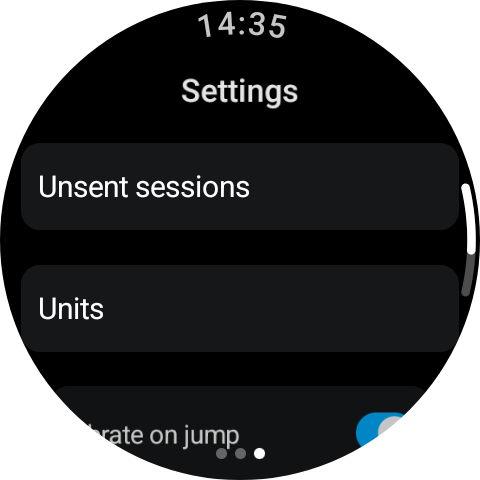
Swipe left to right to navigate screens, go to the third screen (Settings).
Select "Unsent Sessions." All pending sessions will be listed there. All unsent sessions will automatically be resent when opening "unsent sessions" on the watch when connected to internet.
Updated about 12 hours ago