
Record with the WOO sensor only
Record your jumps with just the WOO on your board, then sync and post the session in the app.
Ride with just your WOO on your board. It records your jumps on the water, and you sync them to the app when you're back on the beach.
Record your session
Before you go out:
- Charge your WOO. See Charging.
- Add it to the app. The first time, add your WOO on My WOO (see Add a WOO). Connecting sets your WOO's date and time and lets you install any firmware update.
- Mount it on your board with the button facing your right foot. See Mounting the WOO.
- Calibrate it if the app asks. If Calibrate appears under your WOO on My WOO, see Calibrate your WOO.
Start recording
- Hold the button for about 2.5 seconds to switch your WOO on. The light blinks green: your WOO is on standby and not recording yet.
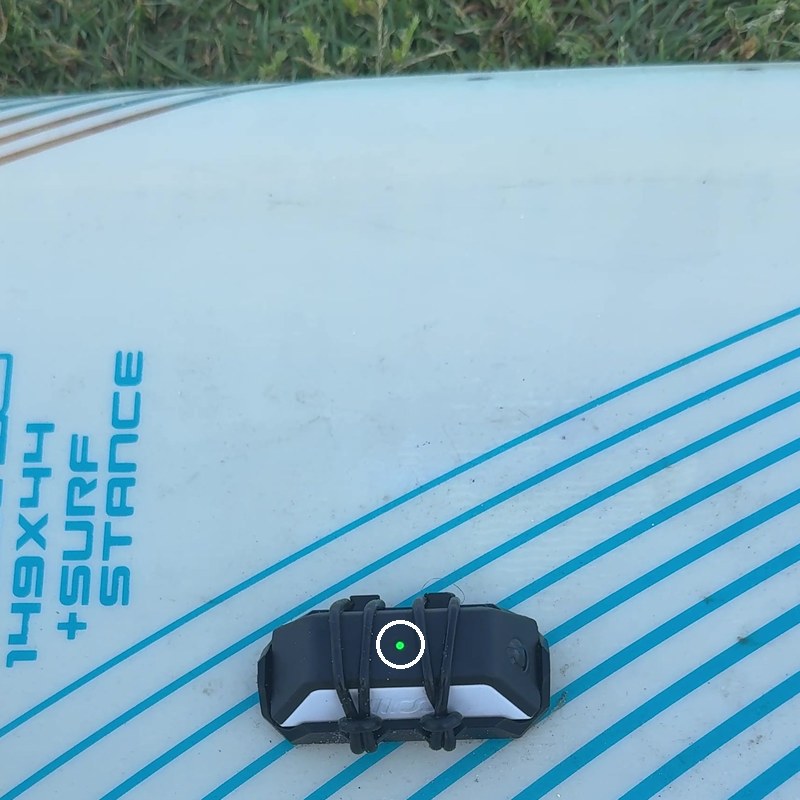
- Tap the button once to start recording. The light blinks red.
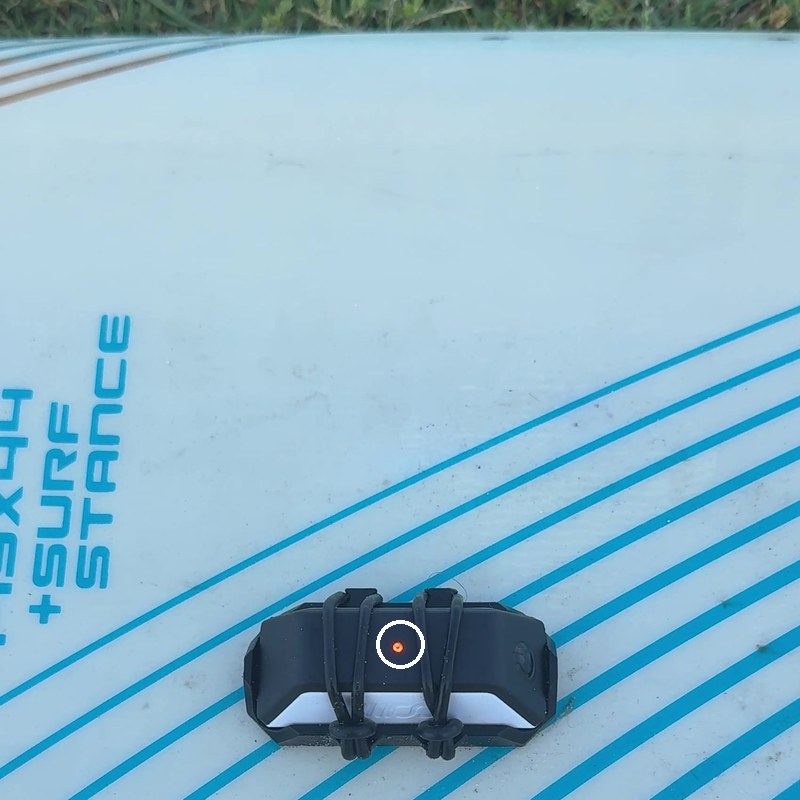
- Go ride and jump.
For everything the light can tell you, see LED & Button.
Stop recording
When you're done riding, tap the button once. The light goes back to blinking green.
Add a WOO
Switch your WOO on and keep it near your phone.
- On My WOO, tap + at the top right, then Add WOO. You can also tap the Add WOO button under your WOOs.
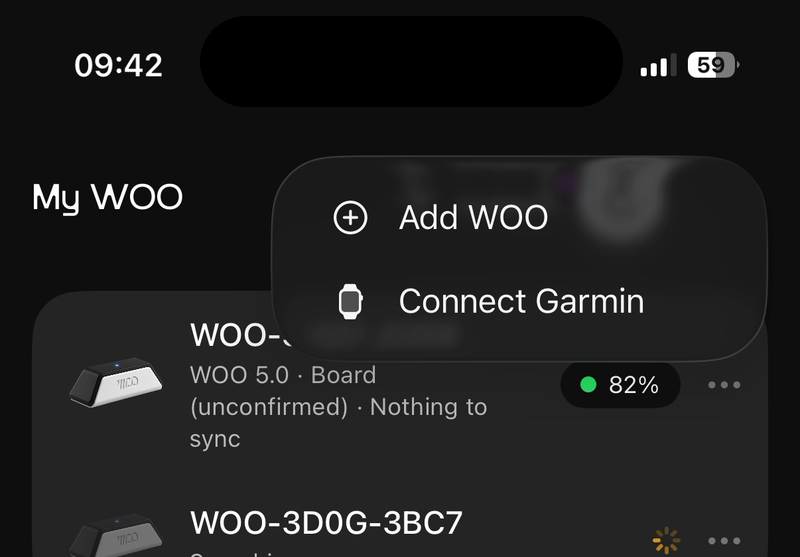
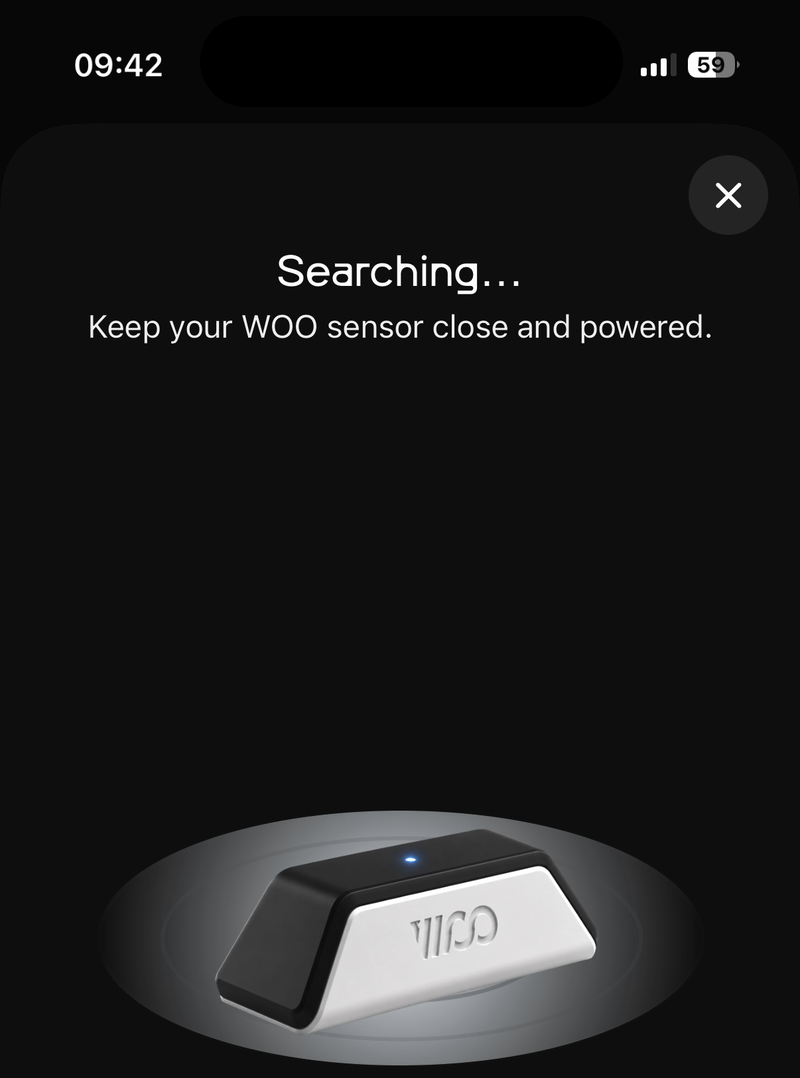
- The app searches for your WOO.
- Under Select your WOO, tap your WOO. Its ID is engraved on the bottom of your WOO. A WOO that's already connected shows Already added.
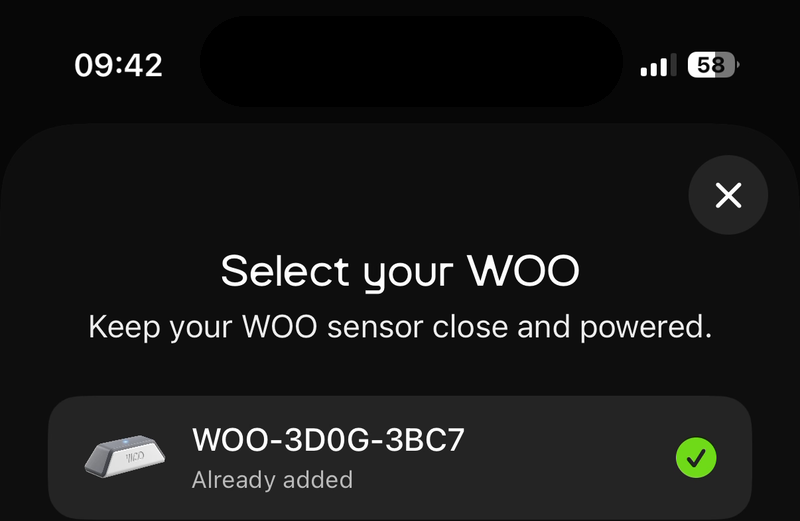
- Your WOO appears on My WOO with its battery level.
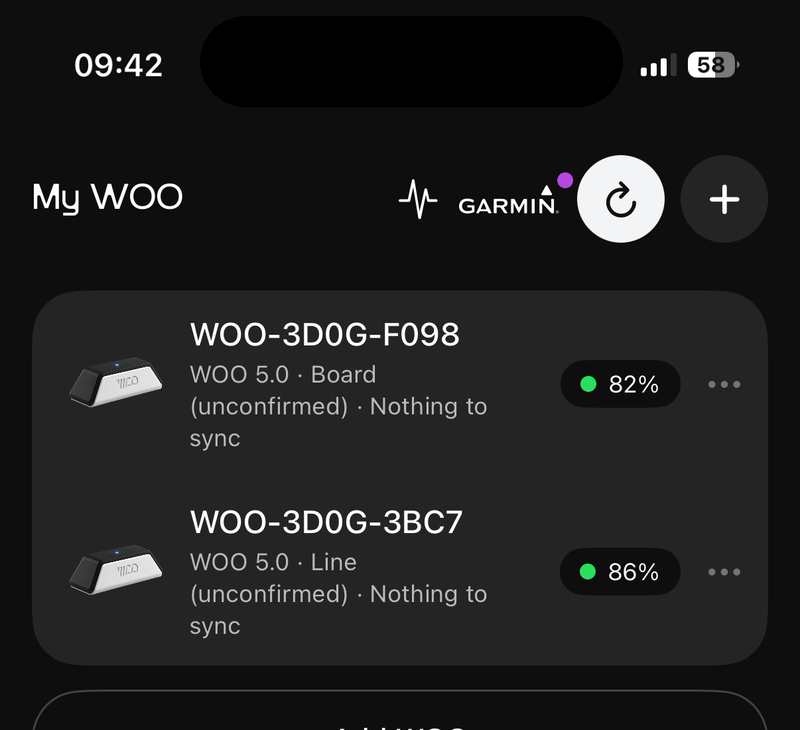
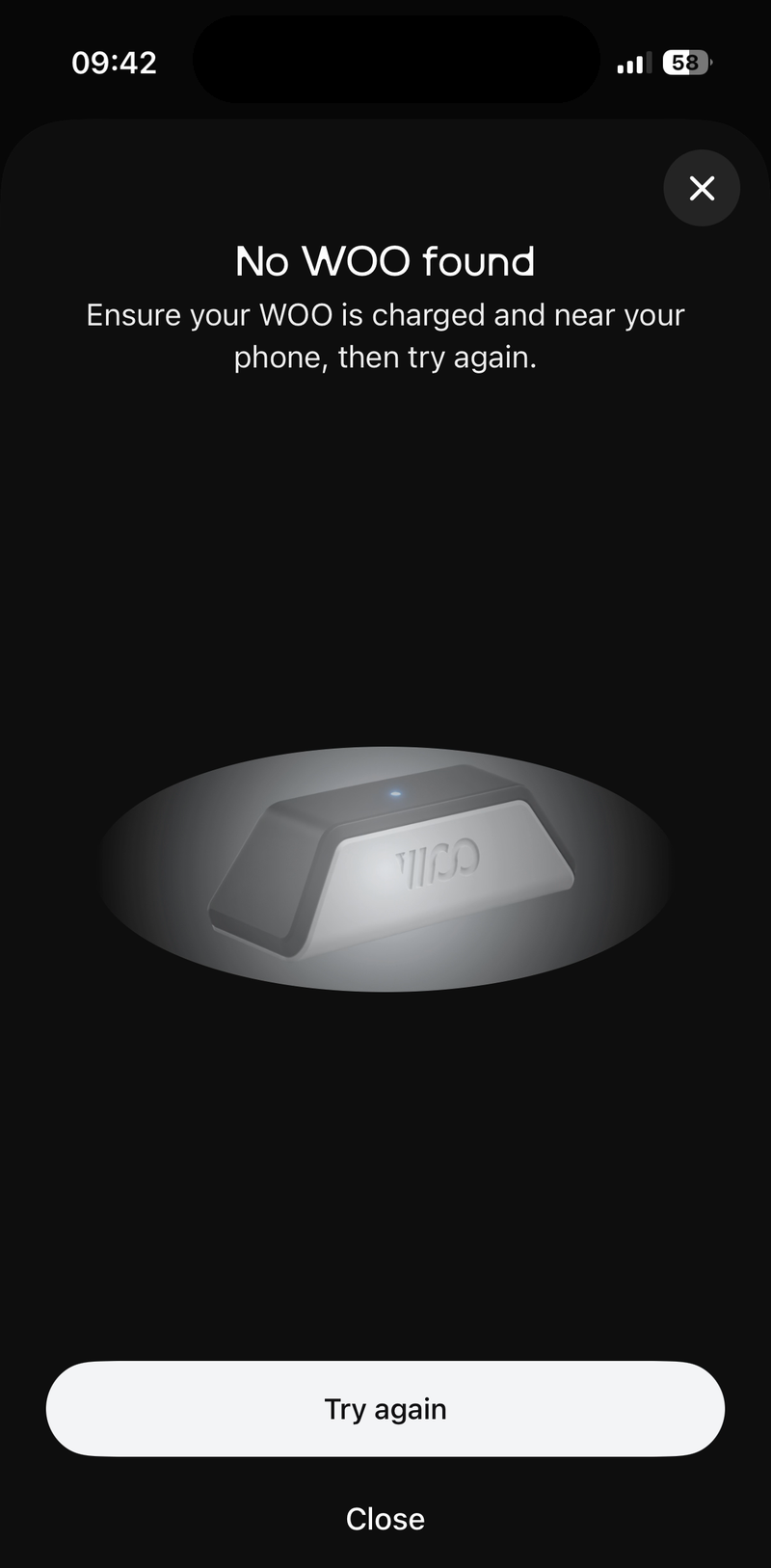
If you see No WOO found, make sure your WOO is charged, switched on and near your phone, then tap Try again.
Sync your session
Back on the beach, keep your WOO switched on and nearby. Open the app and tap My WOO. Your WOO connects and shows its battery level.
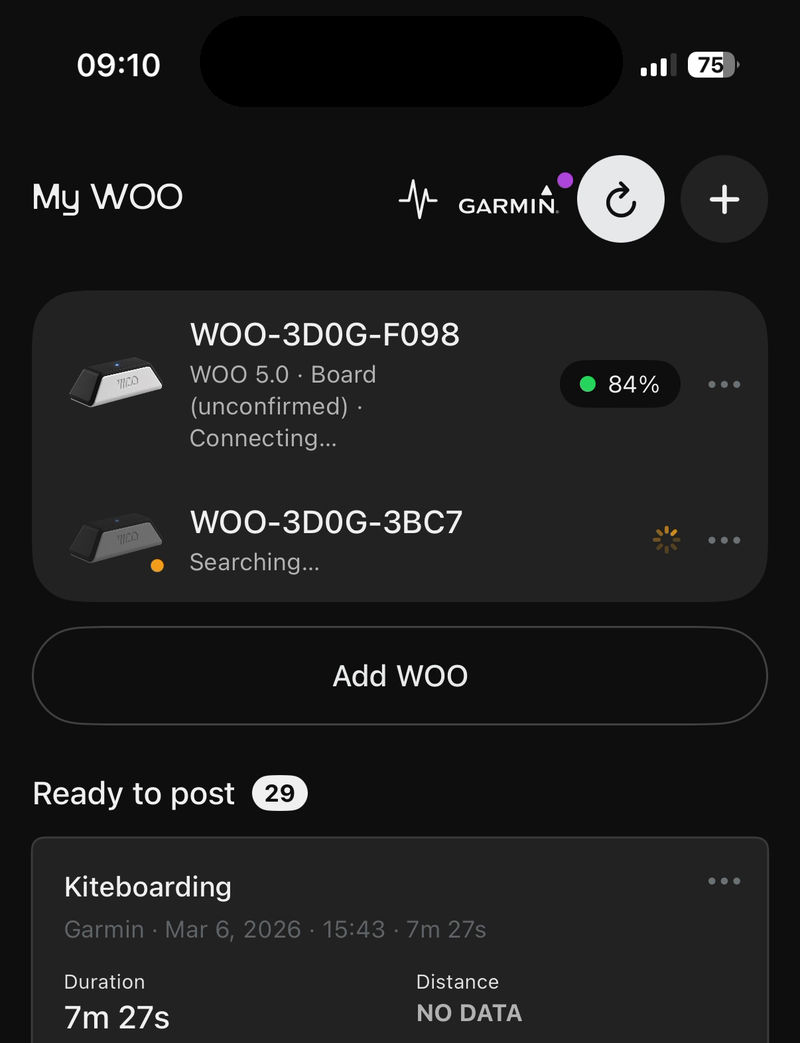
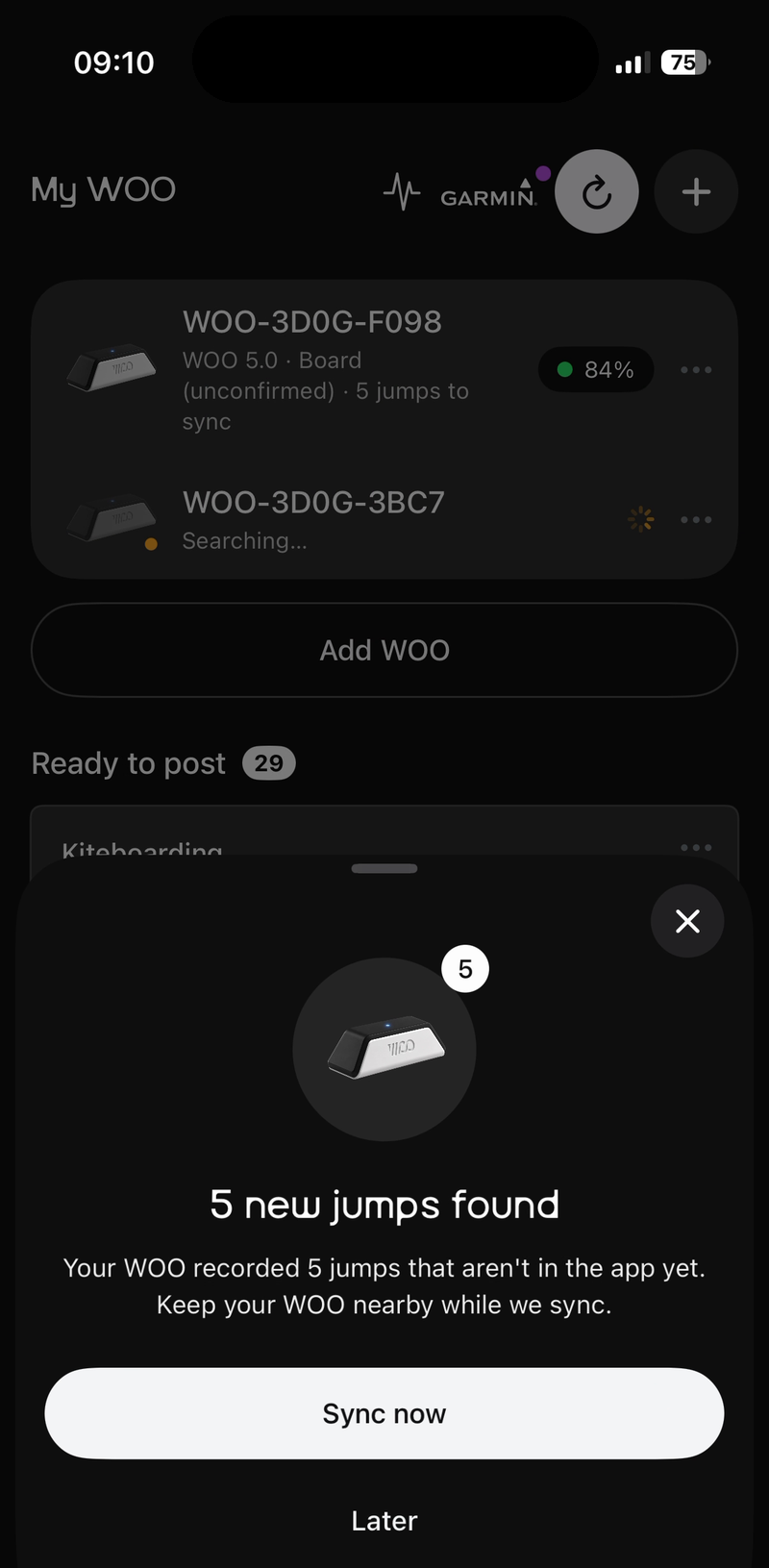
When your WOO has jumps the app doesn't have yet, you'll see new jumps found. Tap Sync now.
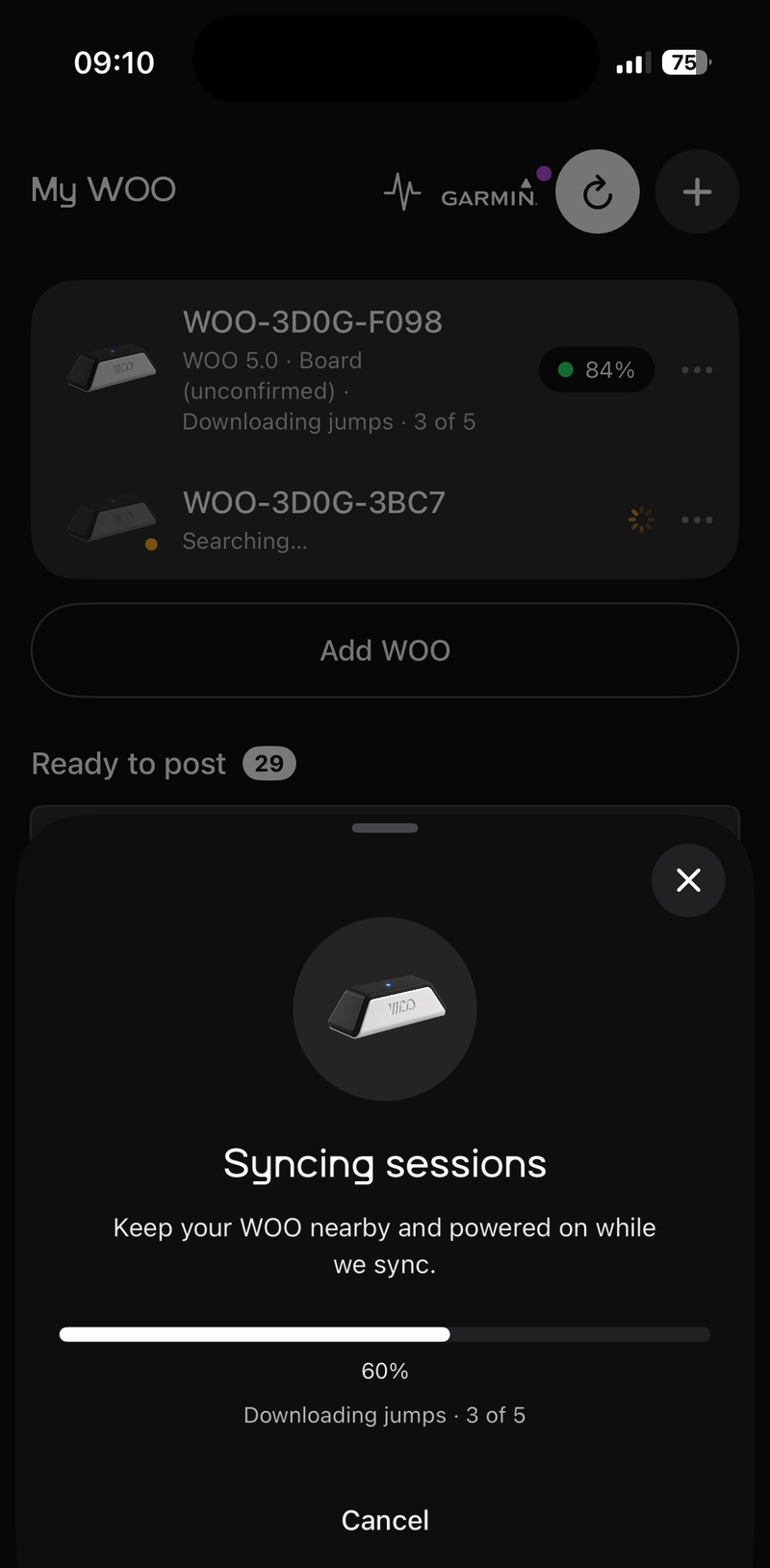
Keep your WOO close and switched on while it syncs.
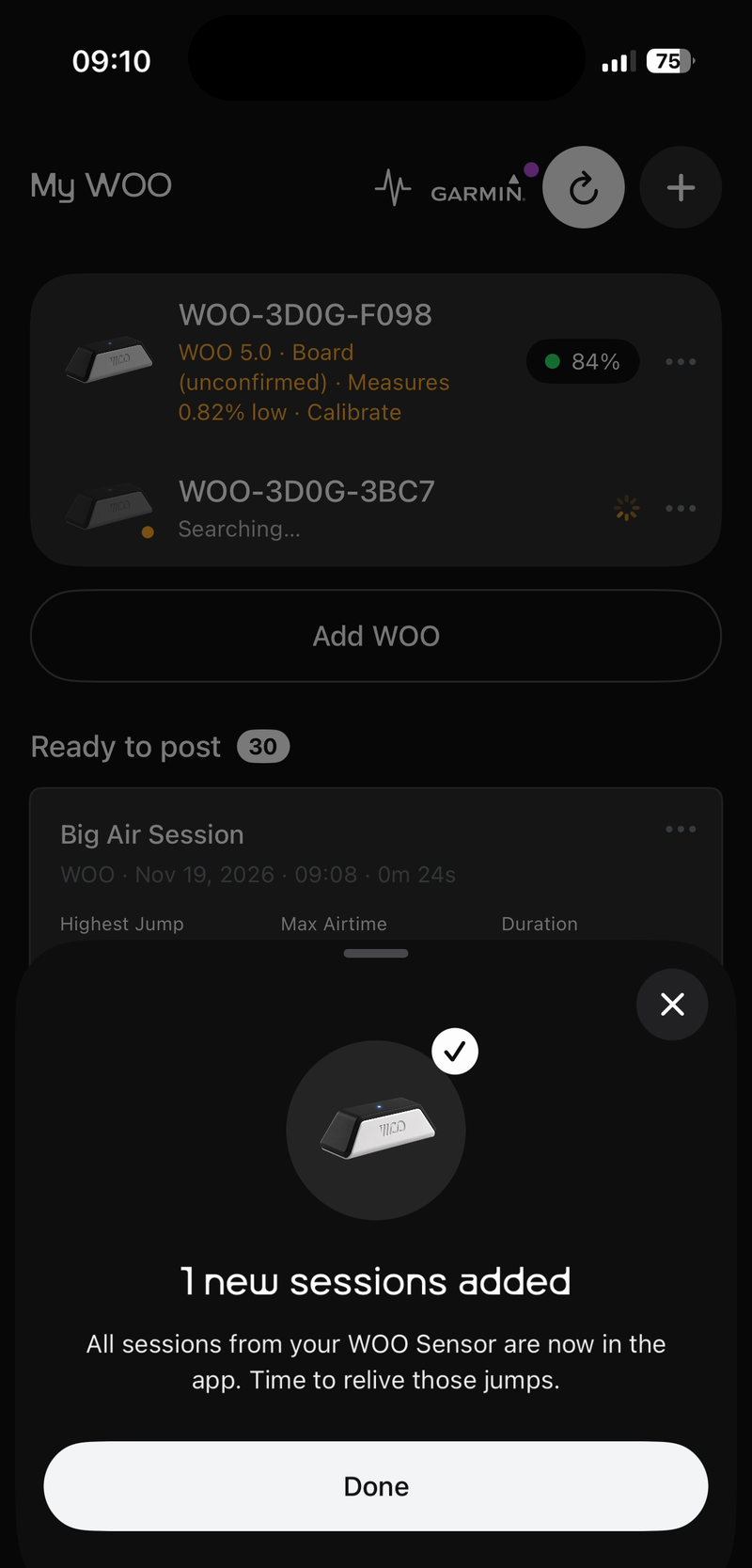
When you see new sessions added, tap Done.
Post your session
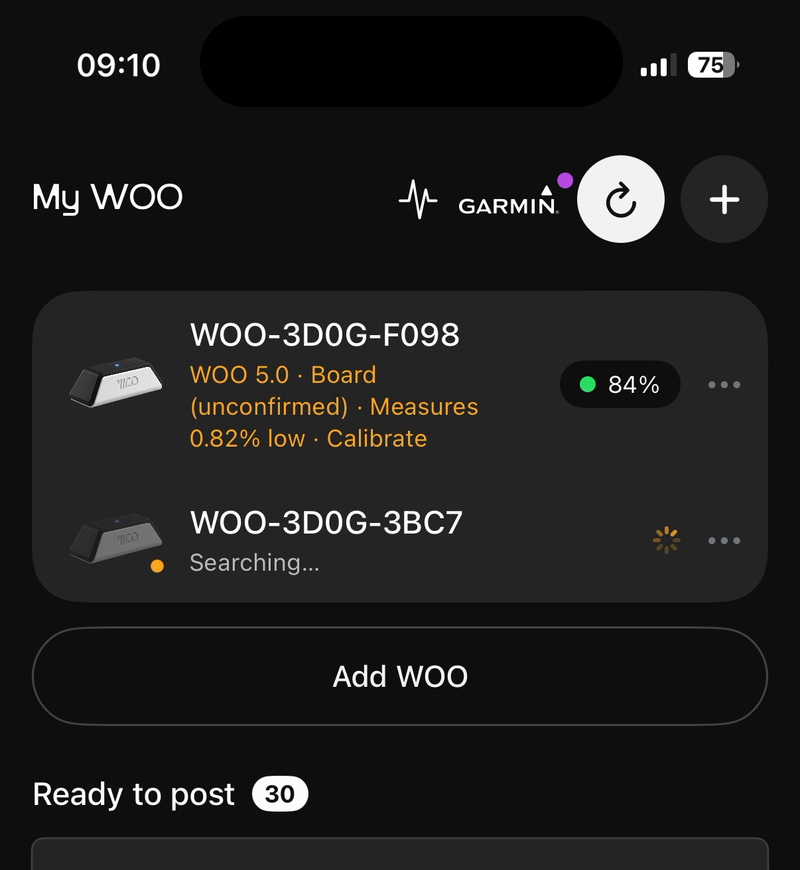
Your new session appears at the top of Ready to post on My WOO. Tap it.
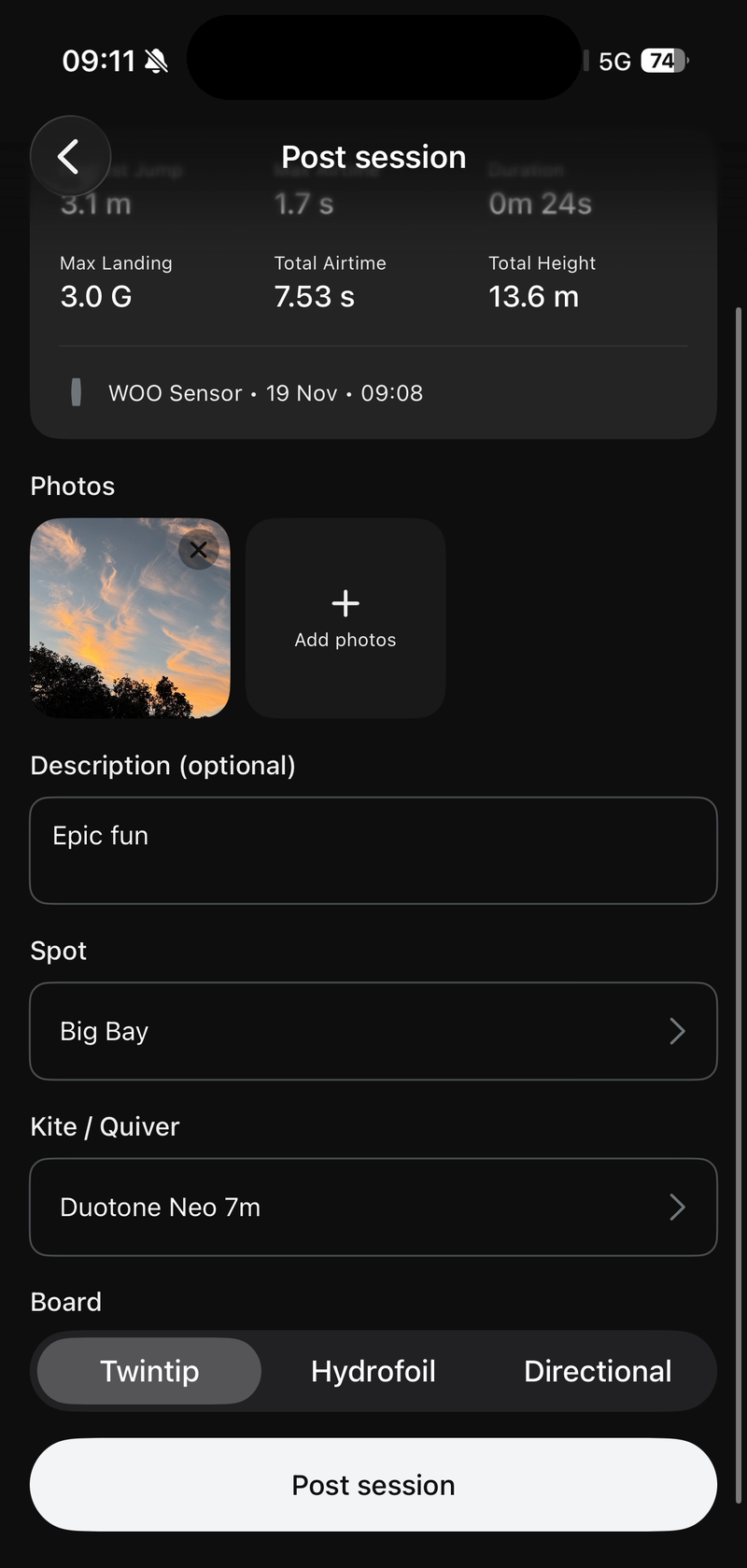
The Post session screen shows your highest jump, airtime and other stats. Add the details:
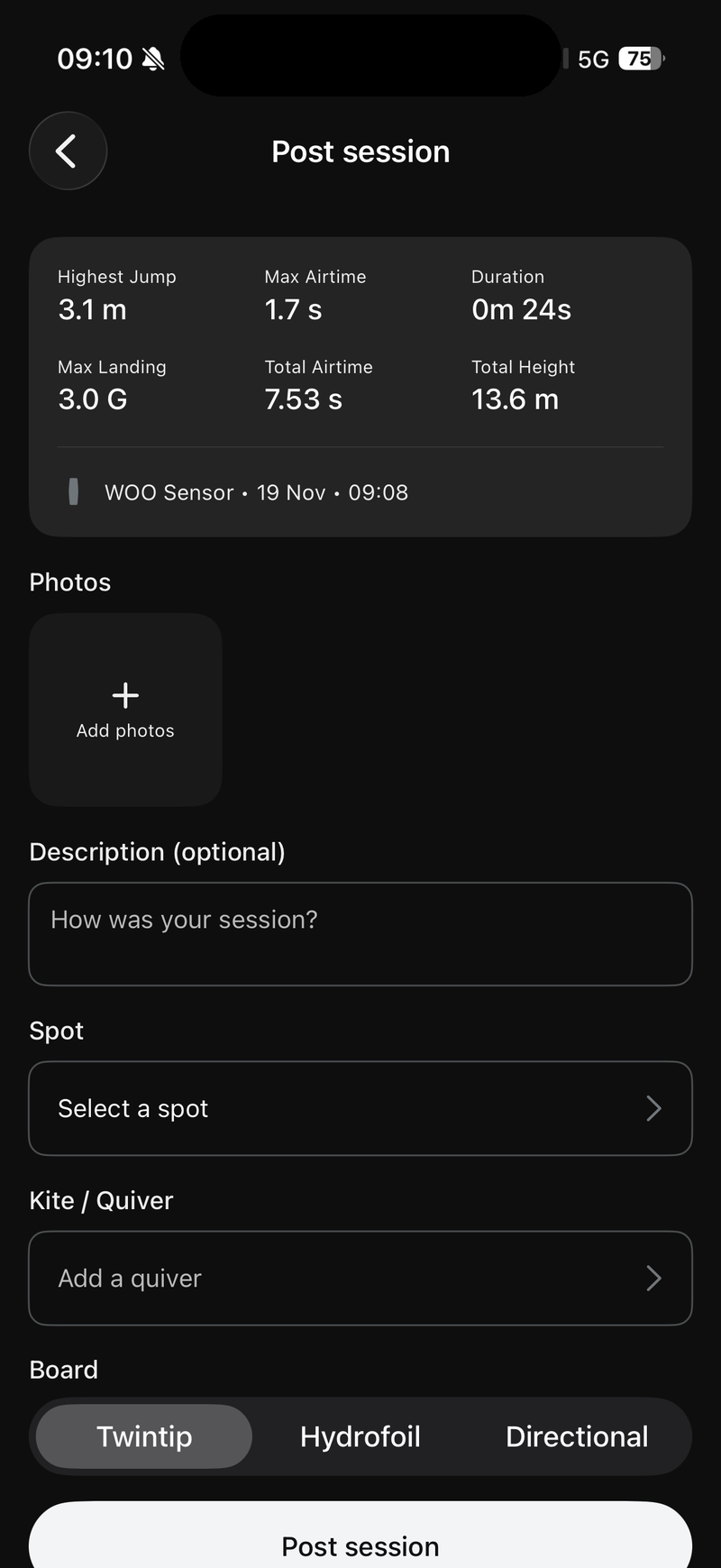
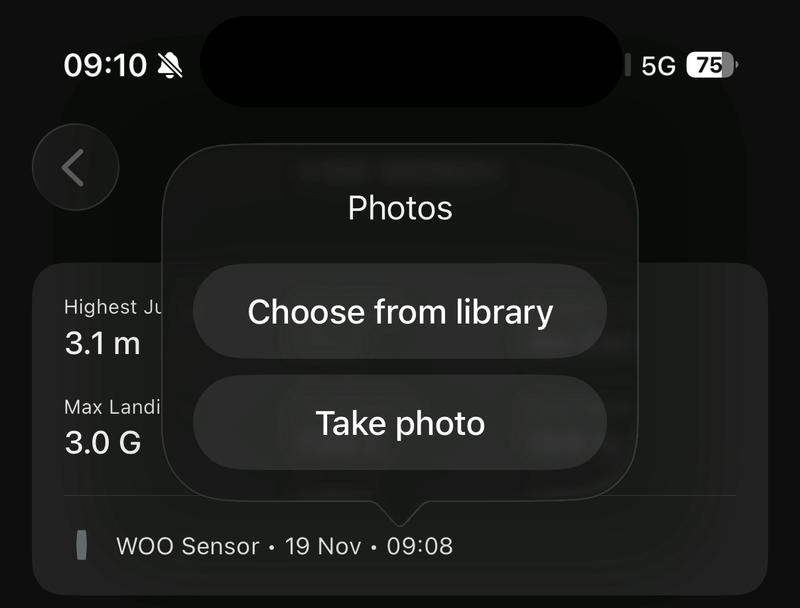
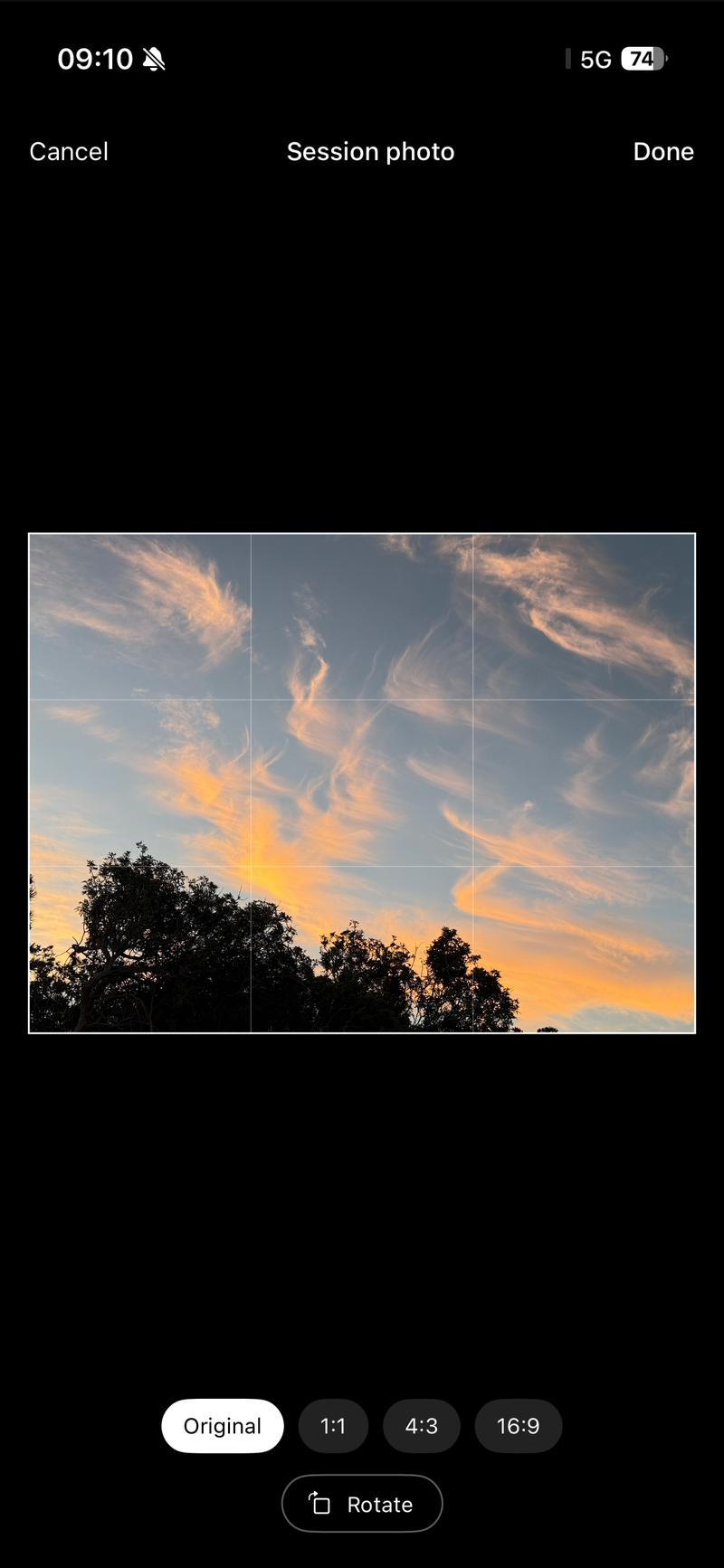
Photos: tap Add photos, then Choose from library or Take photo. Choose a crop and tap Done.
Description: optional. Write a few words about your session.
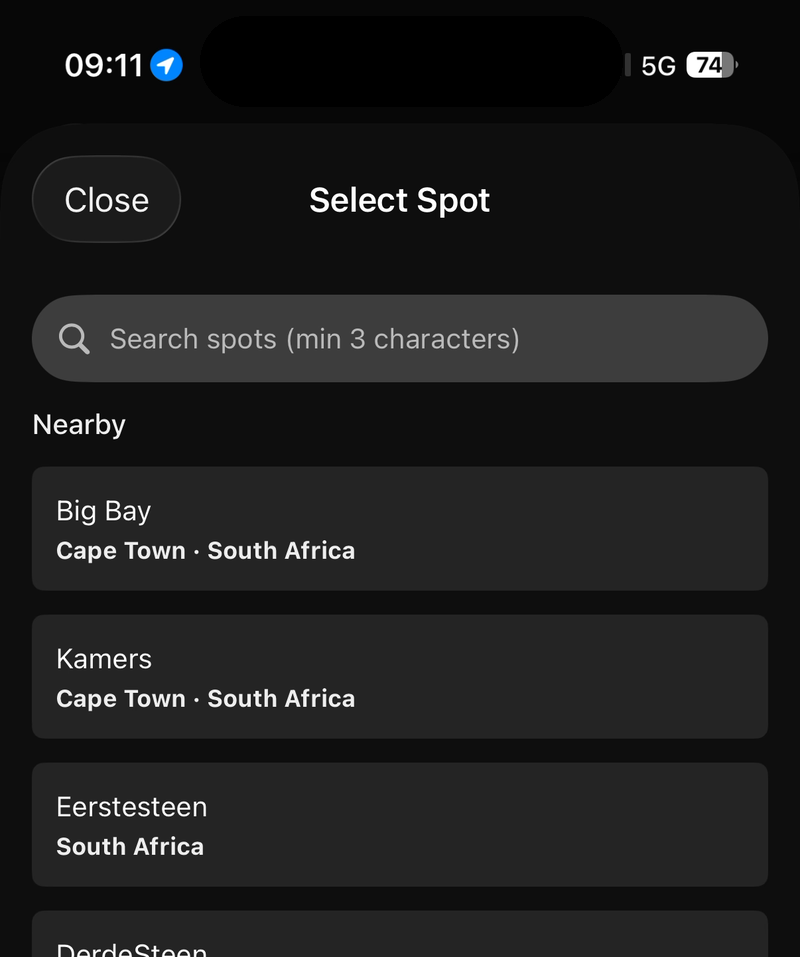
Spot: search for your spot (at least 3 characters) or tap one of the nearby spots.
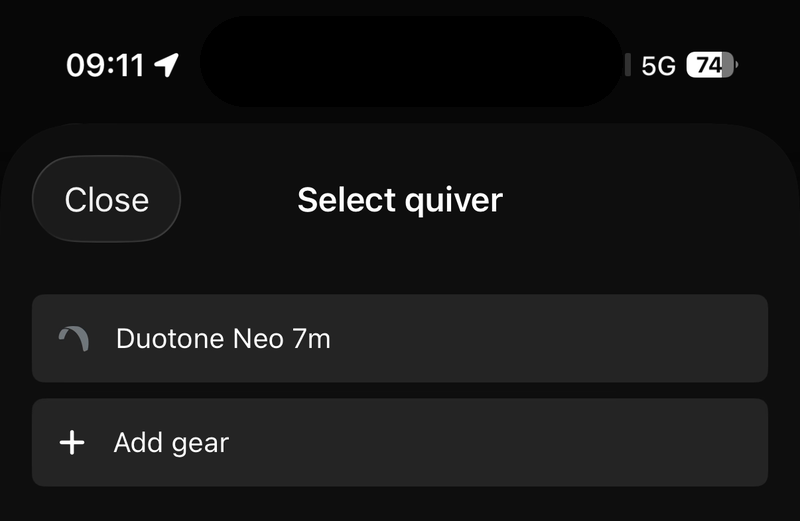
Kite / Quiver: tap the gear you rode. To add new gear, tap Add gear. See Add your quiver.
Board: tap Twintip, Hydrofoil or Directional.
Tap Post session.
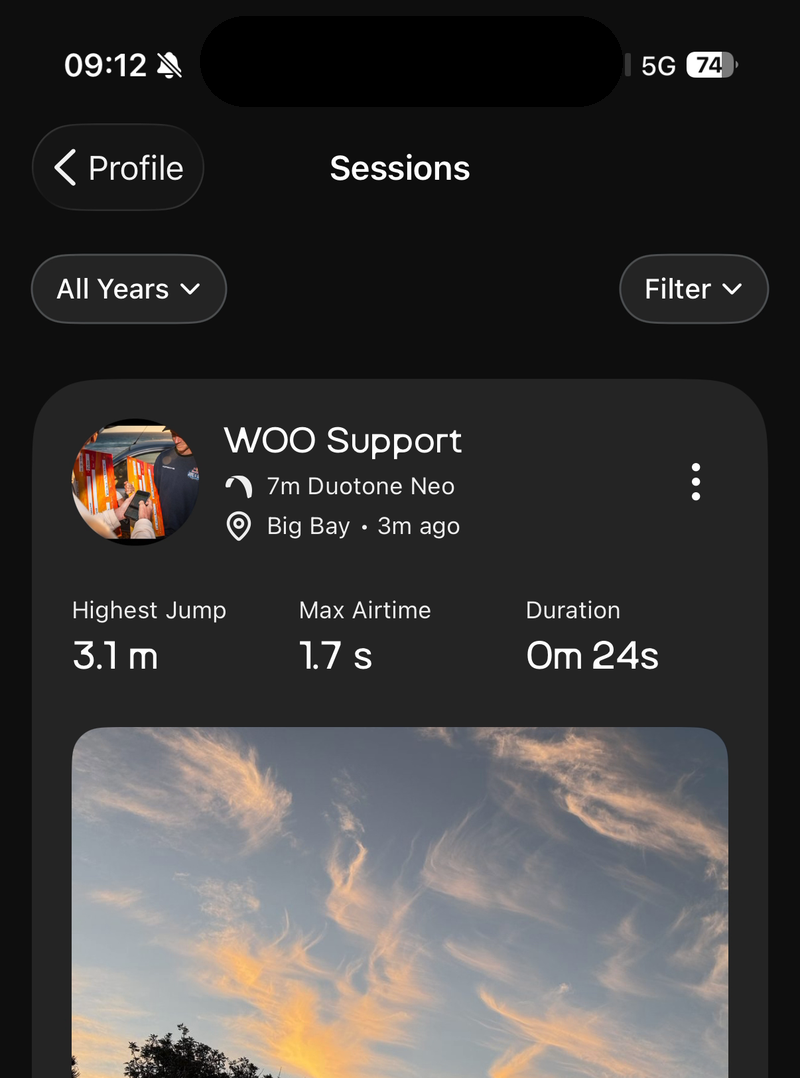
Your session uploads and appears in Profile under Sessions.
Delete a session
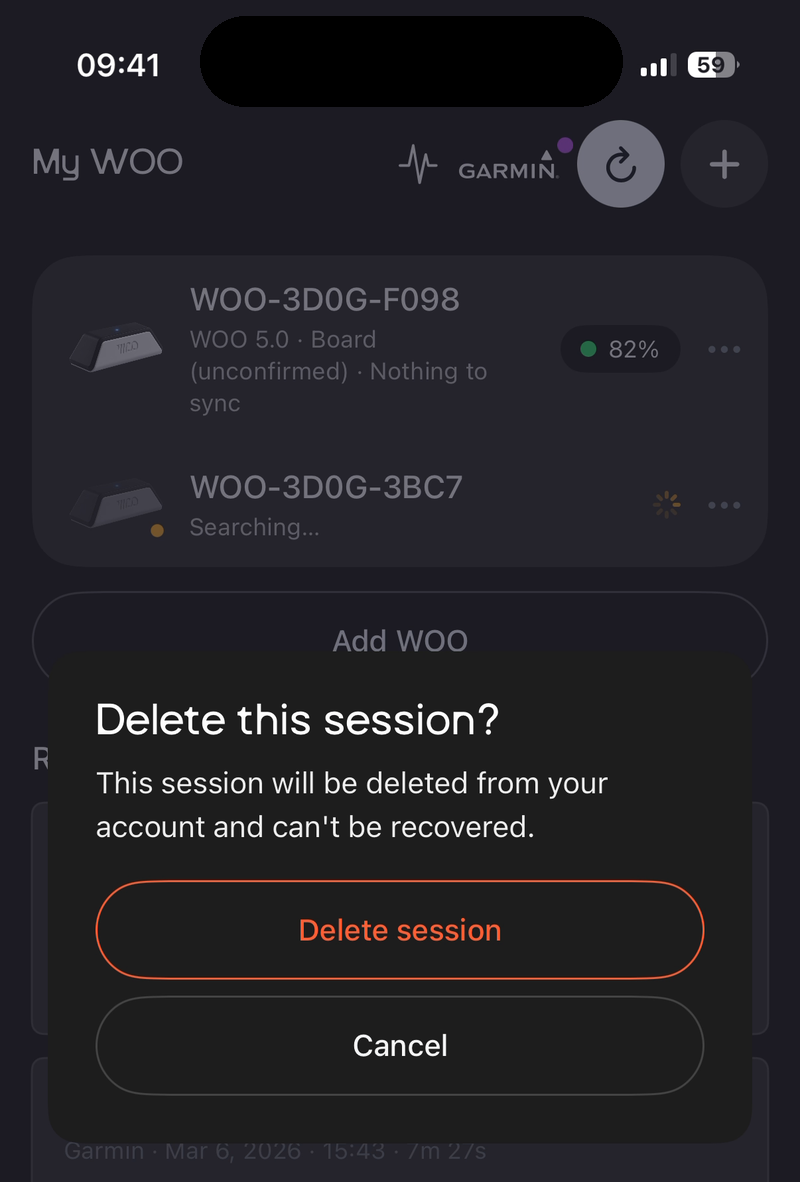
To remove a session you don't want to post, tap ••• on the session under Ready to post, then tap Delete session.
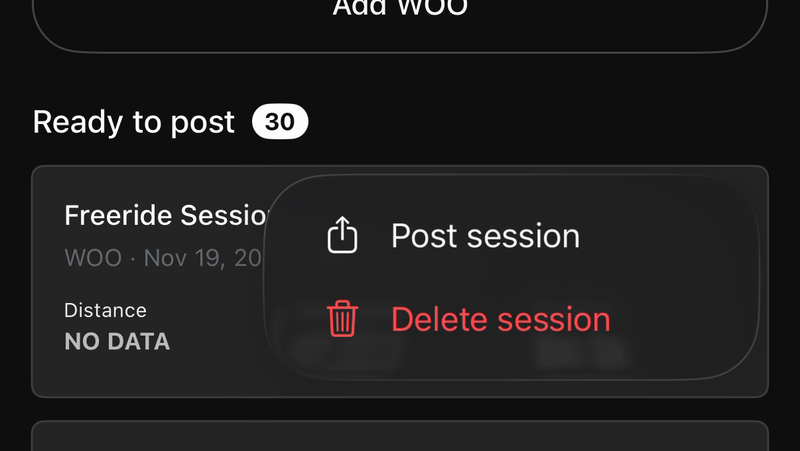
Tap Delete session again to confirm. A deleted session can't be recovered.
Calibrate your WOO
Calibrating helps your WOO measure your jumps accurately. When your WOO needs it, My WOO shows how far off it measures (for example "Measures 0.82% low") and a Calibrate link under your WOO's name.
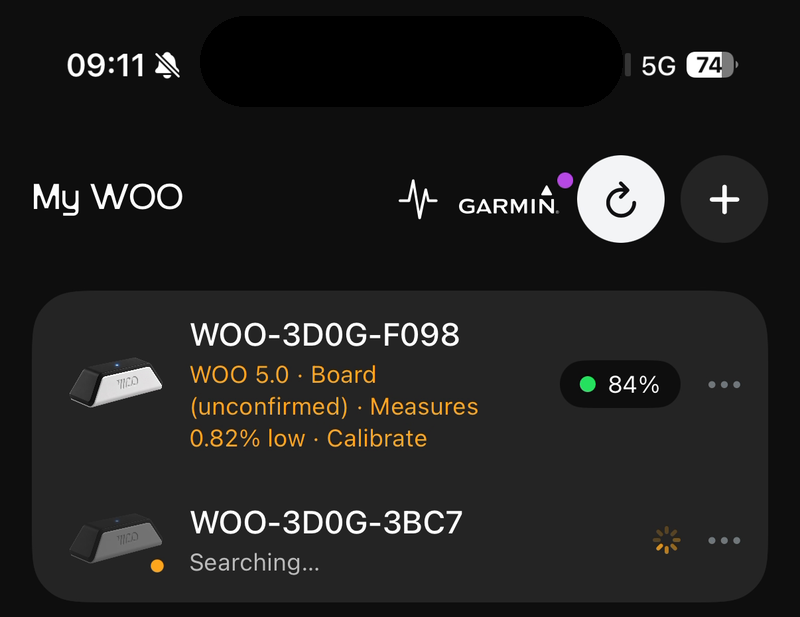
- Make sure your WOO is switched on, connected and not recording, then tap Calibrate.
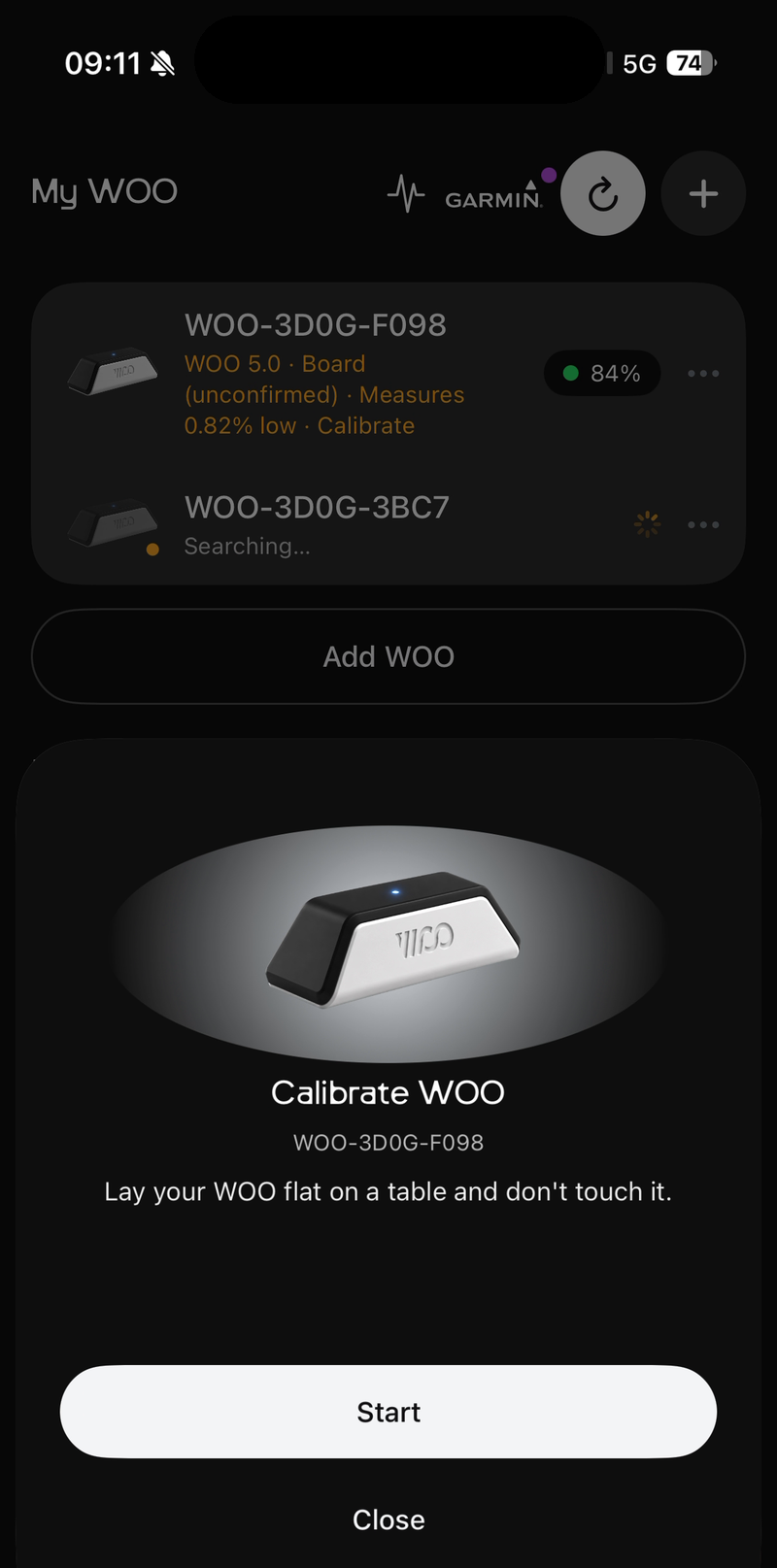
- Lay your WOO flat on a table and don't touch it. Tap Start.
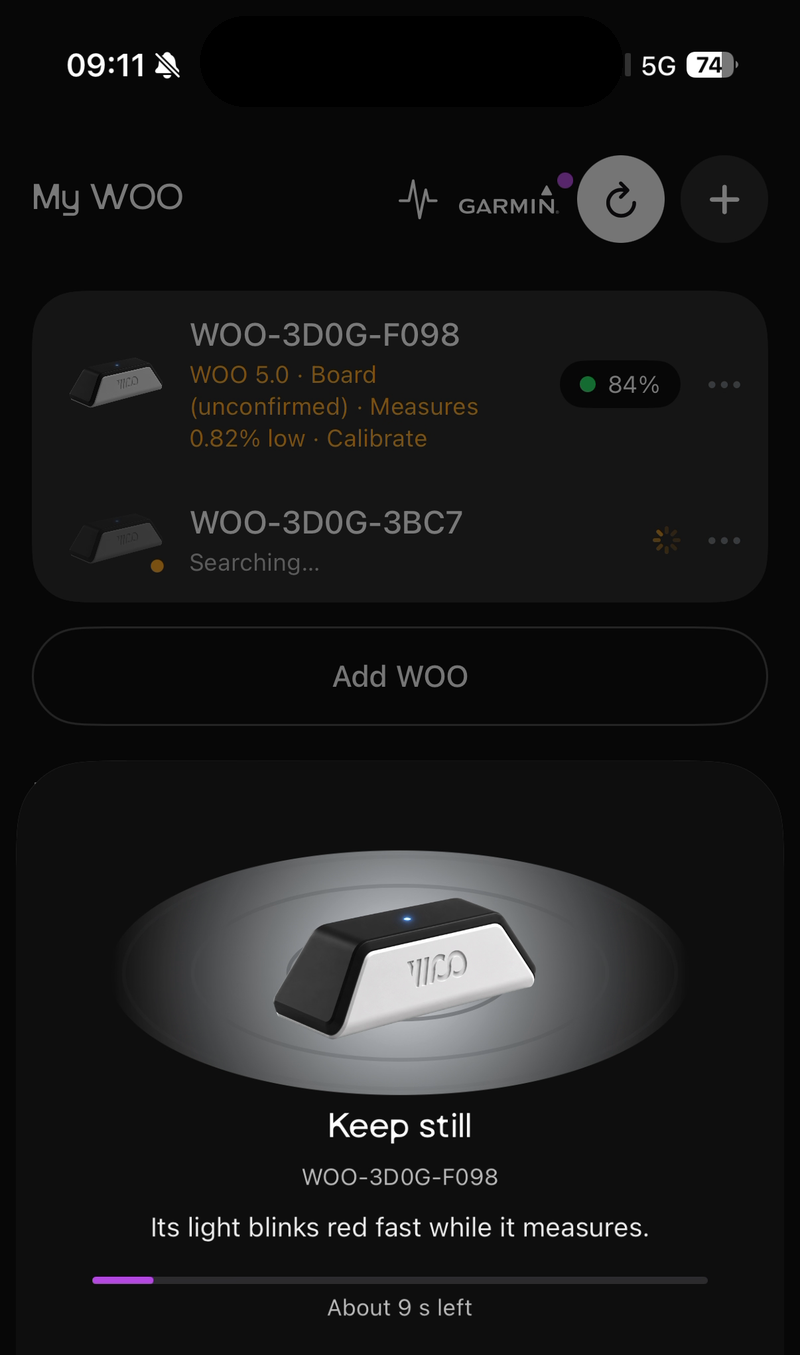
- Keep it still while it measures. Its light blinks red fast, and the app counts down for about 10 seconds.
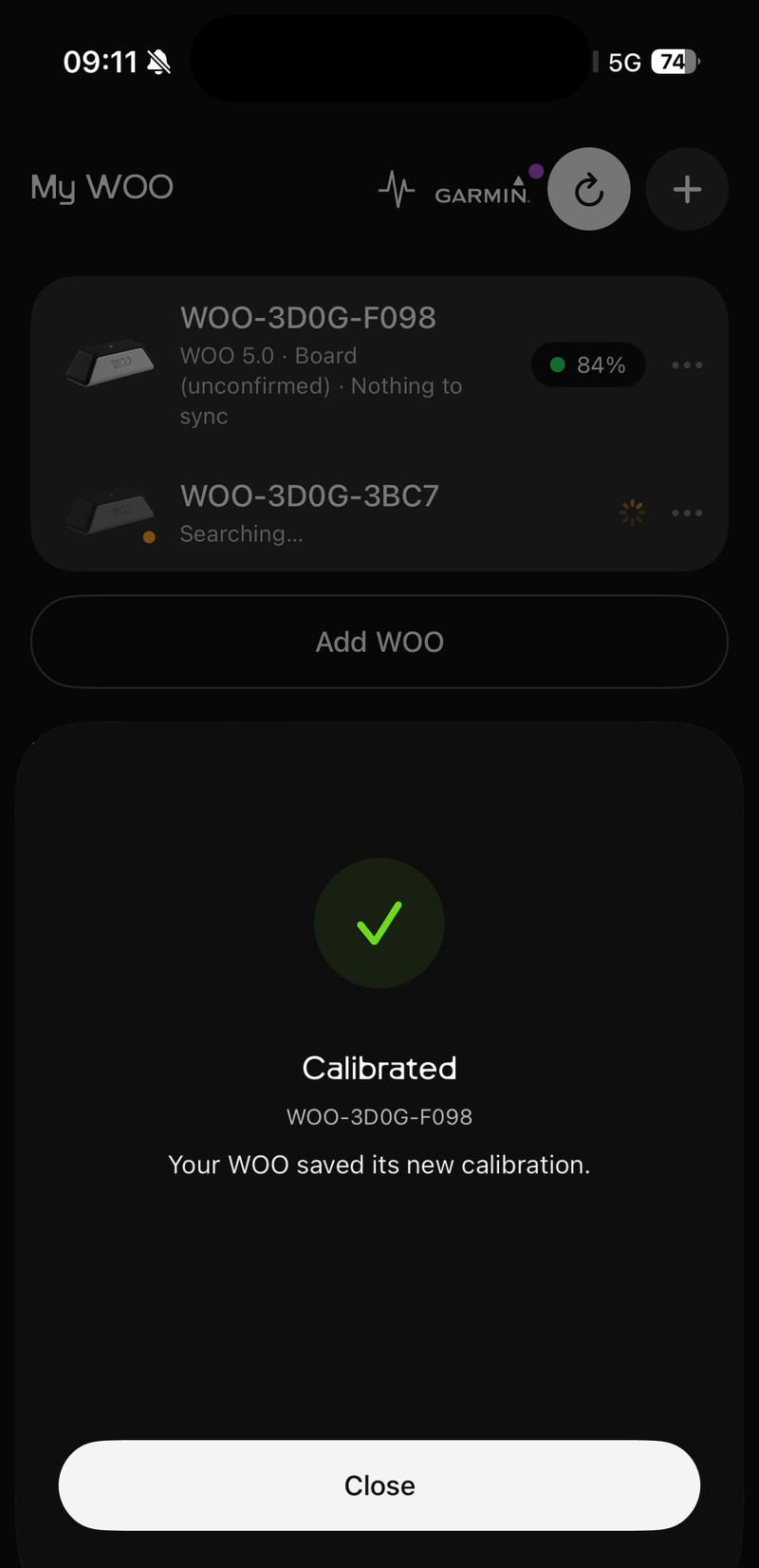
- When you see Calibrated, tap Close. Your WOO saves its new calibration.
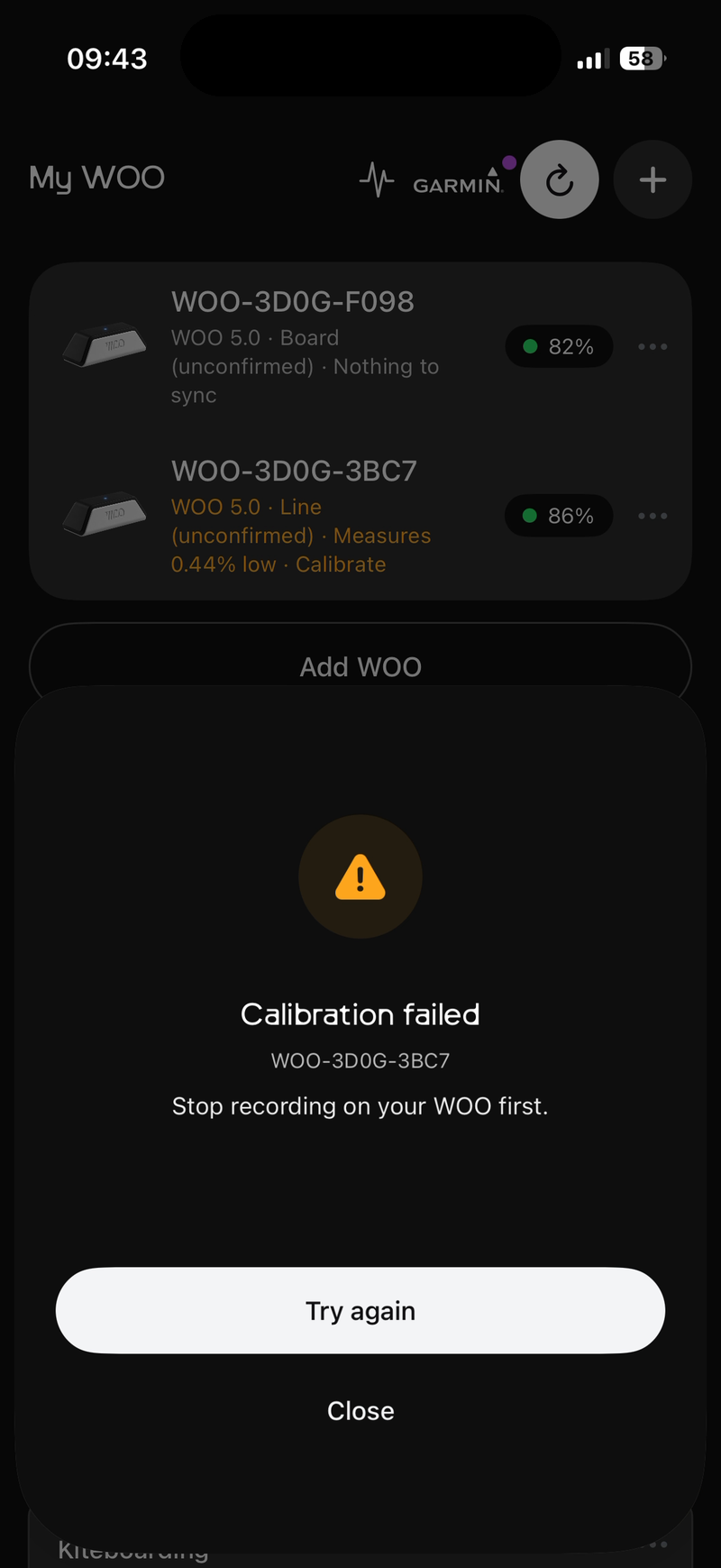
If you see Calibration failed: Stop recording on your WOO first, your WOO is still recording. Tap its button once to stop recording (the light goes back to blinking green), then tap Try again.
Updated about 12 hours ago